Before restoring the client, you can change the network configuration of the client such as IP address and default gateway.
Procedure
-
Use the 1-Touch Live CD to boot the client computer.
-
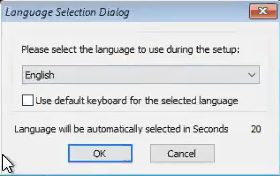
Optional: In the Language Selection Dialog dialog box, select a language from the list. To use the same language for the keyboard, click Use default keyboard for the selected language check box and click OK.
The 1-Touch Recovery Wizard appears.
-
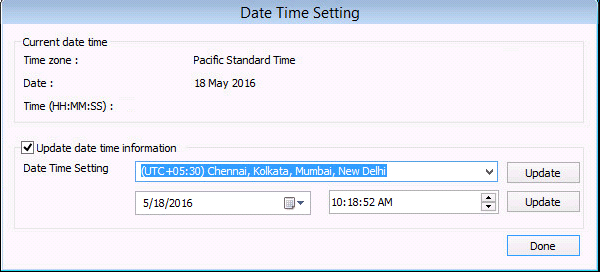
On the WinPE computer notification area, click on the clock and date settings. If you select a time from the Date Time Setting drop down list, click Update and then click Done.
-
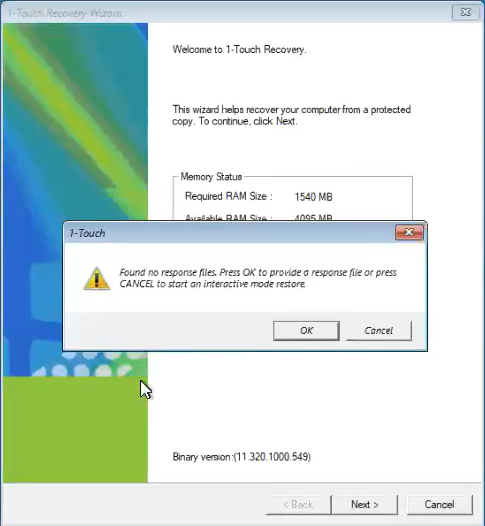
On the Welcome page, a warning message appears that says that the response files are not found. Click Cancel to start the interactive restore, and then click Next.
Make sure that you are installing the latest ISO updates by verifying the Binary version area for the latest service pack.
-
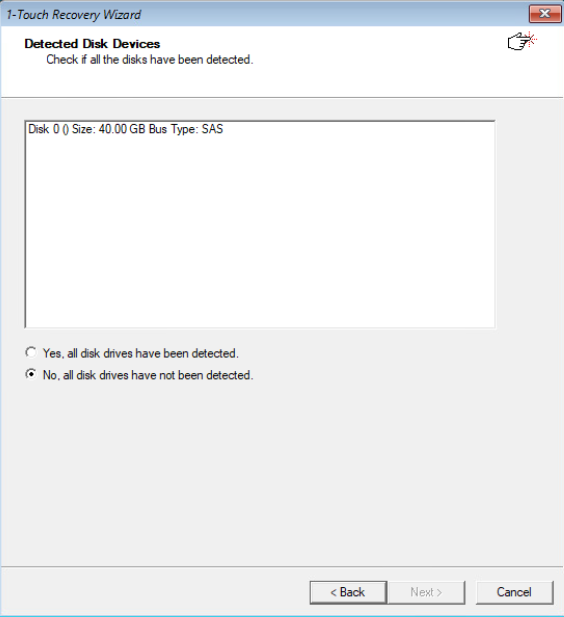
On the Detected Disk Devices page, do the following:
-
Click Yes, all disk drives have been detected.
If you do not see the required drivers, add the drivers to the downloaded ISO.
-
Click Next.
-
-
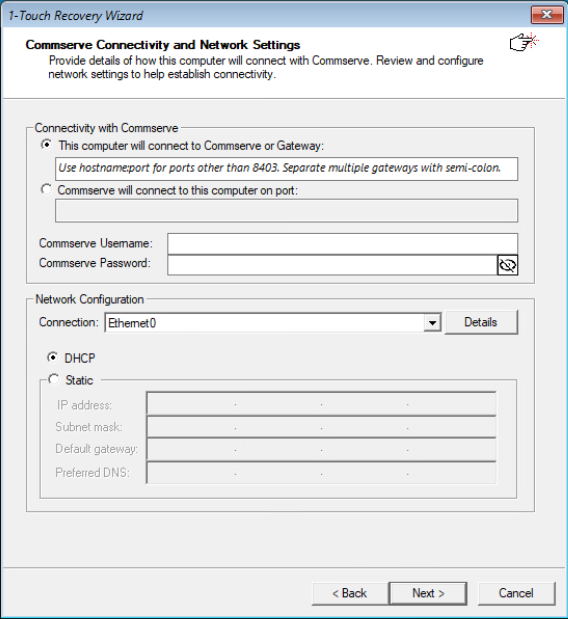
On the Commserve Connectivity and Network Settings page, make the following selections:
-
Select This computer will connect to Commserve or Gateway if your computer is configured to connect to CommServe directly or through a gateway.
-
Select Commserve will connect to this computer on port if your firewall rules allow CommServe to connect to your computer through a port.
-
Enter the CommServe Username and the CommServe Password.
-
From the Connection list, select the network connection.
-
-
Modify the IP address or any other network configuration details.
-
Select DHCP if you want to use DHCP instead of static IP address.
-
If you have selected the Static network configuration, then enter the IP address, Subnet mask, Default gateway, and Preferred DNS.
-
-
Click Next.
-
Perform the Interactive Restore. The client will be restored using modified network configuration.
Configuring WINS and DNS during an Interactive Restore
When the client computer and CommServe are in the same domain, DNS will be used for name resolution between client computer and CommServe.
WINS will be used for name resolution in the following scenarios:
-
CommServe and Client computer are in different networks.
-
CommServe is registered in a workgroup
Procedure
-
Use the 1-Touch Live CD to boot the client computer.
-
Optional: In the Language Selection Dialog dialog box, select a language from the list. To use the same language for the keyboard, click Use default keyboard for the selected language check box and click OK.
The 1-Touch Recovery Wizard appears.
-
On the WinPE computer notification area, click on the clock and date settings. If you select a time from the Date Time Setting drop down list, click Update and then click Done.
-
On the Welcome page, a warning message appears that says that the response files are not found. Click Cancel to start the interactive restore, and then click Next.
Make sure that you are installing the latest ISO updates by verifying the Binary version area for the latest service pack.
-
On the Detected Disk Devices page, do the following:
-
Click Yes, all disk drives have been detected.
If you do not see the required drivers, add the drivers to the downloaded ISO.
-
Click Next.
-
-
On the Commserve Connectivity and Network Settings page, make the required selections, and then click Next.
-
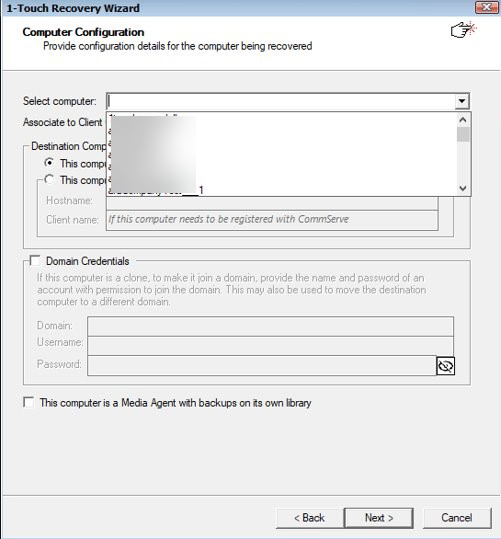
On the Computer Configuration page, make the required selections, and then click Next.
-
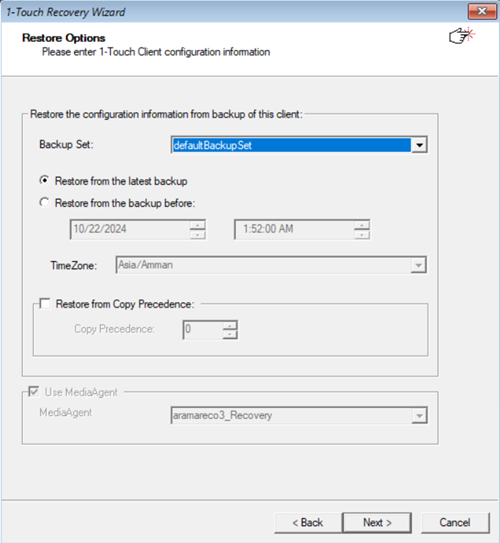
On the Restore Options page, review the restore options, and then click Next.
-
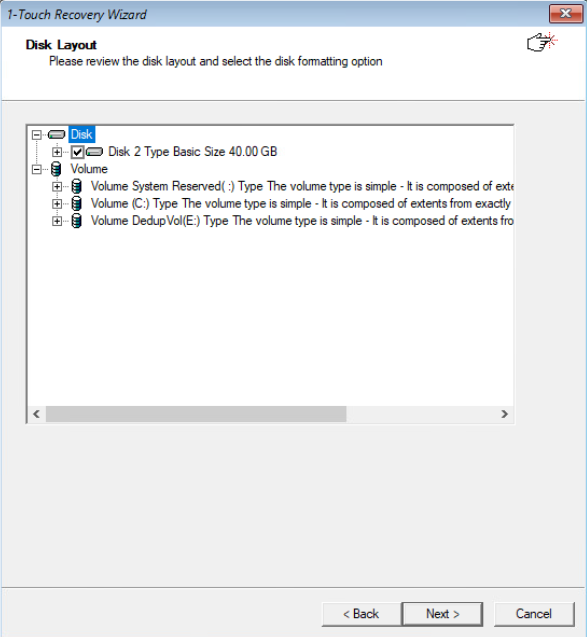
On the Excluded Folders for Restore page, click Next.
-
In the TCP/IPProperties dialog box, enter or modify the DNS and WINS server configurations, and then click OK.
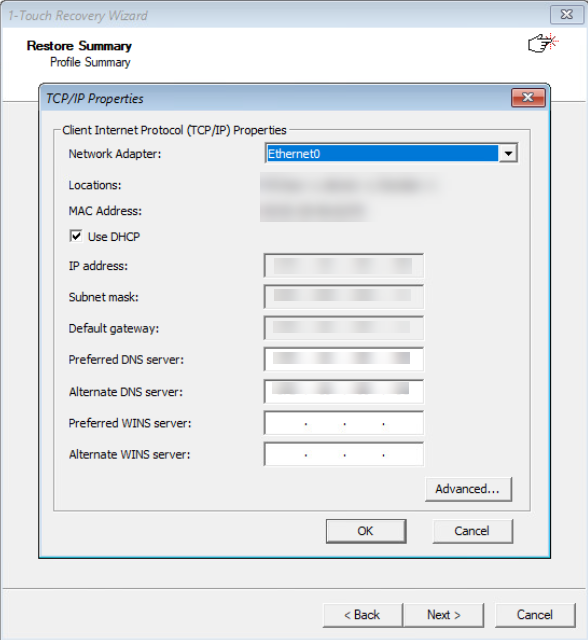
-
Perform the Interactive Restore. The specified WINS and DNS will be used for name resolution of the client.