Configuring backups for your file server protects your data from loss, corruption, or system failure.
To configure backups for a file server, follow these steps:
-
From the Command Center navigation pane, go to Service catalog.
-
In the Files tile, click Configure.
-
Enter a name for the server, and then click Add new server.
-
Enter the host name, credentials for a local admin or root user account, and other details about the file server.
-
Click Next.
-
Select an existing backup plan, or click the add button to create a new backup plan.
-
Click Next.
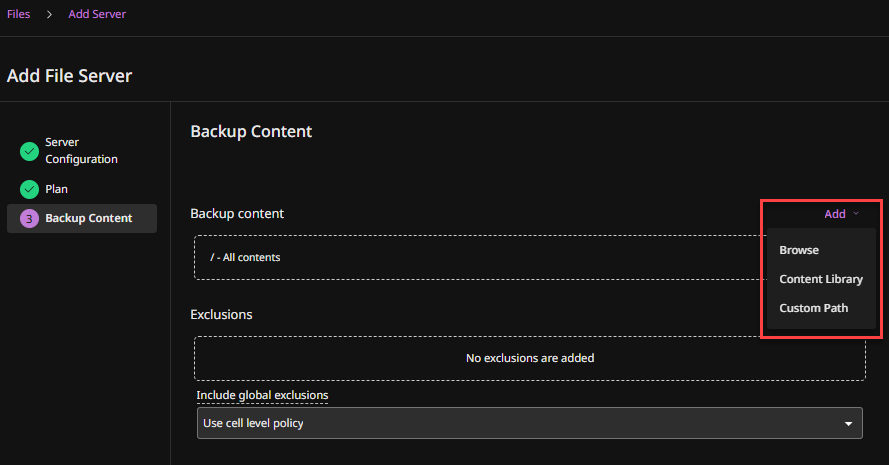
By default, all files are backed up.
Want to customize the files that are backed up?
Use these settings:
-
Backup content: The folders and files to back up.
-
Exclusions: The folders and files to exclude from backups.
-
Exceptions: Exceptions to the exclusions.
Options for the settings:
-
Content Library: Select common folders (such as Desktop) and files.
-
Custom Path: Enter specific filepaths.
-
-
Click Add.