You can disable data aging on resources.
Note
During the Arlie Recover automated recovery workflow, operators have the option to temporarily disable data aging (for example, for 90 days or a custom duration) to preserve backups for forensic analysis.
What it does: Prevents older recovery points from being aged out, ensuring they remain available for security investigations and recovery if needed.
When to use: Enable this option when you suspect or confirm a compromise and need to preserve historical recovery points for forensic analysis and clean recovery planning.
Outcome: Recovery points remain retained and protected from aging while you continue investigation, perform threat hunting, or plan recovery actions.
Procedure
-
From the Command Center navigation pane, go to Security services > Threat scan.
The Threat Scan page appears.
-
The Resources tab shows the resources that are currently scanned by Threat Scan.
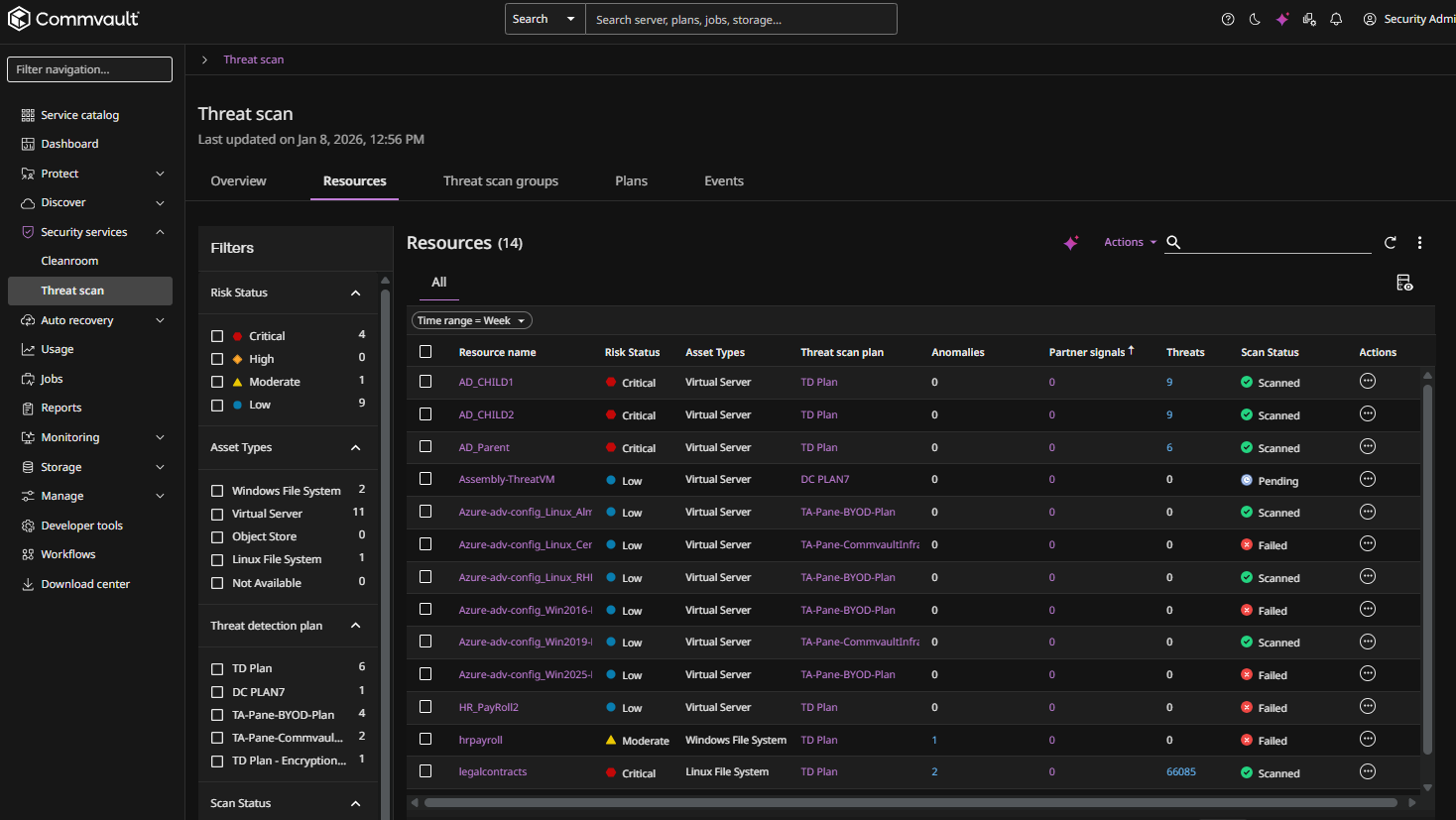
-
For the resource you want to disable data aging, click the Actions button
 , and then select Disable data aging.
The Disable data aging dialog box appears.
-
Click Submit.