You can modify settings for recovery groups, cleanroom sites, runbooks, and individual resources in a runbook.
For a cleanroom recovery group, you can disable data backups, restores, or aging.
Go to the recovery group
-
In the Command Center navigation pane, go to Secure > Cleanroom recovery.
-
On the Recovery groups tab, click the recovery group.
Disable data backups, restores, or aging
-
In the Activity control tile, disable any of the toggle keys:
-
Data backup
-
Data restore
-
Data aging
-
Go to the cleanroom site
-
In the Command Center navigation pane, go to Secure > Cleanroom recovery.
-
On the Cleanroom sites tab, click the cleanroom site.
-
In the upper-right area of the page, click Edit cleanroom site.
Modify the settings
-
Modify the settings as needed.
For information about the available settings, see the configuration instructions for your cleanroom site:
-
Click Save.
Go to the runbook
-
In the Command Center navigation pane, go to Secure > Cleanroom recovery.
-
On the Recovery groups tab, click the recovery group that contains the runbook.
-
Click the runbook.
Steps tab
-
Reorder steps: Add a priority step, or reorder steps.
-
Skip: To skip a step, expand the phase it's in, and then enable Skip.
-
Reset overridden options: When you modify a recovery option for a cleanroom site, you can apply that change to all resources in the associated runbook:
-
Reset static IP address settings: Resets static IP addresses on resources.
-
Reset repave options: Resets the Repave VM with new secure image setting on resources.
-
Configuration tab
Recovery options
-
Cleanroom site: To select a different cleanroom site, click the edit button, select a site, and then confirm the change.
-
Recovery point: To select a recovery point, click the edit button, and then select one of the following:
-
Latest: Use the most recent recovery point.
-
Point in time: Use a specific recovery point. A default time is selected. To change the time, click the calendar icon and select a date and time.
-
-
Storage copy type: To select a different storage copy type, click the edit button, and then select one of the following:
-
Auto: Let Commvault select a cloud or AGP copy.
-
Microsoft Azure Storage / Amazon S3: Select a cloud copy.
-
Air Gap Protect: Select an AGP copy.
Resource readiness, recovery backup time, and last full backup time reflect the selected storage copy type. A full backup copy must be available for the selected type. If no backup copy is available, the resource readiness displays a not ready status.
-
Access node auto-scaling (recommended in most cases)
By default, Commvault auto-scales access nodes for cleanroom operations. Auto-scaling allocates access nodes dynamically, based on demand, and then decommissions the access nodes when they're not needed.
If you want to configure custom auto-scaling for security reasons, disable default auto-scaling. When you disable default auto-scaling, the recovery group inherits access nodes from its cleanroom site's hypervisor and threat scan is also disabled because it requires auto-scaling.
For details about the resources that Commvault SaaS creates in your cleanroom recovery Azure subscription when you use default auto-scaling, see Resources automatically created in your Azure or Commvault subscription for cleanroom recovery.
Security
You can associate users or groups with roles to determine which actions users can perform. You can also assign users or groups as owners that have management permissions for the resources in a runbook.
You can use predefined roles, modify predefined roles, and create new roles.
-
Associations: Associations between users and user groups with security roles.
-
Owners: Users and user groups who can access the runbook.
-
Permissions: Permissions (such as add, edit, or delete) that owners have.
Important
Users and associations that are created before recovery are disabled in your recovered control plane. After the control plane is recovered, you can't create additional users.
Customization and validation options
For information about customization and validation settings, see the runbook creation instructions for your cleanroom environment:
Cleanup options
For information about cleanup, see Clean up recovered resources for a cloud-based cleanroom site.
Jobs tab
The Jobs tab lists the jobs that are associated with the runbook.
Go to the runbook that contains the resource
-
In the Command Center navigation pane, go to Secure > Cleanroom recovery.
-
On the Recovery groups tab, click the recovery group that contains the runbook.
-
On the Runbooks tab, click the runbook.
Reset overridden recovery options for all resources
When you modify a recovery option for a cleanroom site, you can apply that change to all resources in the associated runbook.
-
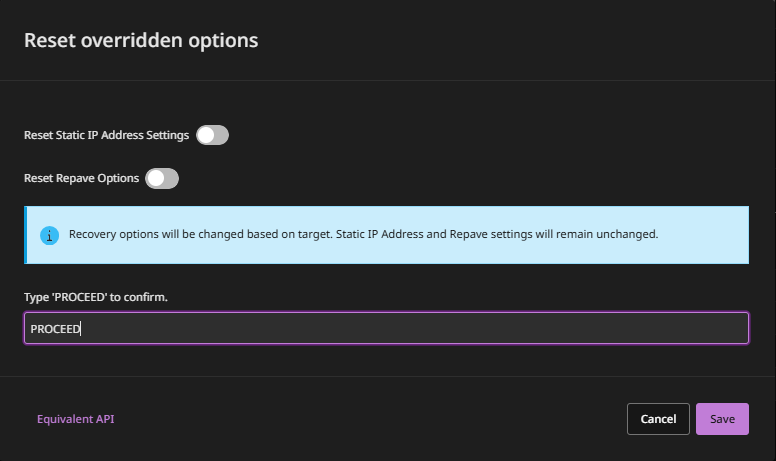
On the Steps tab, click Reset overridden options.
A confirmation message appears.
-
To reset the following, enable the toggle keys:
-
Reset static IP address settings: Resets static IP addresses on resources.
-
Reset repave options: Resets the Repave VM with new secure image setting on resources.
-
-
Confirm the change, and then click Save.
Go to the resource
-
Expand the runbook phase that contains the resource.
-
In the row for the resource, click the action button
 .
.
Override inherited recovery options
You can override the recovery options that a resource inherits from its recovery group.
AWS cleanroom site
-
Select Override recovery options.
-
Modify the recovery options as needed.
For information about the recovery settings, see Configure an AWS cleanroom site.
The following behavior applies when you override settings for an individual resource:
-
For Instance type, the Automatic option attempts to recover the instance as the same EC2 instance type as the source.
-
For Network, you can select an existing ENI or create a new ENI. When you create a new ENI, you can specify an IP address.
-
For Security groups, you can select Auto-assign to have the software attempt to assign the same security group from the source EC2 instance, or select Custom to select a security group from the AWS account you're recovering to.
-
For Volume type, the options are limited to those supported for the volume size. Volume types that aren't supported are visible but unavailable. To view the minimum and maximum volume sizes for an unavailable volume type, hover over the volume type.
-
For KMS key, select an encryption key or option:
-
Auto: This option is available for recovery to a different AWS Region.
If the identity that performs the recovery has the ec2:GetEbsDefaultKmsKeyId action, then the default KMS key for EBS encryption will have "Default EBS Key" tag. The ec2:GetEbsDefaultKmsKeyId action is included in amazon_restricted_role_permissions.json.
-
No encryption: This option is not recommended. The AWS Well-Architected Framework (SEC08-BP02) recommends enforcing encryption at rest for sensitive data.
Important
Commvault recommends enabling default encryption of EBS volumes in each AWS account that creates EBS volumes. For information, see Enable encryption by default.
The following key types are supported:
-
AWS managed keys
-
AWS owned keys
-
Customer managed keys, including multi-region keys
-
-
-
To rebuild the VMs with a secure image, follow these steps:
-
Enable the Repave VM with new secure image toggle key.
-
From the AMI selection list, select the OS image to create the new EC2 instances from.
-
From the Key pair list, select the Amazon EC2 key pair to access the recovered EC2 instances.
-
To attach the OS disk and data disk to the new VM during recovery, clear the Skip attaching OS disk check box.
If you leave this setting selected, the OS disk will not be attached to the new VM. Only the data disk will be attached.
-
-
Click Save.
Azure cleanroom site
-
Select Override recovery options.
-
Modify the recovery options as needed.
For information about the recovery settings, see Configure an Azure cleanroom site.
The following behavior applies when you override settings for an individual resource:
-
The Region must align with the region containing Air Gap Protect storage. Otherwise, recovery fails.
-
For Storage Account, only Standard general-purpose v2 or Premium general-purpose storage accounts associated with the selected region are available.
-
For VM size, only VM sizes available for the selected resource group are available.
-
For Availability zone, only AZs in the selected region are available.
If you select Auto and the feature is supported for the specified region and VM size, Commvault attempts to recover the resource to the same availability zone as the source. Otherwise, the resource is recovered without a zone (No Zone).
-
For Disk type, the available options are Original, Standard HDD, Standard SSD, and Premium SSD.
Consider the following:
-
When the Disk Type for the cleanroom site is set to Auto select, the disk type for an Azure resource recovered to an Azure cleanroom site is the same as the source. For other resource types, such as VMware vSphere, the disk type is Standard HDD.
-
When the Disk Type for the cleanroom site is set to Premium SSD, but Disk Type in Override recovery options is set to Original, the disk type for an Azure resource recovered to an Azure cleanroom site is the same as the source.
-
When the Disk Type for the cleanroom site is set to Auto select and Disk Type in Override recovery options is set to Original, the disk type depends on whether the selected VM size supports Premium SSD. If it doesn't, the disk type is Standard HDD. If it does, the disk type is the same as the source.
-
-
Under Network settings:
-
You can specify any subnet in the same region as the selected resource group.
-
If you don't select a VNet, the first VNet in the list and the first default subnet are attached to the resource.
-
Static IP addresses from a source are not applied to the resource.
-
To create a public IP, enable Create/assign public IP, and then select Dynamic or Static for Public IP type.
If a public IP address isn't required, don't enable Create/assign public IP. By default, a public IP address is assigned to recovered Azure VMs.
-
From Preferred private IP type, you can select a custom or dynamic IP.
-
-
-
From the Security group list, select a network security group.
-
To rebuild the recovered VM with a secure image, follow these steps:
-
Enable the Repave VM with new secure image toggle key.
-
From the Image option list, select the image to create the VM from.
-
Enter the credentials for the recovered VM.
-
If you don't want to attach the OS disk to the recovered VM, select Skip attaching OS disk.
If this setting is unselected, the OS disk is attached to the recovered VM as a data disk.
-
-
Click Save.
Configure post-recovery actions
-
Custom scripts: Scripts that validate recovered VMs.
You can upload a file or enter a UNC path and credentials to access the path.
-
Windows PowerShell: Enter as
[file].ps1. -
Linux shell: Enter as
\\[path]\[file].sh.
If you have multiple scripts, to change the order they run in, click Reorder, and then drag and drop the scripts.
-
Edit the recovery point
You can modify the recovery point for a resource. By default, resources inherit the recovery point of the recovery group.
For resources that include databases or applications, the recovery point determines the point in time that's used to recover application data.
-
Disable the Use group recovery point toggle key.
-
Select a recovery point:
-
Latest: Use the most recent recovery point.
-
Point in time: Use a specific recovery point. A default time is selected. To change the time, click the calendar icon and select a date and time.
-
Change priority
You can modify the recovery priority of the resource. Priority specifies the order that resources are recovered in, with 1 being the highest priority.
Delete the resource
- In the row for the resource, click the action button , and then select Delete.
Mark as failed
If a resource is recovered in an unusable state, you can mark the resource as failed. For example, if a VM doesn't boot after recovery, you can mark the VM as failed, fix the problem that caused the failure, and then retry recovery.
Edit runbook template: Select a different runbook for an Active Directory resource
You can select a different forest recovery runbook for an Active Directory resource.
VM guest credentials
Enter guest credentials so that scripts can run on recovered VMs.