You can restore the detected threat content to a cleanroom environment or out-of-place destination to support incident response, validation, and deeper threat analysis without reintroducing risk to production data.
Forensic recovery restores the most recent recovery point with all detected threat content including malware, encryption, and anomalies, enabling security teams to conduct thorough investigation and forensics.
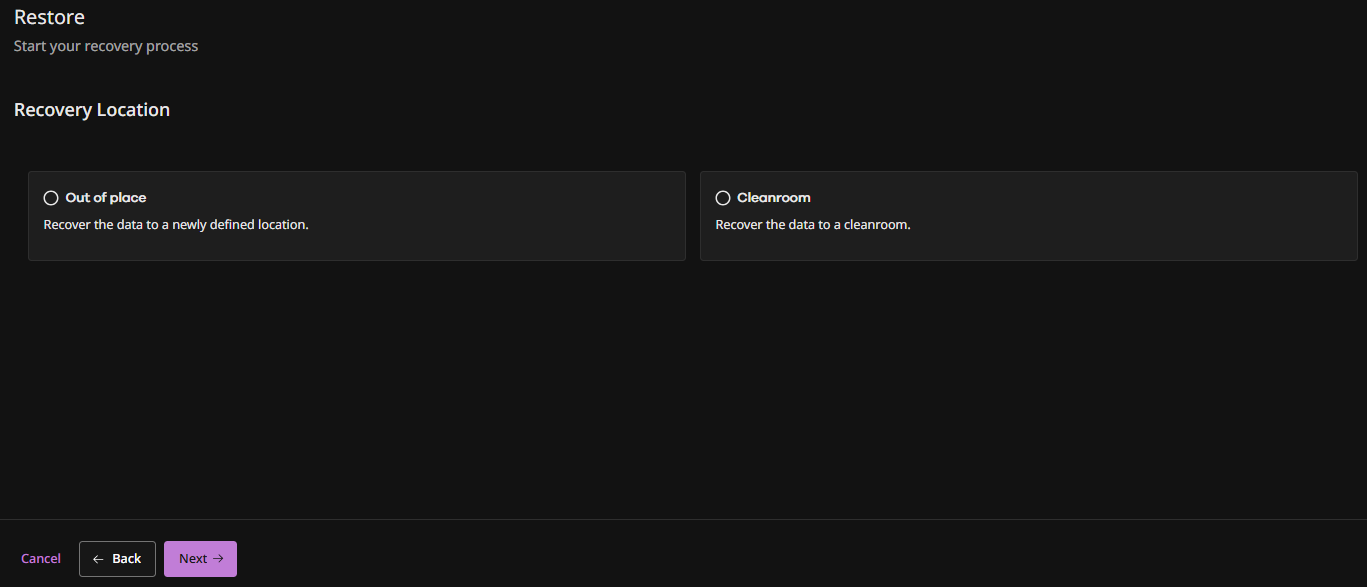
Available restore destinations: Out-of-place or clean room.
Start the Wizard
-
From the Command Center navigation pane, go to Security services > Threat scan.
The Threat Scan page appears.
-
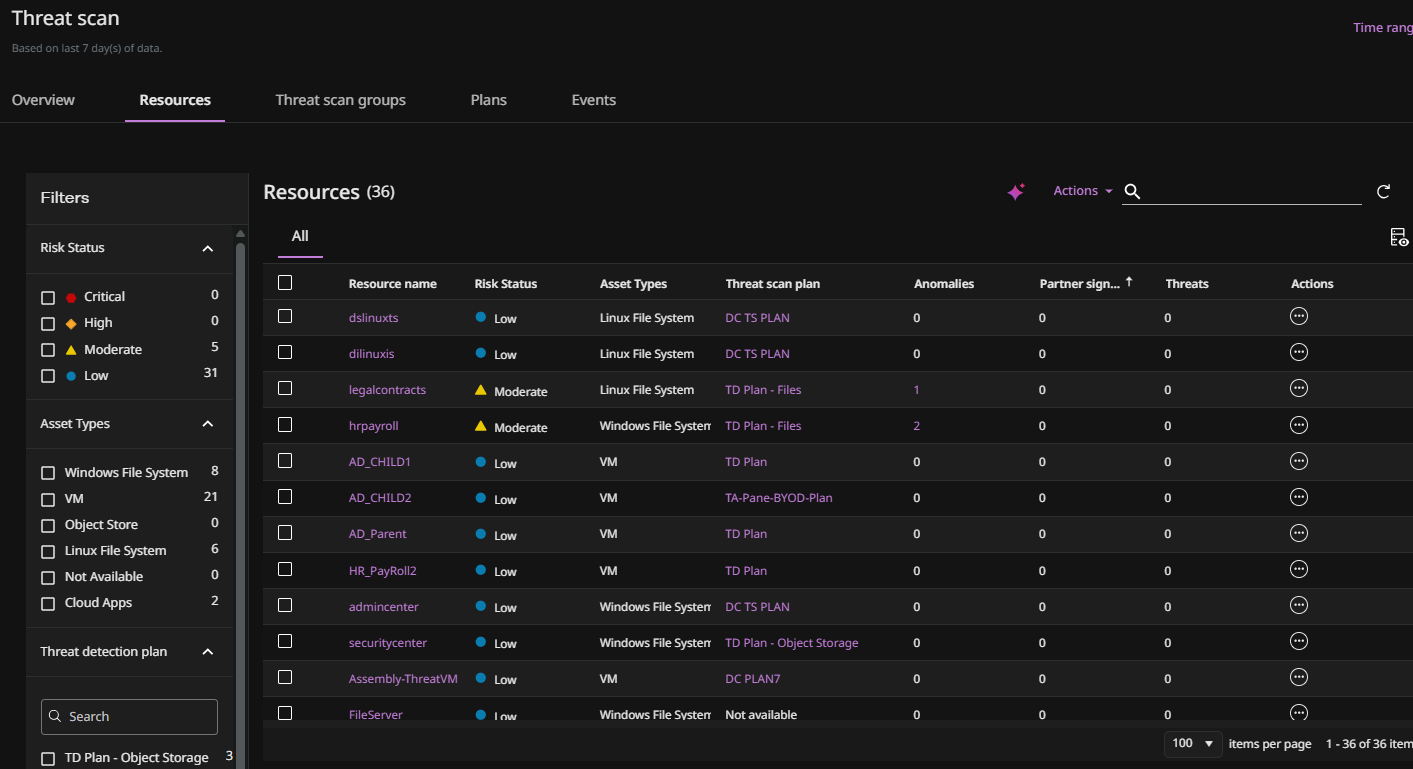
Click the Resources tab to show the resources that are currently scanned by Threat Scan.
-
For the resource you want to restore, click the Action button
 , and then select Restore.
The Restore wizard appears.
-
Select Forensic and then click Next.
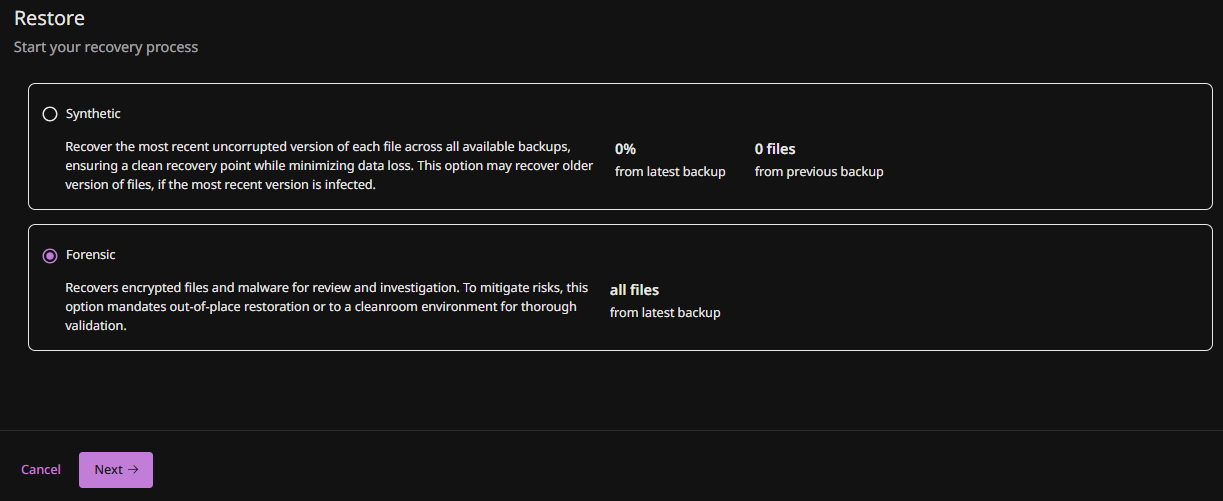
The Recovery Location page appears.
-
Select the type of restore to perform: Out of place or Clean room, and then click Next.
Restore Out of Place
-
To restore out-of-place (to a newly defined location):
- Select Out of place and then click Next.
-
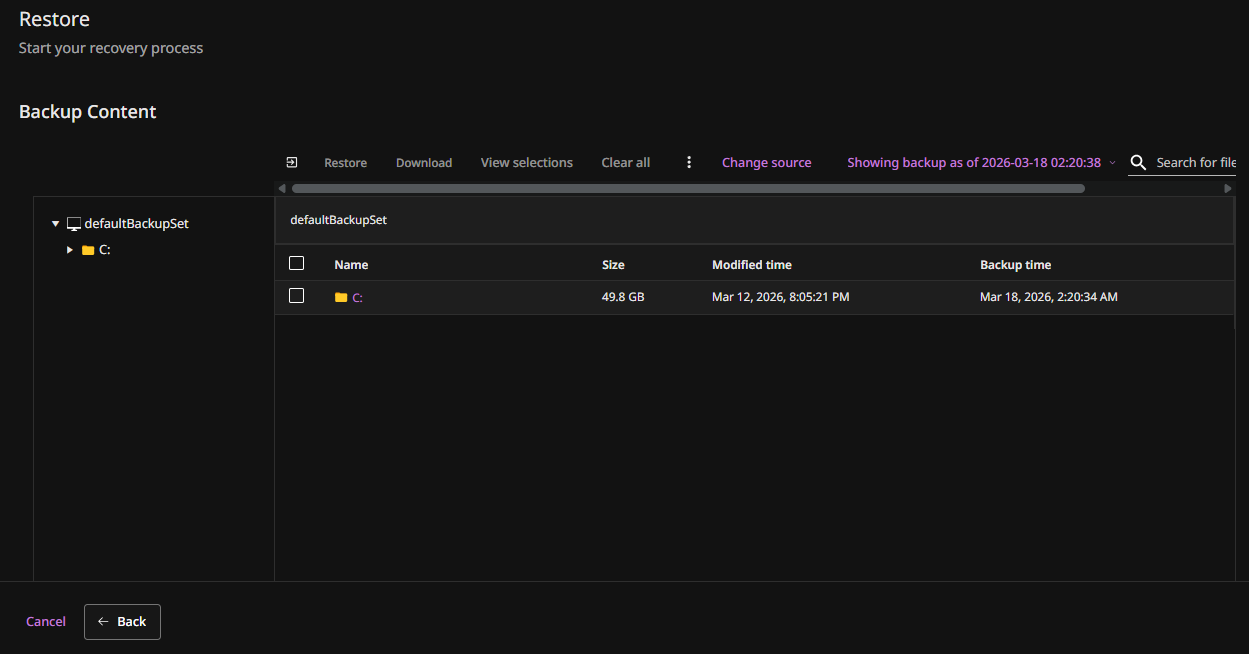
The Backup Content screen appears.
-
Select the files you want to restore, and then click Restore.
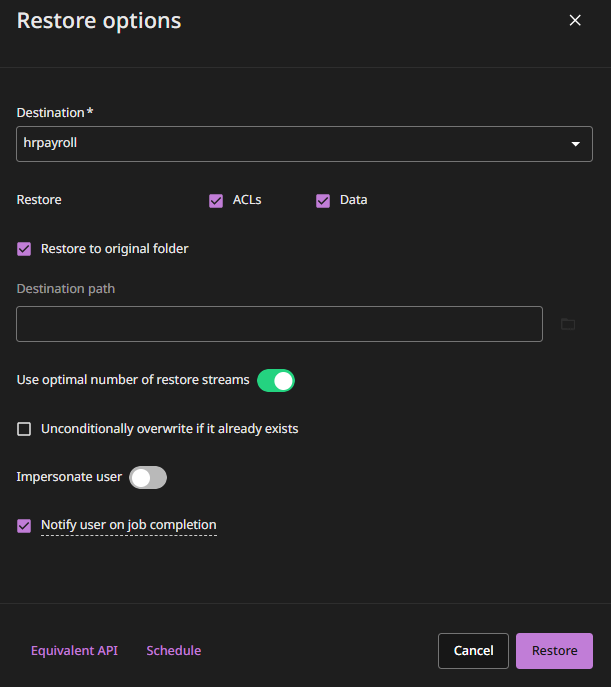
The Restore options pane appears.
-
Enter the following options:
-
Destination: Select the server to restore the data to.
-
Restore to original folder: Restores to the same location.
-
Destination path: Enter a path.
-
Use optimal number of restore streams:. Automatically sets the number of streams based on the size of the selected data.
-
Unconditionally overwrite if it already exists: Select this to overwrite files and folders that are in the destination and have the same names as files and folders that you are restoring.
-
-
Click Restore.
Restore to a Clean Room
-
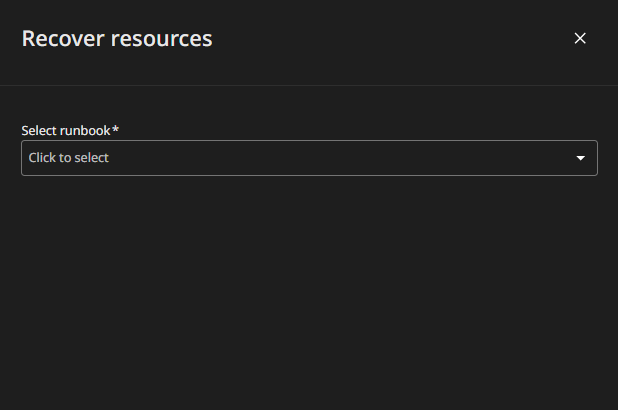
The Recover resources pane appears.
-
Select the runbook for the recovery group that contains the resources you want to recover.
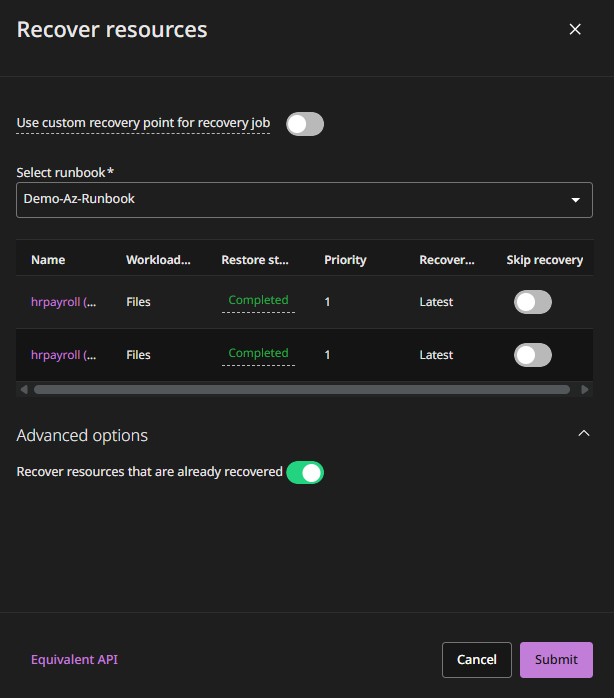
The Recover resources pane expands.
-
To select a specific backup for the recovery, enable the Use custom recovery point for recovery job toggle key, and then select a specific recovery point.
-
Expand all phases to verify they have a Restore status of Ready, and enable the Skip recovery toggle key for any steps you want to skip.
-
Click Submit.