You can compose a restore set from the last known good versions of files across backup sets, removing malware and minimizing rollback/disruption.
This method recovers the most recent uncorrupted version of each file across all available backups, ensuring a clean recovery point while minimizing data loss. This option may recover older version of files, if the most recent version is infected.
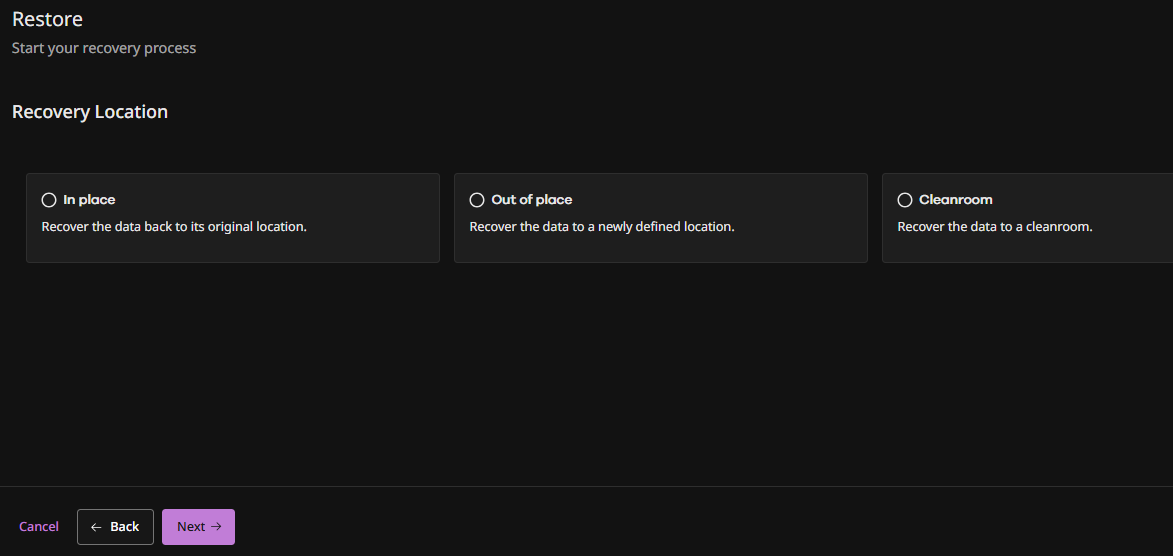
Available restore destinations: In-place, out-of-place, or clean room.
Start the Wizard
-
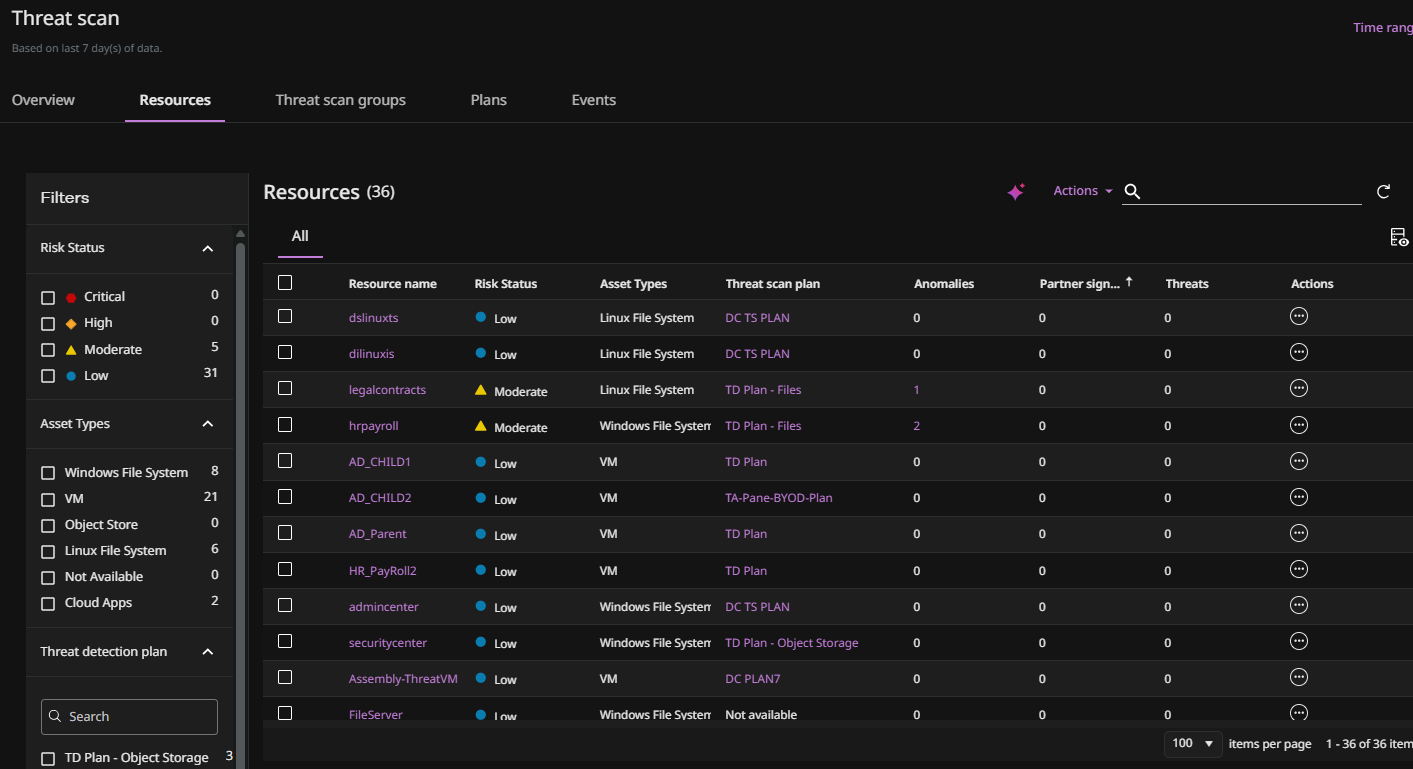
From the Command Center navigation pane, go to Security services > Threat scan.
The Threat Scan page appears.
-
Click the Resources tab to show the resources that are currently scanned by Threat Scan.
-
For the resource you want to restore, click the Action button
 , and then select Restore.
The Restore wizard appears.
-
Select a backup set from the Select Backupset list.
-
Select Synthetic and then click Next.
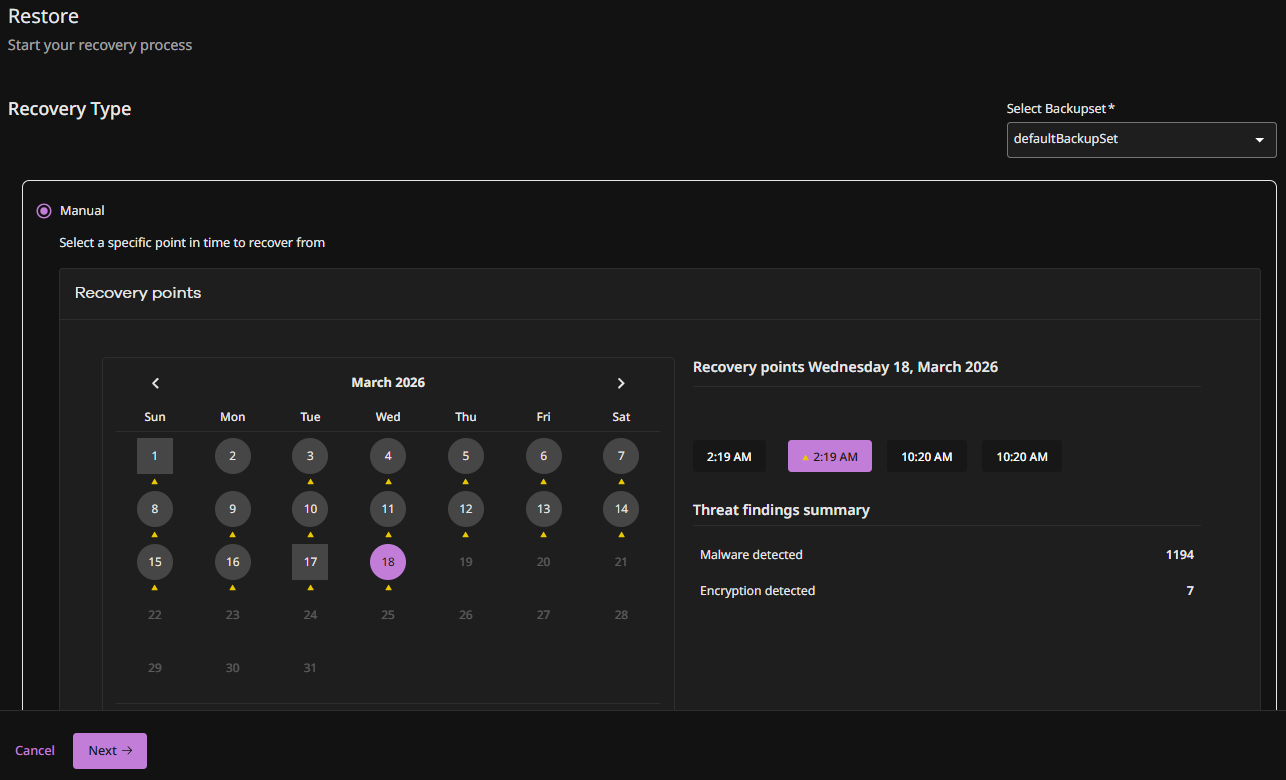
The Recovery Location page appears.
-
Select the type of restore to perform: In place, Out of place, or Cleanroom, and then click Next.
Restore In Place
-
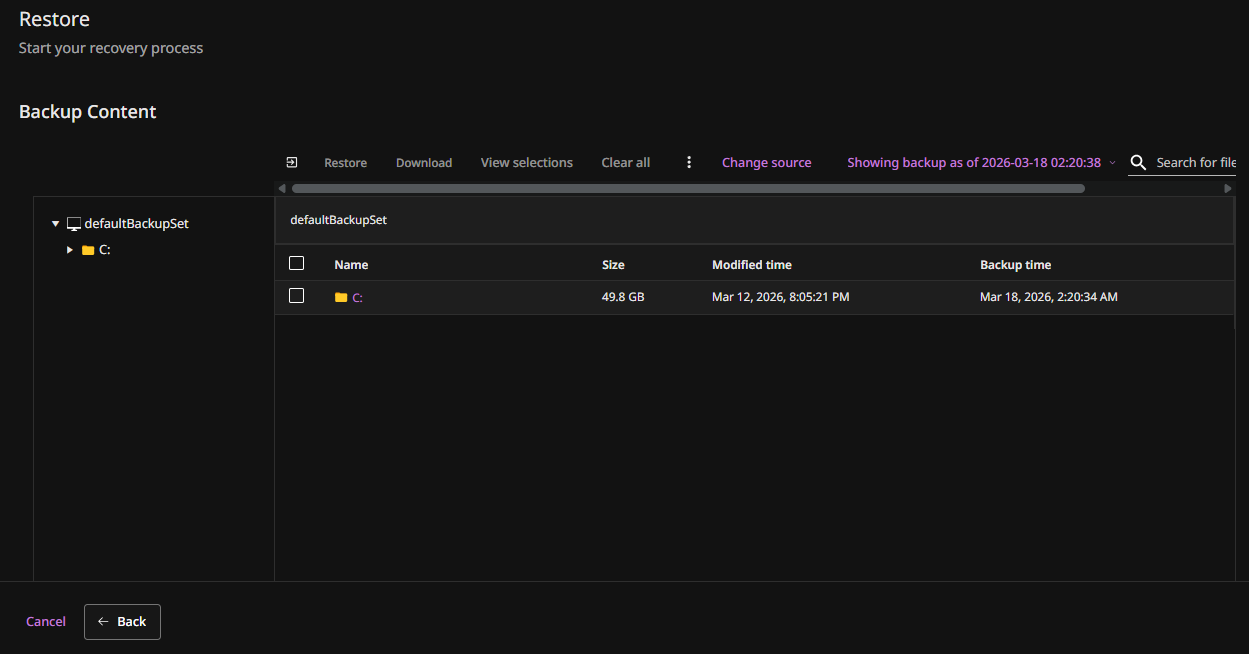
The Backup Content screen appears.
-
Select the files you want to restore, and then click Restore.
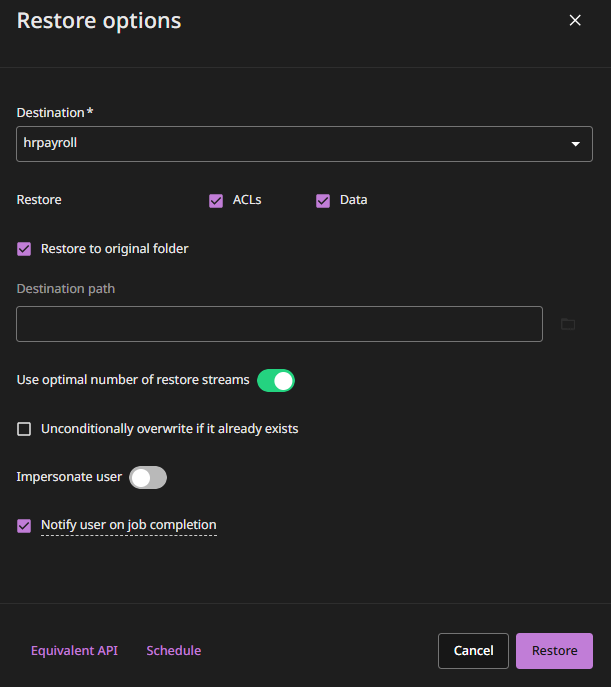
The Restore options pane appears.
-
Enter the following options:
-
Destination: Select the server to restore the data to.
-
Restore to original folder: Restores to the same location.
-
Destination path: Enter a path.
-
Use optimal number of restore streams: Automatically sets the number of streams based on the size of the selected data.
-
Unconditionally overwrite if it already exists: Select this to overwrite files and folders that are in the destination and have the same names as files and folders that you are restoring.
-
-
Click Restore.
Restore Out of Place
-
The Backup Content screen appears.
-
Select the files you want to restore, and then click Restore.
The Restore options pane appears.
-
Enter the following options:
-
Destination: Select the server to restore the data to.
-
Restore to original folder: Restores to the same location.
-
Destination path: Enter a path.
-
Use optimal number of restore streams:. Automatically sets the number of streams based on the size of the selected data.
-
Unconditionally overwrite if it already exists: Select this to overwrite files and folders that are in the destination and have the same names as files and folders that you are restoring.
-
-
Click Restore.
Restore to a Clean Room
-
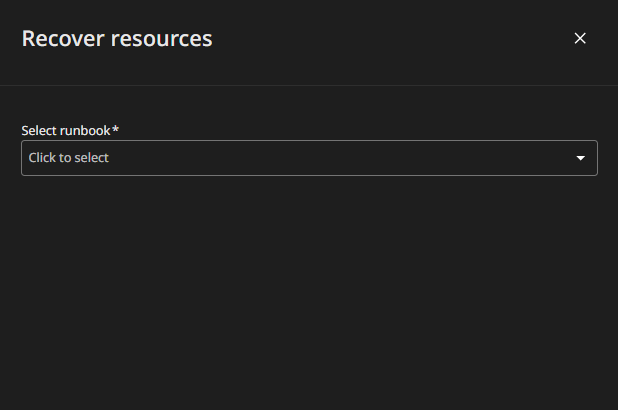
The Recover resources pane appears.
-
Select the runbook for the recovery group that contains the resources you want to recover.
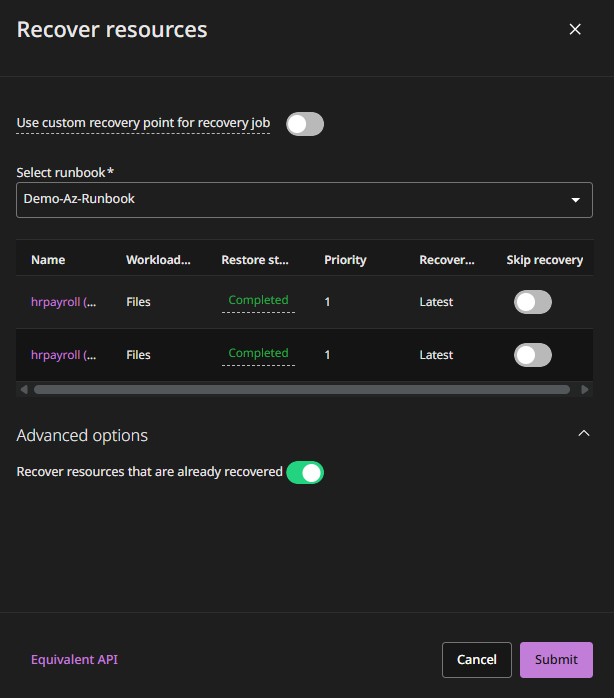
The Recover resources pane expands.
-
To select a specific backup for the recovery, enable the Use custom recovery point for recovery job toggle key, and then select a specific recovery point.
-
Expand all phases to verify they have a Restore status of Ready, and enable the Skip recovery toggle key for any steps you want to skip.
-
Click Submit.