You can preview email messages and some attachments that were archived from your User Mailbox (hybrid). This operation can help you download, export, or restore the correct messages.
Procedure
-
From the Command Center navigation pane, go to Protect > Exchange.
The Exchange Overview page appears.
-
Click the user account in the upper-right area, and then go to View > Self-service view.
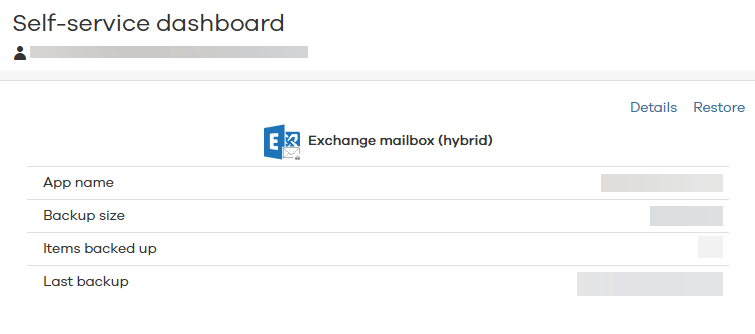
The Self-service dashboard appears.
-
On the Self-service dashboard, in the Exchange section, click Restore.
The message selection page appears.
-
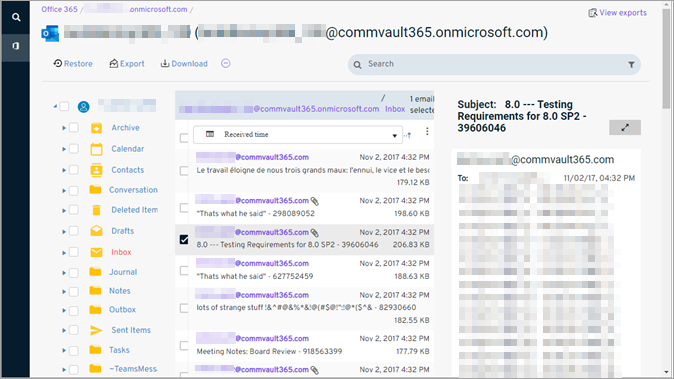
From the email list, select a message.
In the right pane, a preview of the message appears.
-
To view an attachment, in the message preview, beside Attachments, click the link for the file.

A dialog box appears that contains a preview of the attached file.
-
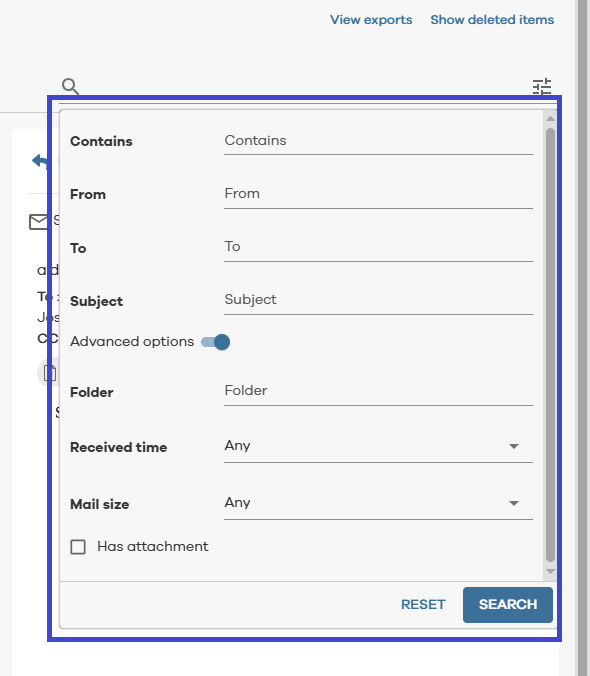
To find a specific email, in the upper-right area of the page, in the Search box, enter any keywords that are related to the email, and then press Enter.
Use the advanced search filters option to refine your search. You can find the Filters option in the right corner of the Search box.