To recover to a cleanroom site, use a runbook for the recovery group that contains the resources you want to recover.
For workloads that include databases or other applications, recovery can restore the VM and then restore the application data to the required point in time, or repave the VM from a secure image and then restore the application data onto the new VM.
Before you start recovery, verify that the VM and the application or database sub-entities are all ready.
Restoring and preparing the control plane database typically takes 30 minutes to 2 hours, depending on database size. If after 2 hours it has not completed, contact support@commvault.com.
Go to the runbook and verify readiness
-
In the Command Center navigation pane, go to Secure > Cleanroom recovery.
-
On the Recovery groups tab, click the recovery group that contains the runbook.
-
On the Runbooks tab, click the runbook.
-
Expand all phases to verify they have a Recovery readiness status of Ready and to enable the Skip toggle key for any steps you want to skip.
For workloads that include databases or other applications, confirm that the VM and the application or database sub-entities are ready before you execute the runbook.
Start the recovery
-
In the upper-right area of the page, click Execute runbook.
The Recover resources dialog box appears.
If the workload includes databases or other applications, select a recovery point that matches the required point in time for the application data.
-
Click Submit.
The runbook page appears, and the recovery process starts. As the recovery proceeds, you can expand the phases of the runbook to monitor the recovery.
If the source VM backup is configured to include only selected disks (for example, only the OS disk) using disk filters, then the VM restore portion of the runbook restores only those disks. For workloads that include databases or other applications, additional data disks/volumes required for the workload can be provisioned and mounted during the application/database restore steps. In the recovery job details, you might see steps such as Create and mount volumes.
Recovering to a cleanroom site includes verifying the required role, running a readiness report, recovering the Commvault control plane, and then recovering recovery groups and/or resources in recovery groups.
Determine access to the recovered control plane
Determine the public IP addresses or Classless Inter-Domain Routing (CIDR) ranges that need access to the recovered control plane.
You enter these addresses or ranges when you recover the control plane.
Verify your recovery permissions
Verify that the user account that performs the cleanroom recovery operation has the CS Recovery Manager role.
-
Log on to cloud.commvault.com.
-
From the Command Center navigation pane, go to Manage > Settings > Advanced > CommCells.
-
Click your CommCell environment.
-
At the top of the page, click the menu button
 , and then click View Users.
 -
Verify that the user account has the CS Recovery Manager role.
-
If the user account doesn't have the CS Recovery Manager role, contact your Cloud CommCell administrator.
-
If your company doesn't have a Cloud CommCell administrator, request administrator privileges:
-
From the Command Center navigation pane, go to Manage > Workflows.
-
Click Cloud Administrator Promotion Request.
-
Click OK.
A confirmation message appears.
-
Click Continue.
When the request is approved, you receive an acknowledgment email.
-
Validate recovery readiness
-
Download the Cleanroom Recovery Readiness report from the Commvault Store to your production Commvault control plane server.
-
From the Command Center navigation pane, go to Monitor > Reports.
-
In the upper-right area of the page, click Actions, select Import report, and then import the report.
-
On the Reports page, click Cleanroom Recovery Readiness.
-
In the upper-left area of the report, click the Entities in recovery groups list to select the resources to include in the report.
-
Verify that all the resources you want to recover have a status of Ready.
Resources that have another status aren't included in the recovery.
For workloads that include databases or other applications, verify that the VM and the application or database sub-entities are ready.
Recover the control plane
The control plane is recovered to the latest available Commvault version in a least-privilege state that allows recovery operations.
Restoring and preparing the control plane database typically takes 30 minutes to 2 hours, depending on the database size.
-
Log on to cloud.commvault.com.
The Readiness & Resilience page appears.
-
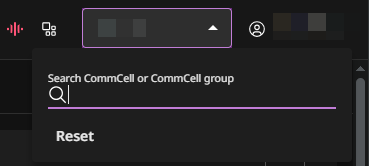
In the upper-right area of the page, select your CommCell environment.
-
In the Control plane section, click Start Cleanroom Recovery.
The Start Cleanroom Recovery dialog box appears.
-
Select the backup to use for the recovery.
-
Enter the public IP addresses or CIDR ranges that need access to the recovered control plane, and specify whether to save the addresses for subsequent control plane recovery operations.
The IP addresses must be internet-facing from your location or organization. You can enter IPv4 and IPv6 addresses or ranges as a comma-separated list.
Examples
-
Single IPv4 address: 203.0.113.5
-
Single IPv6 address: 2001:db8::1
-
IPv4 CIDR range: 203.0.113.0/24
-
IPv6 CIDR range: 2001:db8::/32
-
-
Specify whether to use multi-factor authentication to protect the recovered control plane.
If you enable multi-factor authentication, the first time you log on to the recovered control plane, enroll your authenticator app by scanning the QR code. Subsequent logins require multi-factor authentication.
-
Click Submit.
A confirmation message appears.
-
Click Submit.
-
Wait for the confirmation email that indicates that the recovery is complete.
-
If you're using the built-in key management server, enter the pass phrase after the control plane is recovered.
-
On the Recovery Requests tab, locate the recovered backup set, click the action button
 , and then select Access Details.
 -
Record the URL and user credentials.
-
Open the URL in a new browser window, and then enter the credentials to log on to the recovered environment.
Create cyber recovery end user accounts for cleanroom (optional)
Use the Create Cyber Recovery Users workflow to create accounts for end users who need to perform cleanroom recovery or test and validate recovered applications.
Note
Each time you use the workflow for a selected company, the workflow replaces the end user accounts and credentials previously created through the workflow with new accounts and credentials.
-
Log on to the recovered control plane with the recoverymanager user account.
-
From the Command Center navigation pane, go to Manage > Workflows.
-
Click Create Cyber Recovery Users.
-
Select the companies to create accounts for.
-
Click Submit.
The workflow creates one end user account for each company and displays the account credentials.
-
Record the credentials.
After you close the workflow, you can't access the credentials again.
After the recovered control plane is available, recover workloads by using the recovery group runbook.