Perform a Backup
Once the storage policy is configured, you are ready to perform your first backup.
-
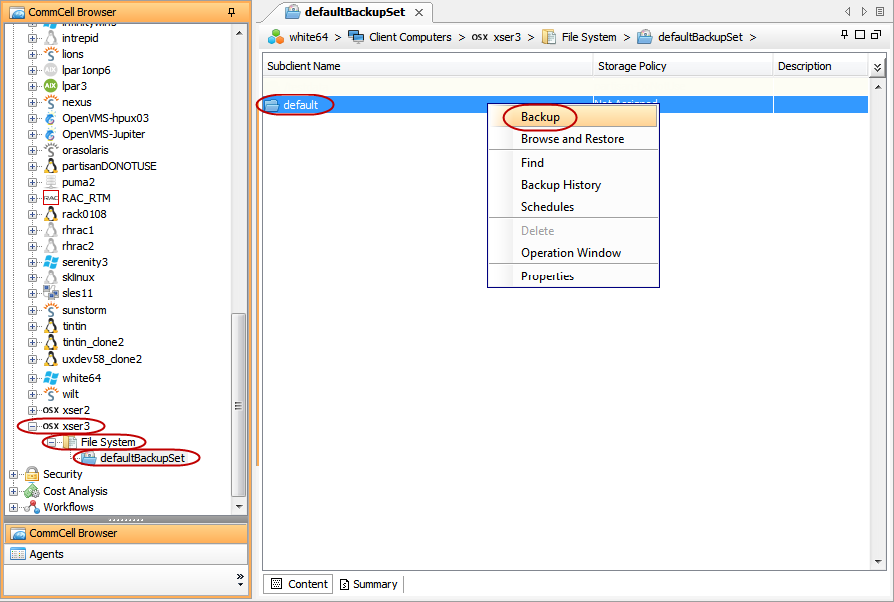
From the CommCell Browser, navigate to Client Computers | <Client> | File System | defaultBackupSet.
Right-click the default subclient and click Backup.
-
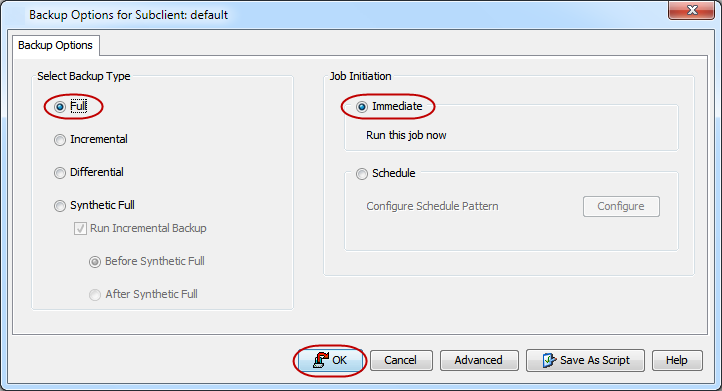
Click Full as backup type and then click Immediate.
Click OK.
-
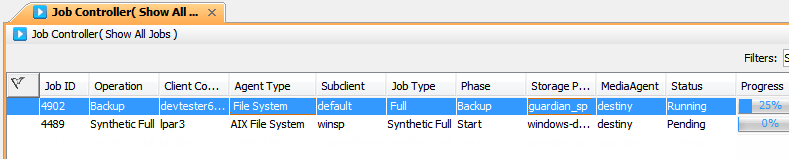
You can track the progress of the job from the Job Controller window of the CommCell console.
-
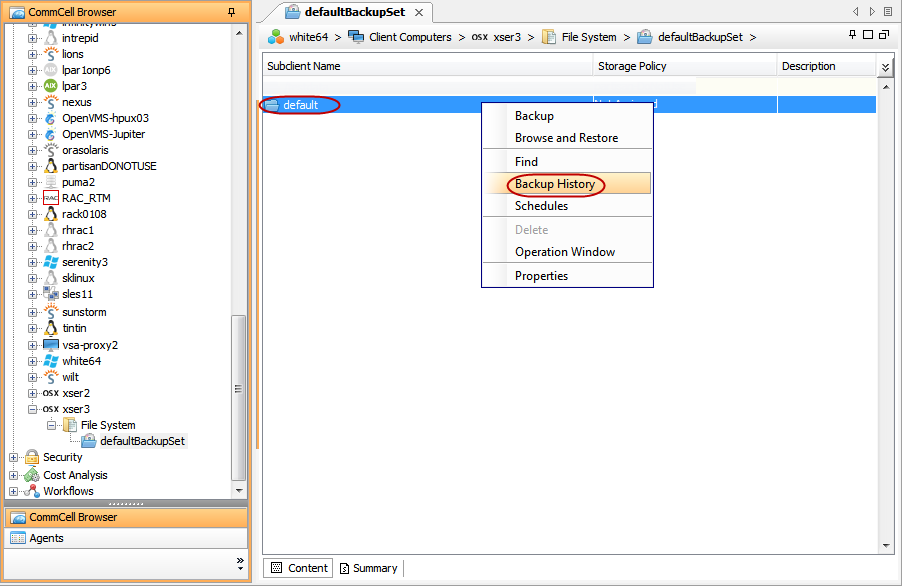
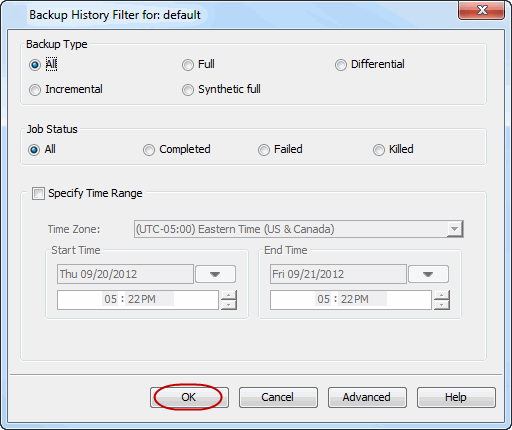
Once the job is complete, view the job details from the Backup History. Right-click the Subclient and select Backup History.
-
Click OK.
-
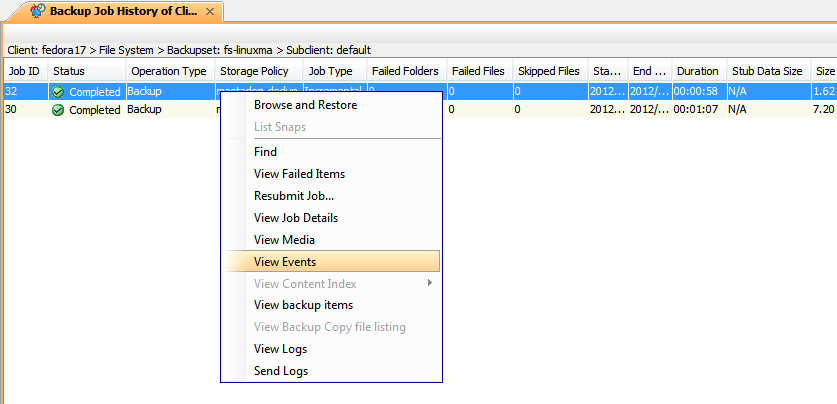
You can right-click the job and view the following details:
-
Items that failed during the job
-
Details of the job
-
Events of the job
-
Log files of the job
-
Media associated with the job
-
|
What Gets Backed Up |
What Does Not Get Backed Up |
|---|---|
|
File Systems Hierarchical File System (HFS) HFS+, Universal Disk Format (UDF) MS-DOS Universal File System (UFS) |
By default, the following file systems are automatically skipped during backups:
|
|
File System Elements Raw device files Symbolic links that are browsed or manually added to the data contents Files with names containing non-ASCII characters as long as the appropriate locales are set Files for which the file path or file name contains more than 1024 characters Finder tags |