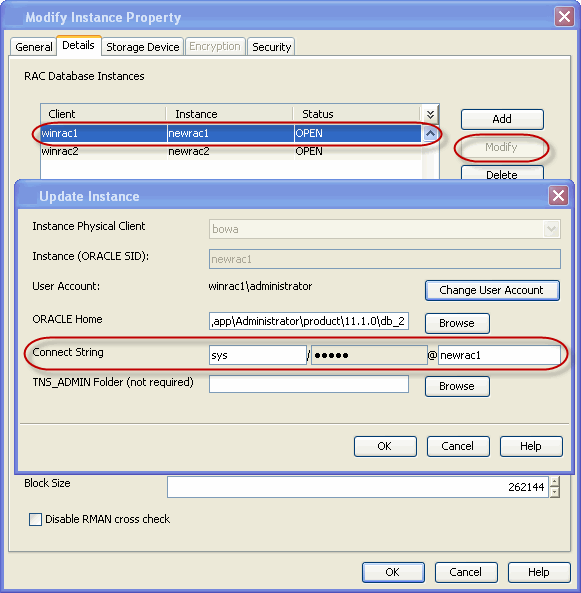
Use the following steps to configure the user account privileges to access the Oracle database:
-
From the CommCell Browser, navigate to Client Computers | <RAC Client>.
-
Right-click the <Instance>, and then click Properties.
-
Click the Details tab.
-
Select the desired instance, and then click Modify.
-
In the Connect String box, type the connect string to connect to the Oracle database as follows:
-
Type the Database user ID.
-
Click the password box and type the password for the user ID in the Enter Password box.
-
In the Confirm Password box, retype the password, and then click OK.
-
Type the Oracle service name.
For example:
sys/<password>@winrac1
where, sys is the Database User ID, <password> is the password of the Database User ID, and winrac1 is the Oracle service name.
-
-
Click OK.