You can save a set of column filters and input selections as a system view in the Report Builder.
When you create a system view in the Report Builder, any user can see the system view as an option in the list at the top of the report.
Procedure
-
On the Web Console, click Reports.
The Reports page appears.
-
From the navigation pane, click Configuration > Reports, and beside the report under Actions, click Edit.
-
At the top of the page, click Save as view.
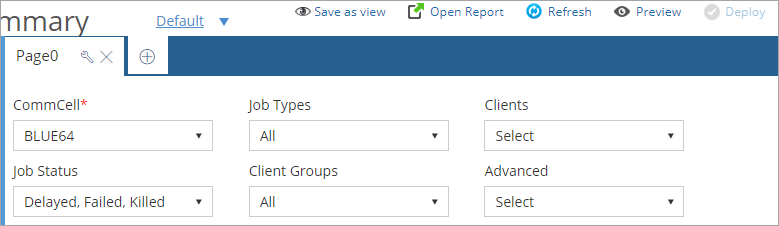
The View dialog box appears.
-
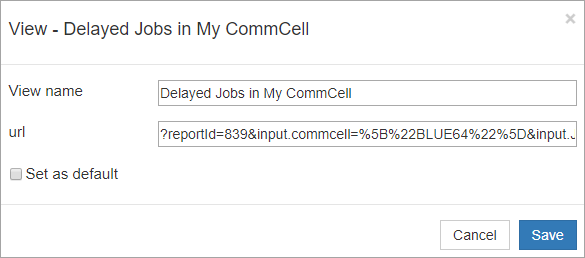
Enter a title for the view.
-
Optional: To create a specific URL for the view, in the url box, enter the URL.
-
Optional: To make this view the default view of the report, select Set as default.
-
Click Save.
-
At the top of the Report Builder, click Save.
-
Optional: To make this view available to all users, click Deploy.
The view appears as an option in a list at the top of the report.