You can delete a cloud library that contains backup data. If you shared the library with a MediaAgent that is online with write access and with Feature Release 21 or later version, then the delete operation deletes the library along with data from the CommServe database and the cloud storage. Otherwise, the delete operation only deletes the library from the CommServe database.
Note
-
You cannot delete the cloud libraries that contain the backup data written by a WORM copy.
-
To delete a library or a mount path that contains backup data in a HyperScale storage pool, see Deleting a HyperScale Storage pool. The deletion of the storage pool does not delete backup data. You must delete the data manually.
-
You cannot delete libraries that contain backup data using the Expert Storage Configuration interface.
-
If you recover from a disaster recovery backup that contains the library that you deleted, then you must delete the library again.
-
If auxiliary copy operation fails to read from the mount path that you deleted, then run a quick data verification operation on the associated deduplication databases and prevent the yet to be copied jobs for which the data verification operation failed from being copied in the auxiliary copy operation. For more information, see Performing a Data Verification Operation on Deduplicated Data and Prevent Jobs From Being Copied.
Before You Begin
-
Verify that the deduplication database (DDB) associated with the cloud library that you want to delete is not in use for any back up operations or auxiliary copy operations.
-
Verify that the cloud library that you want to delete is not in use for any restore operations or auxiliary copy operations.
-
If the library that you want to delete is silo enabled, then you must complete the following:
-
Delete the contents of all the mount paths in the library.
For instructions, see Delete the Contents of a Mount Path.
-
Seal the DDB that the library is associated with.
For instructions, see Sealing the Deduplication Database.
-
-
To send email notifications about the delete operation, you must configure a mail server in the CommCell Console.
For instructions, see E-Mail Server Configuration.
Procedure
-
From the CommCell Browser, go to Storage Resources > Libraries.
-
Right-click the cloud library that you want to delete, and then click Delete cloud library.
-
Confirm the delete operation.
-
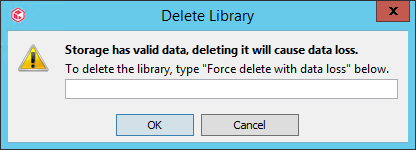
If you shared the library with a MediaAgent that is online with write access and with Feature Release 21 or a recent version, then the following dialog box appears.
-
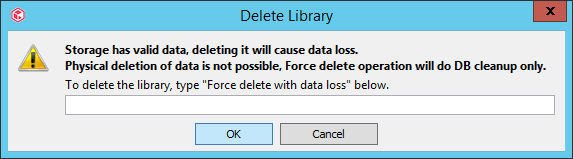
Otherwise, the following dialog box appears.
-
-
Enter Force delete with data loss, and then click OK.
A confirmation dialog box appears.

-
Click OK.
Results
-
The deletion must be approved by the administrator users for the deletion to take effect.
If the storage creator is a company user, the users of the Tenant Admin user group become the default administrators. If the storage creator is not a company user, the users of Master user group become the default administrators. The administrator users receive an email notification to approve or deny the deletion. The deletion must be approved by at least one administrator.
You can use the DeleteLibraryMountPathAuthorization workflow to change the administrators who can approve the deletion from default user groups to another users or user groups and to specify the approvers count.
When an administrator user approves or denies the deletion, you will receive an email.
-
If the library is associated with deduplication databases, then the software automatically performs a data verification job for each database.
For more information, see Verification of Deduplicated Data.
What to Do Next
-
After successful library deletion, the library may still appear in the library in the CommCell Console. You must refresh the library to clear the deleted library.
-
You must manually prevent the yet to be copied jobs for which the data verification operation is failed from being copied in an auxiliary copy operation.
For instructions, see Prevent Jobs From Being Copied.