Before running your first IntelliSnap backup you must configure a subclient and assign storage array to this subclient.
Use the following steps to create subclient.
-
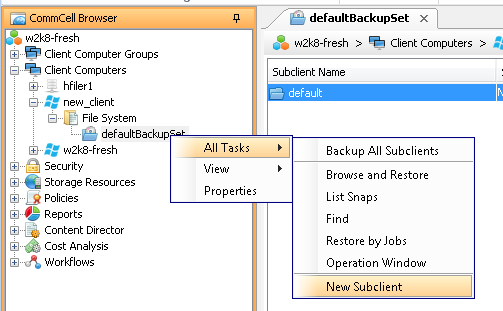
From the CommCell Console, navigate to Client Computers | <Client> | File System | defaultBackupSet.
Right-click the defaultBackupSet, point to All Tasks and click New Subclient.
-
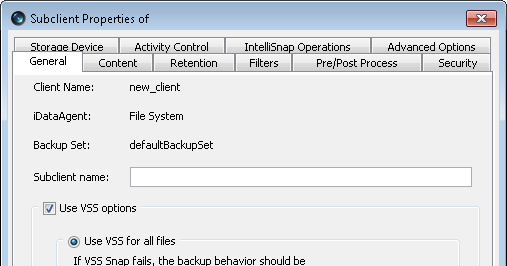
Type name of the Subclient in the Subclient Name box.
-
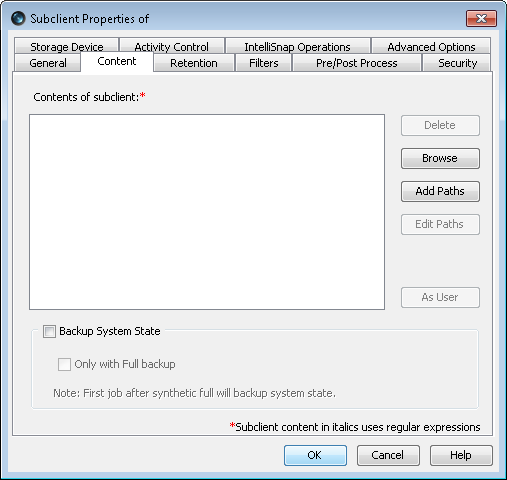
Click the Content tab.
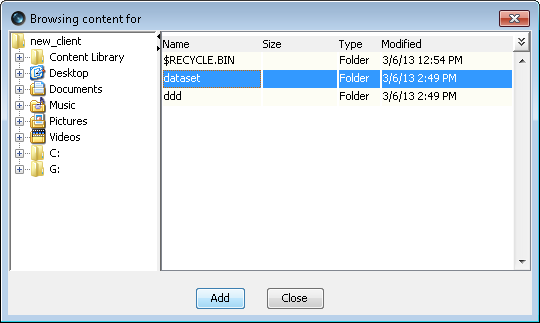
Click the Browse button to specify the content path.
-
Navigate through the list of folders and select the files and folders you want to backup.
Note
The subclient content must contain data that resides on the storage device volume; do not include local drives or UNC paths as subclient content.
Click Add and then click Close.
-
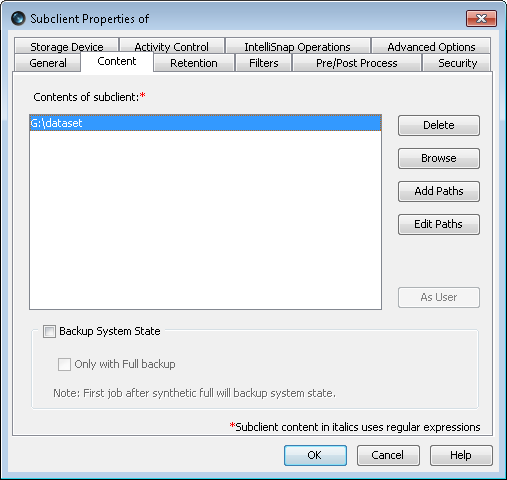
The newly added content path will be displayed under Contents of subclient.
-
Click the IntelliSnap Operations tab.
By default IntelliSnap check box is selected.
Select a snap engine from the list of Available Snap Engines list.
-
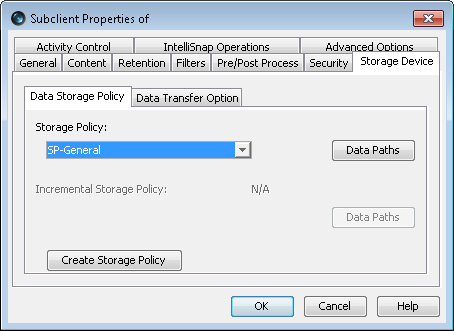
Click the Storage Device tab.
In the Storage Policy box, select a Storage Policy name.
Click OK.
-
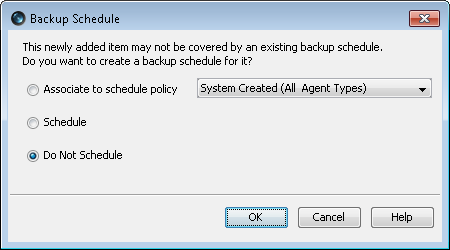
Select Do Not Schedule and then click OK.