Ensure that the following are available before running the first archive job:
-
Notes client have to be configured as Single user mode.
-
The Notes Path is present in system path settings.
-
A new subclient is configured to use the Proxy Client for running archive jobs.
-
Login to Notes Client and keep it open on Proxy machine while the archive job is running.
-
From the CommCell Console, navigate to Client Computers | <Client> | Domino Mailbox Archiver | defaultArchiveSet.
-
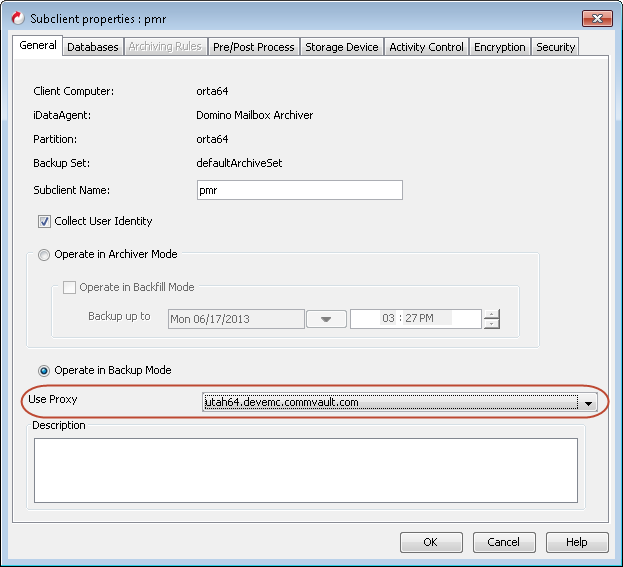
Right-click the default subclient and click Properties.
Select a proxy from the Use Proxy list.
-
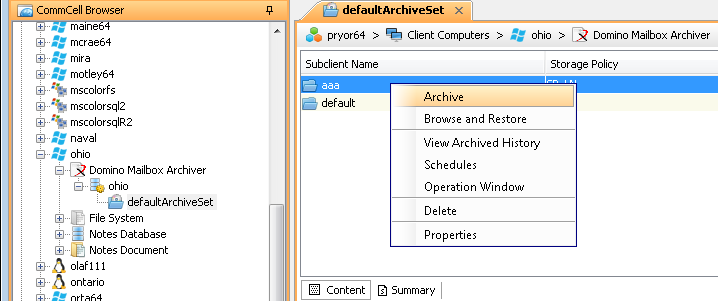
Right-click the default subclient and click Archive.
-
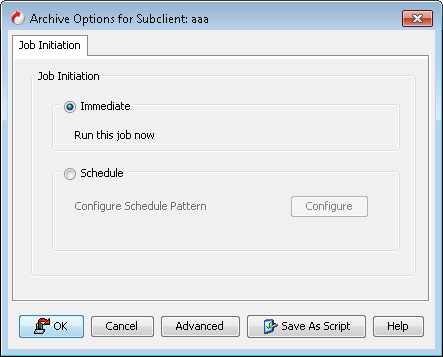
Click Immediate.
-
Click OK.
-
You can track the progress of the job from the Job Controller.

-
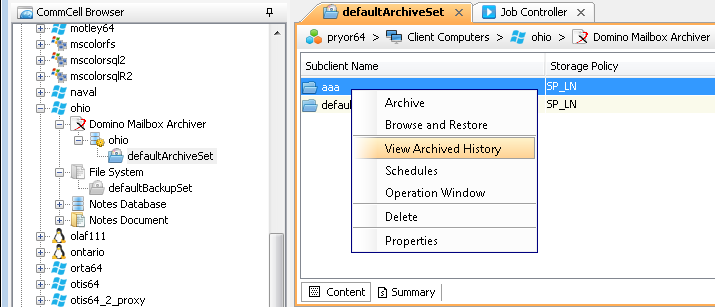
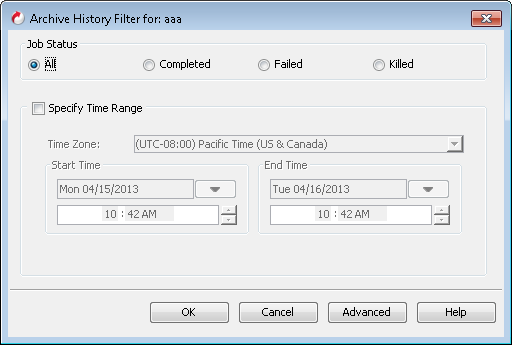
Once the job is complete, view the details of job from the View Archive History. Right-click the default subclient and select View Archived History.
-
Click OK.
-
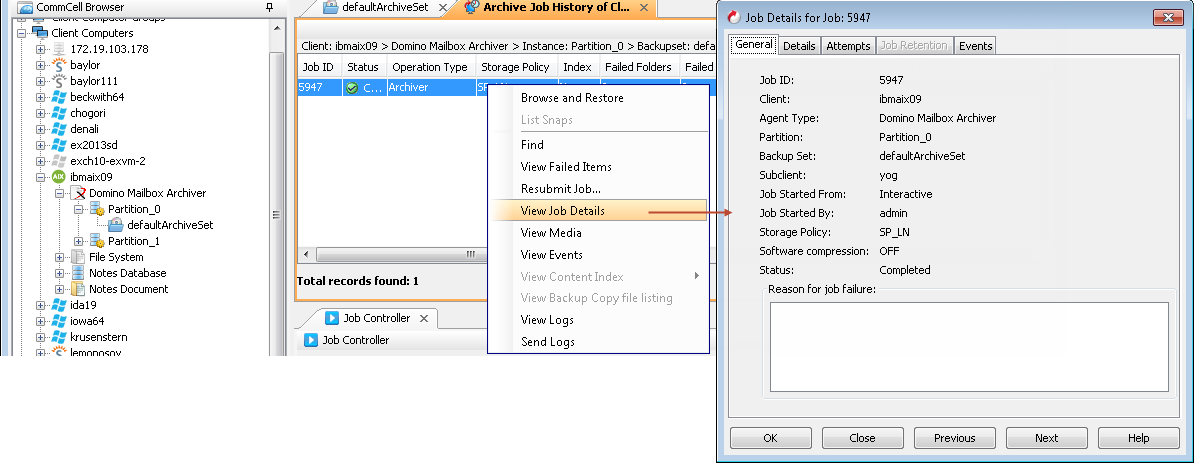
Right-click the job to:
-
Browse the archived data.
-
Find messages in the archives.
-
View items that failed, if any, during the job.
-
Resubmit the job.
-
View job details, such as the number of mailboxes archived.
-
View media associated with the job.
-
View events associated with the job.
-
View list of files that were archived.
-
View logs associated with the job.
-
Send the log file that is associated with the job.
-