Restoring your backed up data by following the steps given below:
-
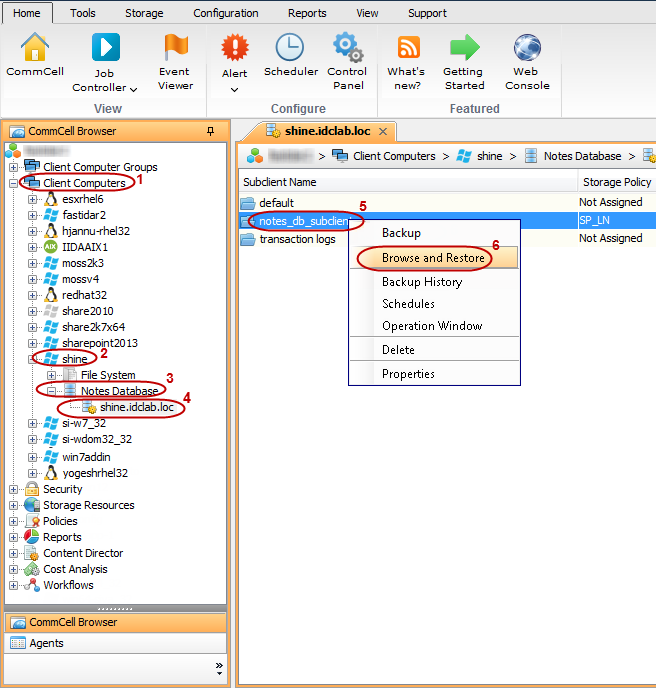
From the CommCell Console navigate to Client Computers | <Client> | Notes Database | <Partition>.
In the right-pane, right-click the <Subclient> and click Browse and Restore.
-
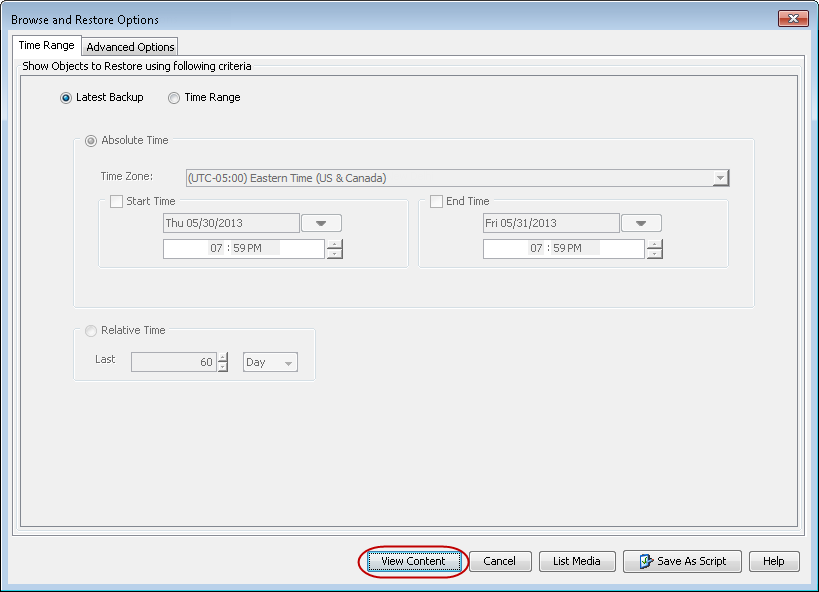
Click View Content.
-
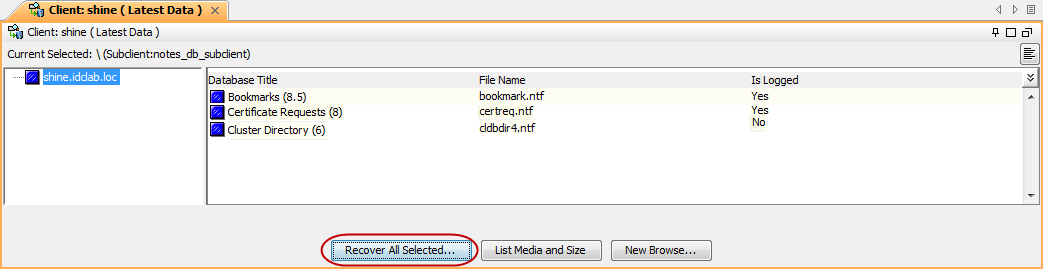
Expand the <Subclient> and select the required database. Its entire contents will be automatically selected in the right pane.
Click Recover All Selected.
-
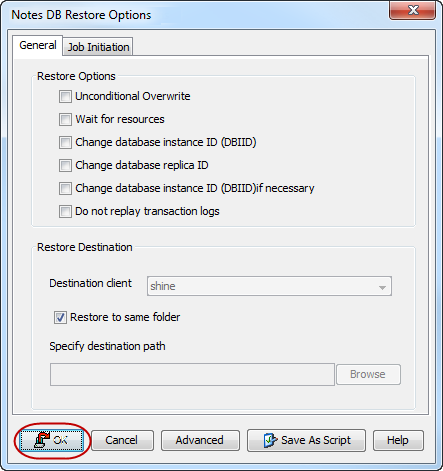
Click OK.
Note
In case you are restoring the database to a direct link, ensure that the directory link exists on the Domino.
-
You can monitor the progress of the restore job in the Job Controller.

-
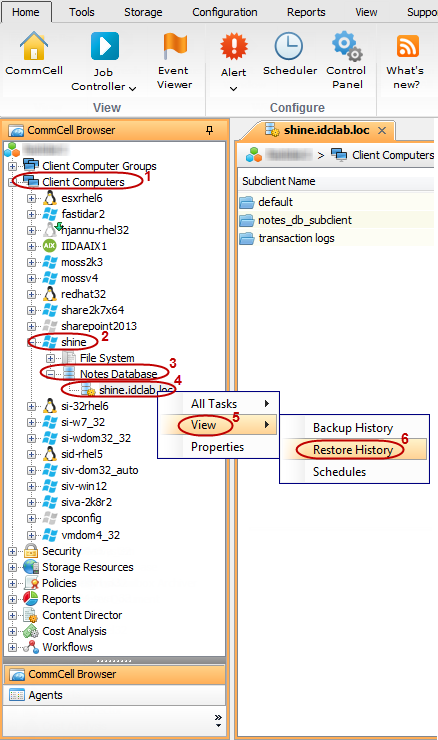
Once the restore job is complete, right-click the <Partition> and click View | Restore History.
-
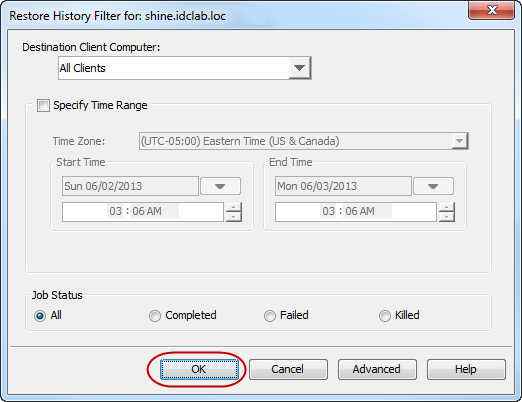
Click OK.
-
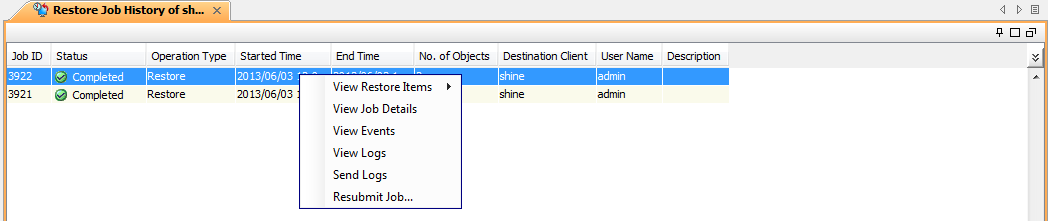
You can right-click the job and view the following details:
-
View Restore Items
You can view them as Successful, Failed, Skipped or All.
-
View Job Details
-
View Events of the restore job
-
View Log files of the restore job
-
Congratulations - You have successfully completed your first backup and restore.
If you want to further explore this Agent's features read the Advanced sections of this documentation.