Restoring your backed up data by following the steps given below:
-
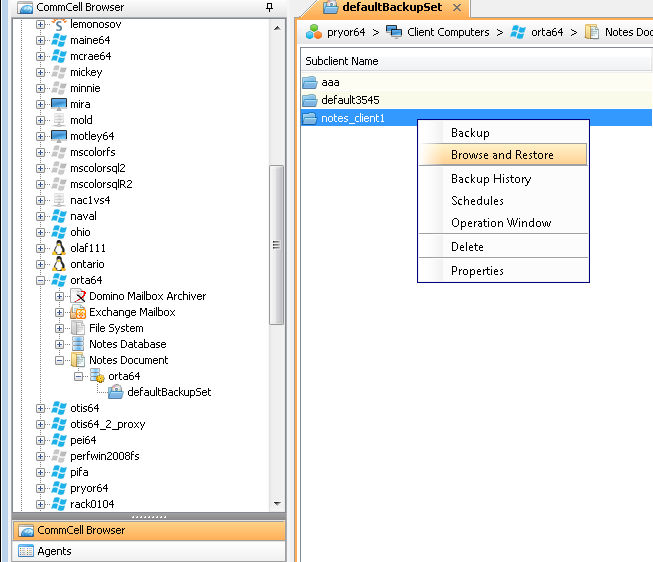
From the CommCell Console navigate to Client Computers | <Client> | Notes Document.
In the right-pane, right-click the <Subclient> and click Browse and Restore.
-
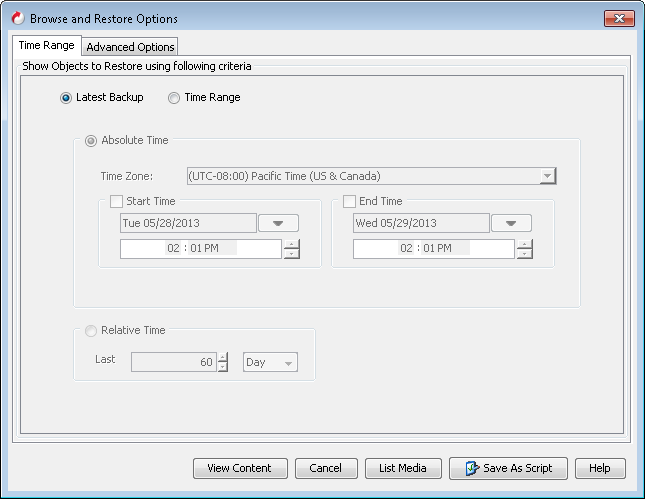
Click View Content.
-
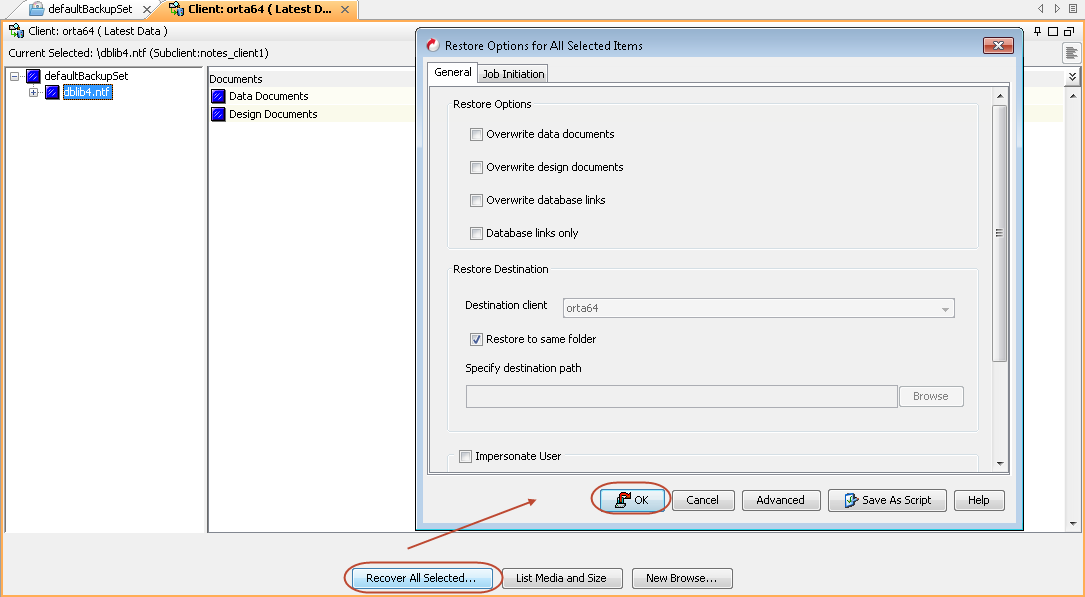
In the left pane of the Client tab, expand Documents, click to select the backed up documents and click Recover All Selected.
Click OK.
Note
In case you are restoring the database to a direct link, ensure that the directory link exists on the Domino.
-
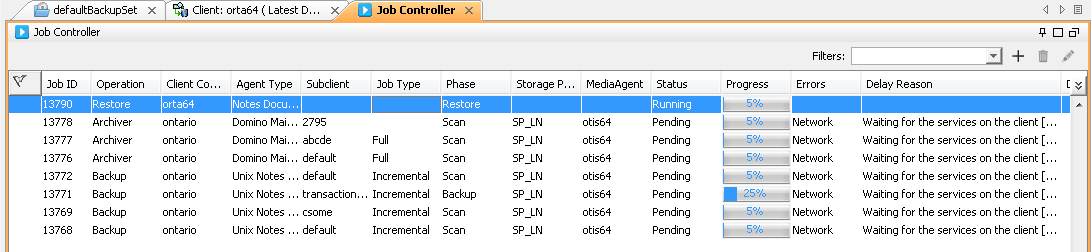
In the Job Controller tab, track the process of your restore job.
-
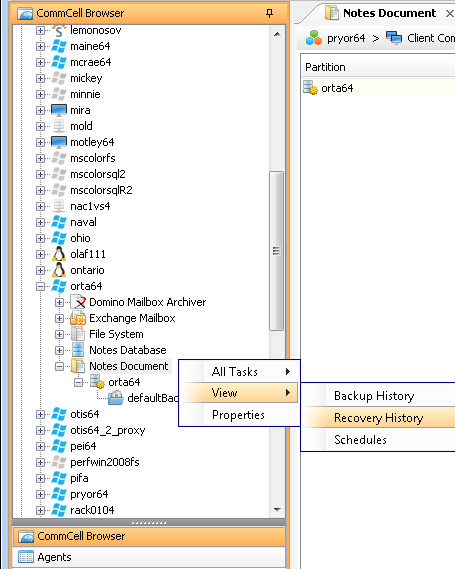
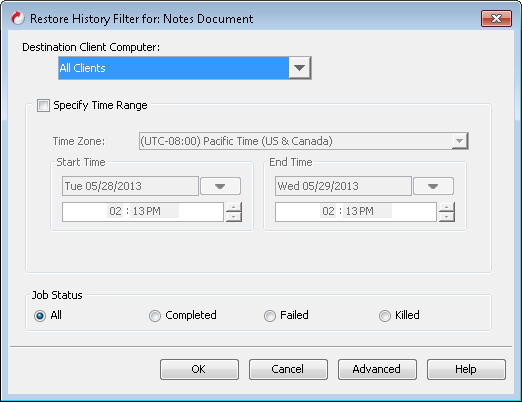
Once the restore job has completed, right-click Notes Document, point to View and then click Restore History.
-
Click OK.
-
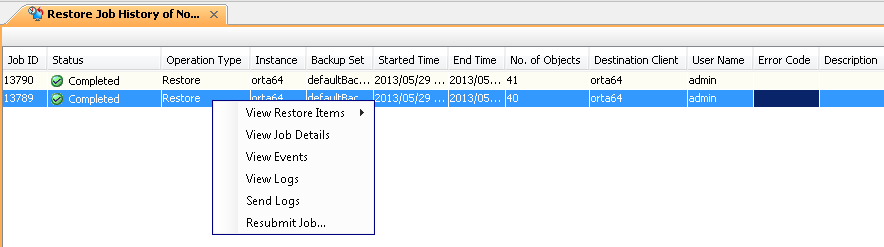
You can right-click the job and view the following details:
-
View Restore Items
You can view them as Successful, Failed, Skipped or All.
-
View Job Details
-
View Events of the restore job
-
View Log files of the restore job
-
Congratulations - You have successfully completed your first backup and restore.
If you want to further explore this Agent's features read the Advanced sections of this documentation.