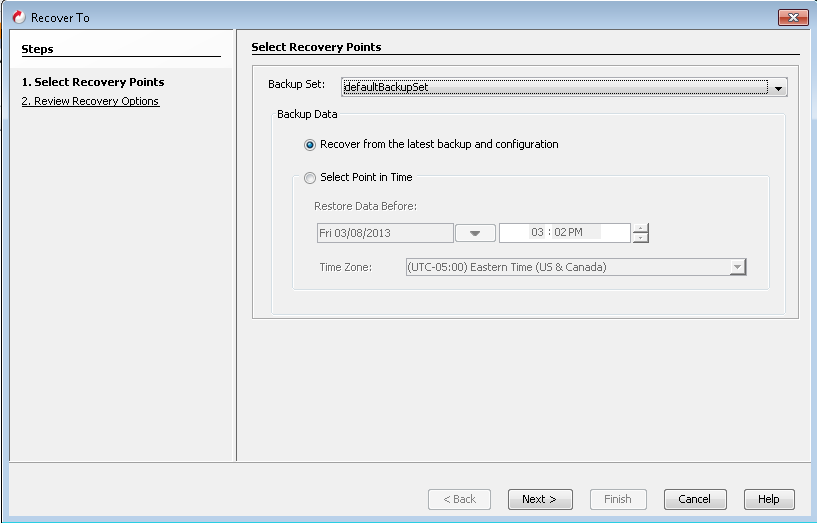
By default, the latest data and configuration of the client computer, backed by the default backup set, will be used to restore the client computer. However, you can restore the client using the data and client configuration backed up at any point-in-time.
By default, the data and configuration of the client computer, backed up by default backupset is used to restore the client computer. You can create a backupset to backup data and configuration for the 1-Touch recovery. You can create a backupset to backup data and configuration for the 1-Touch recovery. This will be useful when you want to backup only selected data on the client computer and restore it during 1-Touch recovery.
Limitation: When you run 1-Touch Recovery for a backup set, you cannot restore data backed up using block-level backups. To restore block level data, you must perform a separate restore operation.
Non-Interactive Restore
Use the following steps to create a response file using the data backed up by a user defined backupset:
-
From the CommCell Console, navigate to <Client>.
-
Right-click the <Client> and click All Tasks | 1-Touch Recovery Points.
-
Select a non-default backupset from the Backup Set list.
-
Click Next.
Note
Review all the hardware configuration options selected under different tabs of the Review Recovery Options dialog before clicking Next.
-
Click Finish.
-
Save the recovery response file as onetouchresponse.xml.
-
Connect the formatted USB drive to the computer where recovery response file is stored.
-
Copy the recovery response file to the formatted drive.