You can restore messages in place, to their original location in your User Mailbox (hybrid). You can restore a single message, multiple messages, and deleted items.
Procedure
-
From the Command Center navigation pane, go to Protect > Exchange.
The Exchange Overview page appears.
-
Click the user account in the upper-right area, and then go to View > Self-service view.
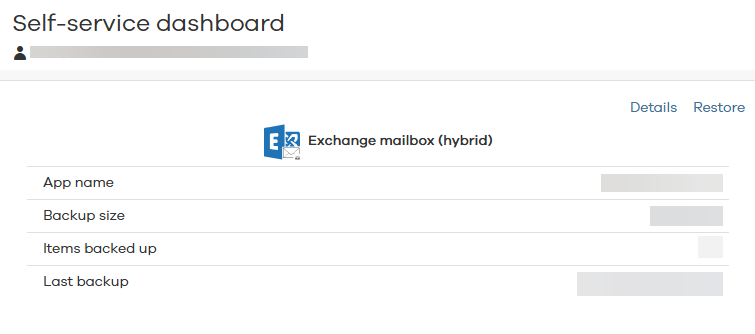
The Self-service dashboard appears.
-
On the Self-service dashboard, in the Exchange section, click Restore.
The message selection page appears.
-
From the email list, select the messages that you want to restore.
-
At the top of the page, click Restore.
The Restore Options dialog box appears.
-
Under Exchange account, leave Restore the data to its original location selected, and then click Next.
-
Configure any of the following options, and then click Next.
-
If the message exists:
-
Skip: To skip restoring any message that is already in your User Mailbox (hybrid), under, select this option.
-
Unconditionally overwrite: To overwrite any message that is already in your User Mailbox (hybrid), select this option.
-
Include deleted items: To include any messages that were deleted from your User Mailbox (hybrid), select this option.
-
-
-
On the Review page, check your selections, and then click Submit.
The Summary page appears.
-
Click Close.