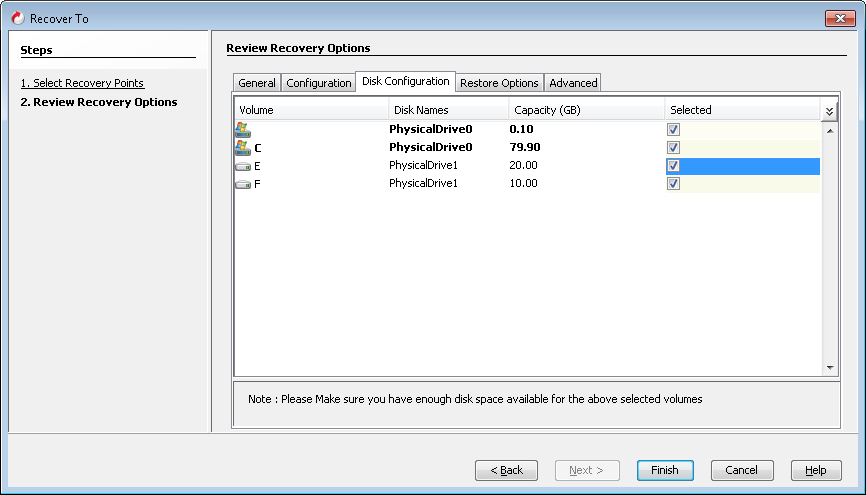
You can restore specific volumes on the client computer. You can select only system volumes during restore and add the non-system volumes later. This feature is useful in the following scenarios:
-
The non system volumes reside on disks provisioned by iSCSI or SAN.
-
You do not want to restore the data from the non system volumes.
Non-Interactive Restore
You can select volumes before creating a response file and then use the modified response file for a non-interactive restore.
-
From the CommCell Console, navigate to <Client>
-
Right-click the <Client> and click All Tasks | 1-Touch Recovery Point.
-
Click Next.
-
Click the Disk Configuration tab.
The list of volumes available on the client computer is displayed.
-
Select the required volumes from the list. The Selected volumes will be restored during the Non-interactive restore.
-
Click in the Capacity column and enter the volume size for each volume.
If you are decreasing the volume size, ensure that the volume size is greater than the actual data size on the volume.
-
Click Finish and save the response file.
-
Perform the non-interactive restore using the response file. The client will be restored with selected volumes.