A new client computer group is created for each VMware vCenter client. All virtual machines backed up by that VMware vCenter client are added to the group.
Virtual machines in the group can be displayed independently of the Client Computers list. Perform the following steps to display virtual machines in the Client Computer Groups list in the CommCell Console:
-
From the CommCell Console ribbon, click the Tools tab, and then click User Preferences.
-
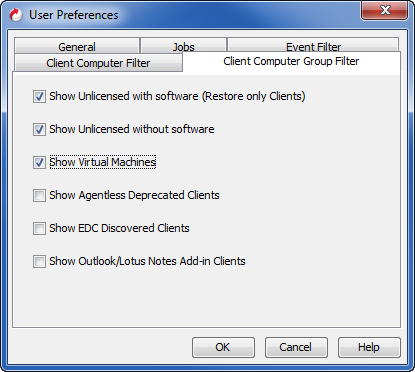
Click the Client Computer Group Filter tab.
-
Select the Show Virtual Machines check box.
If this check box is cleared, virtual machines are only displayed under subclients that include them, and any virtual machines without installed packages are not displayed.
-
Click OK.
-
Expand the Client Computer Groups node to view the groups.
-
Expand the node for each group to view the virtual machines backed up by that VMware vCenter client.
All virtual machines backed up by any subclient are displayed in the CommCell Browser. Any virtual machines that do not have packages installed are grayed out.