The following section provides information on some of the troubleshooting scenarios related to backup:
Backup Failures
|
Backup fails |
The subclient content might have remote scripts with one or more blank lines at the top. Ensure that you delete the blank lines at the top of any remote scripts. |
|
Backup hangs indefinitely |
Ensure that there are no stale NFS mounts on the server included in the backup. If there are stale NFS mounts on the server, backups hang indefinitely. This can be avoided by ensuring that the NFS mount points are available for backups. If the backups hang frequently because of this issue, mount the NFS share using the soft,timeo=10 option. |
|
Error while loading shared libraries |
On Linux clients, the below error appears when we run any process or service: For example, As a workaround, do the following steps:
|
-
Priority of Commvault Processes By default, Commvault processes run at default priority on the client computers. If there are available CPU cycles, then Commvault processes will use the available CPU for backup and restore operations. If the CPU is being used by other application or system processes, Commvault processes will not preempt them. In such cases, if you want to give higher priority to other application or system processes, which are running at the default priority, you can modify the priority of the Commvault process using the following steps:
-
From the CommCell Browser, navigate to Client Computers.
-
Right-click the <Client> and click Properties.
-
Click Advanced and then click Additional Settings tab.
-
Click Add.
-
In the Name field, type dNICEVALUE.
The Category and Type fields are populated automatically.
-
In the Value field, type the appropriate value.
For example, 15.
-
Click OK.
Note
Restart the services on the client computer after configuring this additional setting.
-
-
Completed with one or more errors
By default the backup jobs from Mac File System iDataAgent complete without any error messages.
In the Scan phase files that cannot be accessed will be populated in scan_failures.cvf, in the following scenarios:
-
Stat failed.
-
If a file is deleted or renamed.
-
Unable to open a directory during scan
To view the "Completed w/ one or more errors" message in the Job History in the Scan phase, follow the steps given below:
-
From the CommCell Browser, navigate to Client Computers.
-
Right-click the <Client> and click Properties.
-
Click Advanced and then click Additional Settings tab.
-
Click Add.
-
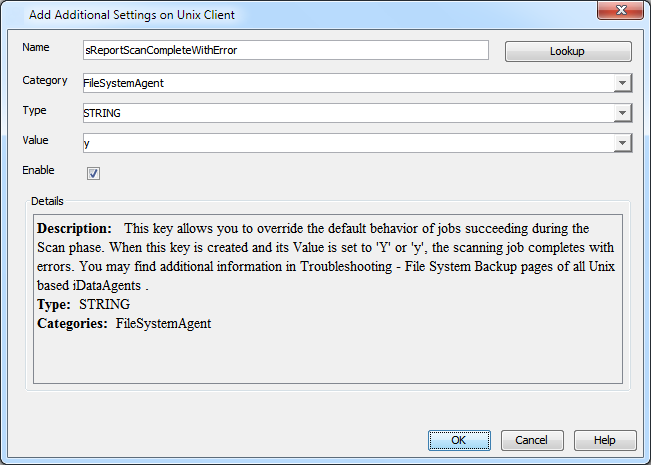
In the Name field, type sReportScanCompleteWithError.
The Category and Type fields are populated automatically.
-
In the Value field, type y or Y to enable the error message display or n or N to disable the error message display.
-
Click OK.
During backups the jobs will be marked partial success and reported into Failures.cvf, in the following scenarios:
-
Stat failure on a backup file (moved/accessed, etc).
-
Unable to open a directory.
-
Error to get the file attributes.
-
If File is locked.
-
Path is a symbolic link and you are unable to read the symbolic link path.
-
Critical error while reading extended attributes or ACLs of the file or directory.
-
Size of the extended attributes or ACLs buffer exceeded the backup buffer size (default pipeline buffer size is 63kb).
To view the "Completed w/ one or more errors" message in the Job History after a backup, follow the steps given below:
-
From the CommCell Browser, navigate to Client Computers.
-
Right-click the <Client> and click Properties.
-
Click Advanced and then click Additional Settings tab.
-
Click Add.
-
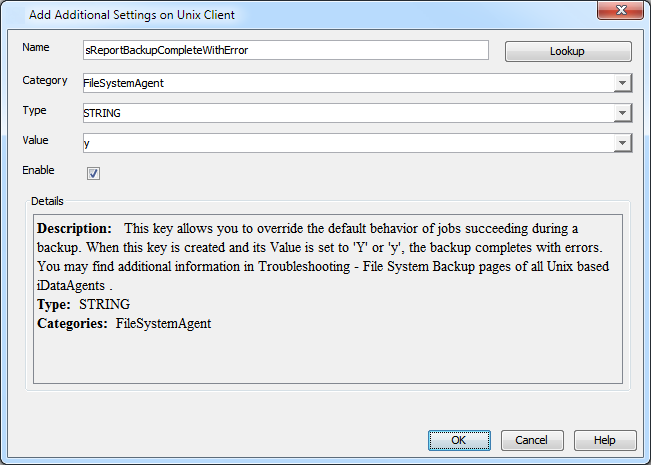
In the Name field, type sReportBackupCompleteWithError.
The Category and Type fields are populated automatically.
-
In the Value field, type y or Y to enable the error message display or n or N to disable the error message display.
-
Click OK.
Troubleshooting Performance Issues
If you are experiencing performance issues during backup, you can troubleshoot them by enabling logging of performance details in the log files. These performance counters contain information that help in resolving the performance related issues during backups.
The performance counters printed in the log files include:
|
FileRead |
Average time spent in system call to read the file. |
|
CheckFileHole |
Average time spent to verify if buffer read from the disk is a hole. |
|
Close File |
Average time spent in system call to close the file. |
|
AllocBuffer |
Average time spent waiting for the network buffer. |
|
WriteBuffer |
Average time spent in sending the network buffer to the network. |
|
Disk Read |
Average speed of reading from the disk. |
|
Write |
Average speed of writing to the network. |
-
Displaying Performance Details of a Backup Job
Procedure
-
From the CommCell Browser, navigate to Client Computers.
-
Right-click the <Client> and click Properties.
-
Click Advanced and then click AdditionalSettings tab.
-
Click Add.
-
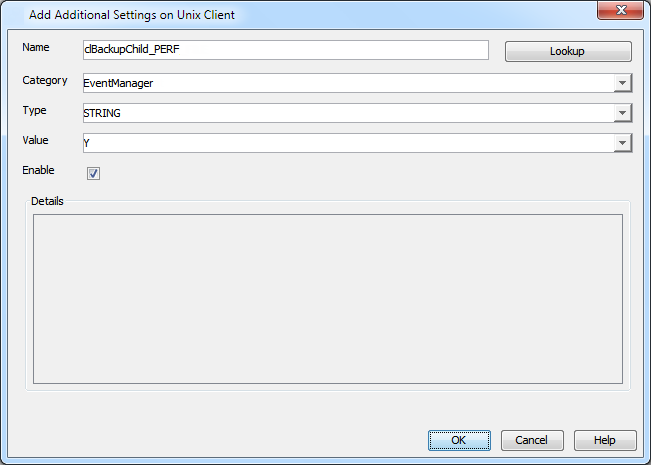
In the Name field, type clBackupChild_PERF.
The Category and Type fields are populated automatically.
-
In the Value field, type Y.
-
Click OK.
-
-
Displaying Performance Details for Each File in a Backup Job
In addition to viewing the performance details for a backup job, you can also view the performance details of each file in the backup job. Note that the file names are not printed in the log.
Procedure
-
From the CommCell Browser, navigate to Client Computers.
-
Right-click the <Client> and click Properties.
-
Click Advanced and then click AdditionalSettings tab.
-
Click Add.
-
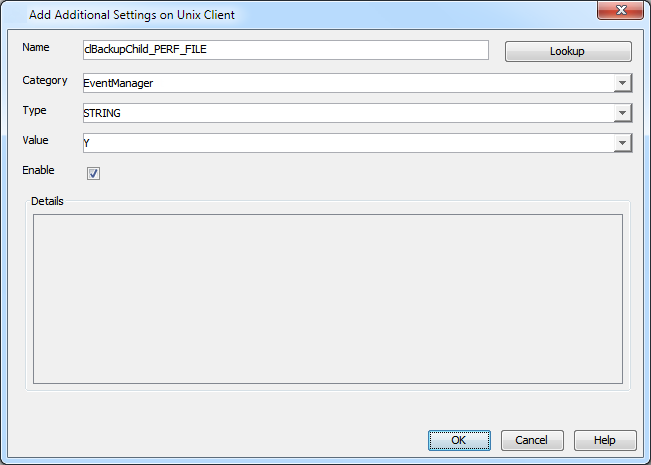
In the Name field, type clBackupChild_PERF_FILE.
The Category and Type fields are populated automatically.
-
In the Value field, type Y.
-
Click OK.
Note
This additional setting should be used together with the clBackupChild_PERF additional setting.
-
-
MAC0001 : Mac OS X File System iDataAgent install getting FIFO error message
Symptom
The following FIFO error is shown during Mac File System iDataAgent installation in the /tmp/.gxsetip/cvpkgadd.log file:
>>> Executing: /opt/commvault/Base/svc_ctrl -focus Instance001 -create cvd /opt/commvault/Base/cvd >/dev/null 2>/dev/null ...
 Failed to create FIFO /opt/commvault/Base/Temp/locks/mutex_UXService.fifo: Invalid argument
Resolution
Apple has reported this as a bug, the bug is a false positive. During the creation of the file mutex_UXService.fifo the operating system reports an Invalid Argument, this error should not appear as the file does get created.
Apple has identified a bug in the Mac OS X. It is a known limitation of OS X that mkfifo is not supported on certain file systems such as FAT32.
To make sure that this is the issue and to provide proof to Apple please run the following commands:
# mkfifo -m 666 /opt/commvault/Base/Temp/locks/mutex_UXService.fifo# ls -l /opt/commvault/Base/Temp/locks/mutex_UXService.fifo prw-rw-rw- 1 gbuilder admin 0 Mar 12 19:55 /opt/commvault/Base/Temp/locks/mutex_UXService.fifo# rm /opt/commvault/Base/Temp/locks/mutex_UXService.fifo# mkfifo /opt/commvault/Base/Temp/locks/mutex_UXService.fifo# ls -l /opt/commvault/Base/Temp/locks/mutex_UXService.fifo prw-r--r-- 1 gbuilder admin 0 Mar 12 19:56 /opt/commvault/Base/Temp/locks/mutex_UXService.fifoPlease contact Apple for an operating system upgrade or a fix.