The Web Banner report contains information about the configurations and current status of the ContentStore Email Viewer.
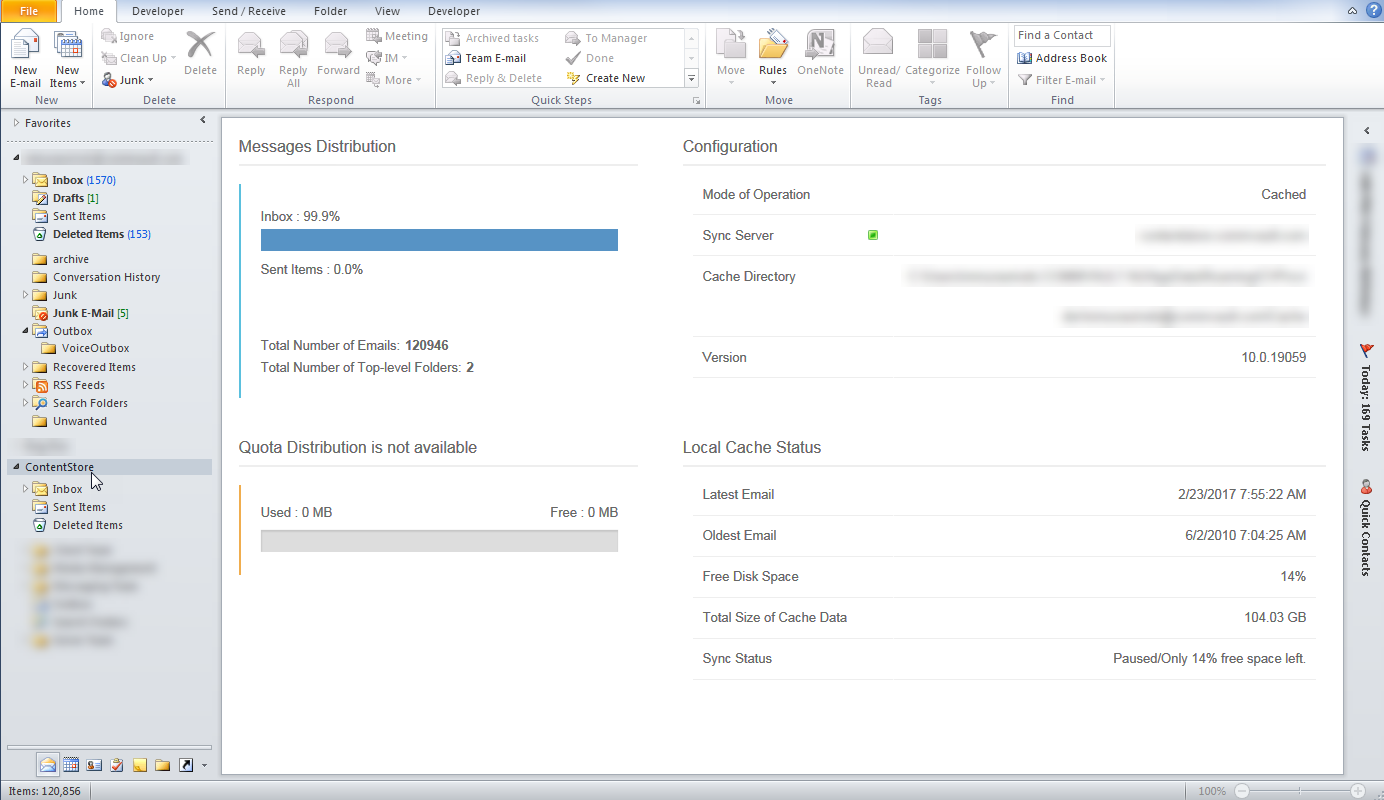
When you click the ContentStore node in Microsoft Outlook, he Web Banner information appears. The information that is displayed depends on whether you are in online mode or offline (local cache) mode.
Online Mode
|
Web banner section
|
Information
|
|
Messages Distribution
|
-
folder name: percentage: The size of the folder as a percentage of the total size of the emails in ContentStore.
-
Total Number of Emails: The total number of emails in the ContentStore.
-
Total Number of Top-level Folders: The total number of folders that contain data in the ContentStore node.
|
|
Quota Distribution (if available)
|
- Used: n MB - Free: n MB: If a quota is set by your administrator, the amount of used and free space for your email quota.
|
|
Configuration
|
-
Mode of Operation: The ContentStore Email Viewer is configured in Online mode.
-
Sync Server: The current connection status and name of the proxy server.
-
Version: The version of the Outlook Add-In that is running within Microsoft Outlook.
|
|
Online Status
|
-
Latest Email: The received time of the newest emails in the ContentStore Email Viewer node.
-
Last Sync Time: The last time that the emails in the ContentStore were synchronized with the emails in the Search Engine.
|
Offline (Local Cache) Mode
|
Web banner section
|
Information
|
|
Messages Distribution
|
-
folder name: percentage: The size of the folder as a percentage of the total size of the local cache.
-
Total Number of Emails: The total number of emails in the local cache.
-
Total Number of Top-level Folders: The total number of folders that contain data in the ContentStore node.
|
|
Quota Distribution (if available)
|
- Used: n MB - Free: n MB: If a quota is set by your administrator, the amount of used and free space for your email quota.
|
|
Configuration
|
-
Mode of Operation: The ContentStore Email Viewer is configured in Cached, or Offline Mode.
-
Sync Server: The synchronization status and the URL of the proxy server from where ContentStore emails are retrieved.
-
Cache Directory: The full path of the local cache.
-
Version: The version of the Outlook Add-In that is running within Microsoft Outlook.
|
|
Local Cache Status
|
-
Latest Email: The date and time of the most recently synchronized email in ContentStore Email Viewer.
-
Oldest Email: The date and time of the oldest synchronized email in ContentStore Email Viewer.
-
Free Disk Space: The disk space that is available on the hard disk where the local cache is located.
-
Total Size of Cache Data: The total size of the emails stored in the local cache directory.
-
Sync Status: The current status of synchronization operations.
|