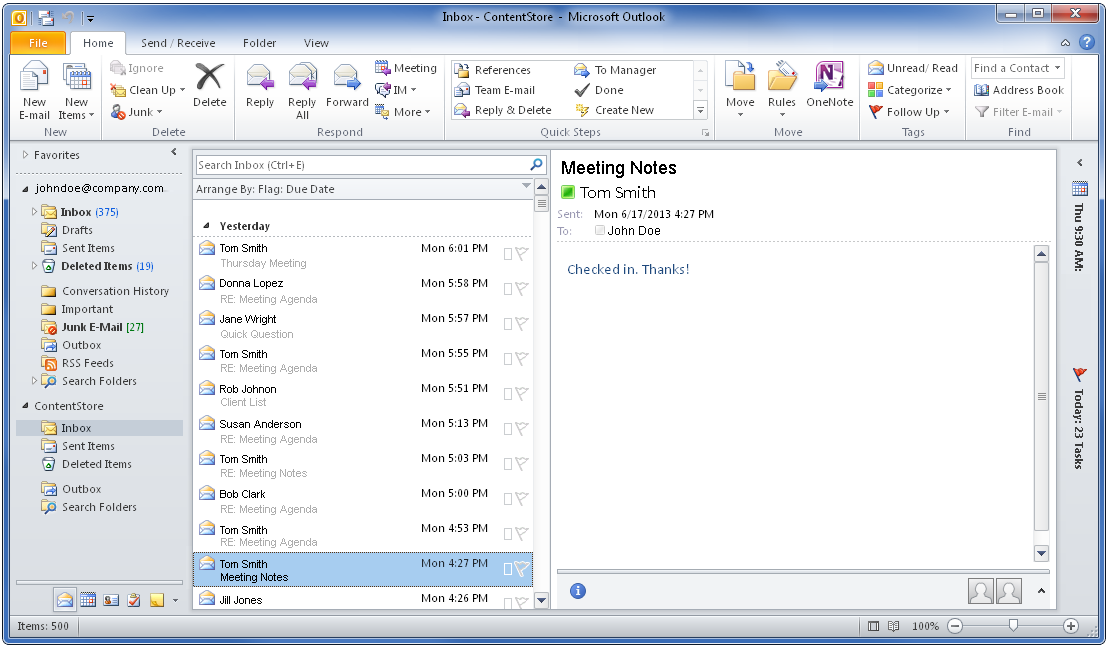
You can view the contents of archived messages in the ContentStore from Microsoft Outlook with the ContentStore Email Viewer.
Note
The number of messages that appear in each folder depends on your ContentStore Email Viewer settings:
-
In online mode, the latest 500 archived messages are shown in each folder by default. If additional messages are archived while Microsoft Outlook is open, then they are added to the folders in the ContentStore Email Viewer node. These settings can be changed by Configuring Online Mode settings.
-
In offline mode, all the messages that are stored in the local cache are available. These settings can be changed by Configuring Offline (Local Cache) Mode settings.
Procedure
-
From Microsoft Outlook, expand the ContentStore node and go to the folder you want to view.
-
Click the archived message that you want to view.
The contents of the selected message appear in the preview pane.