Configure a Library to Use WORM Media
Libraries with WORM Media can be configured using any of the tape library configurations.
-
IP Libraries (Like libraries attached to ACSLS Server)
After you configure the library, configure and manage WORM media in the library.
-
Disable the option to discover media from the library automatically.
-
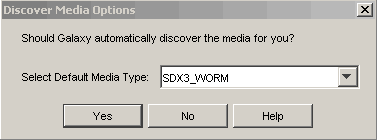
During the library configuration, disable the automatic media discovery by clicking No in the Discover Media Options dialog box.
-
If the library is already configured to discover media automatically, clear Enable Auto-Discovery of media into default scratch pool on the Media Usage tab of the Library Properties dialog box.
-
-
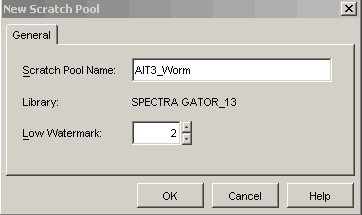
From the CommCell Console, create Spare Media Groups for the WORM media.
See Creating Spare Media Groups for information about how to create Spare Media Groups.
-
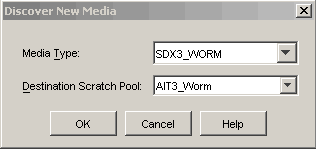
Manually discover the WORM media.
See Discover a Specific Media Within a Library for information about how to discover the media.
Ensure that all the media is moved to the scratch pool created for WORM media.
-
Create new Storage Policies or reassociate existing Storage Policies to use the appropriate scratch pools.
-
Assign appropriate subclients to these Storage Policies.
Enable or Disable Automatic Detection of WORM Media
-
From the CommCell Browser, click the MediaAgents icon.
All of the MediaAgents that are available in the CommCell appear in the right-pane of the CommCell Browser.
-
Right-click the appropriate MediaAgent, and then click Properties.
-
Click the Control tab.
-
Click and choose the Automatically detect WORM Tape Media option to enable automatic detection. (Clear the option to disable it.)
-
Click OK to save the configuration.