You can add a service CommCell to the Commvault Console.
Start the Configuration Wizard
-
Log in to the Commvault Console associated with the primary service CommCell.
-
From the Global Command Center navigation pane, go to Explore > Service CommCells.
The Service CommCells page appears.
-
Click Add.
The Add service CommCell dialog box appears:
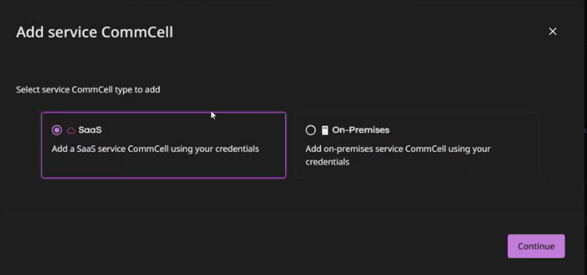
Add a SaaS Service CommCell
Note
-
You can add only one SaaS service CommCell to the Commvault Console.
-
The tenant may have multiple rings, but only if those are ring extensions (not different tenants).
-
MSP companies are not supported at this time.
-
Click the SaaS option and then click Continue.
The SaaS Service CommCell page of the Add SaaS Service CommCell wizard appears.
-
In the Service CommCell Command Center URL field, enter the Command Center URL for the service CommCell environment, and then click Next.
The SaaS Authentication page of the wizard appears.
-
Do one of the following:
-
To authenticate using SAML, enable the Is this registered via SAML? toggle, and then enter your SAML username in the Username field.
-
If not using SAML, enter the service CommCell user credentials in the Username and Password fields.
-
-
Click Next.
The SaaS Regions page of the wizard appears, displaying all tenant regions, including the home ring and any ring extensions.
-
Click Finish.
The Service CommCells page appears, showing the new service CommCell.
Add an On-Premises Service CommCell
Note
You can add any number of on‑premises service CommCells to the Commvault Console.
-
Click the On-Premises option and then click Continue.
The Add SaaS Service CommCell dialog box appears.
-
In the Service CommCell Command Center URL field, enter the Command Center URL for the service CommCell environment.
-
Enter the CommCell display name.
-
Click Add.
The Service CommCells page appears, showing the new service CommCell.