You can control active jobs. For example, you can suspend a job.
Procedure
-
From the Command Center navigation pane, go to Monitor > Jobs.
The Active jobs summary page appears.
-
On the Active jobs summary tab, refine your results as follows:
-
To view active jobs for an individual CommCell environment, click a CommCell name.
-
To view active jobs based on their status, click the number in a status column (for example, Running, Pending, Waiting, etc.) for a CommCell environment.
-
-
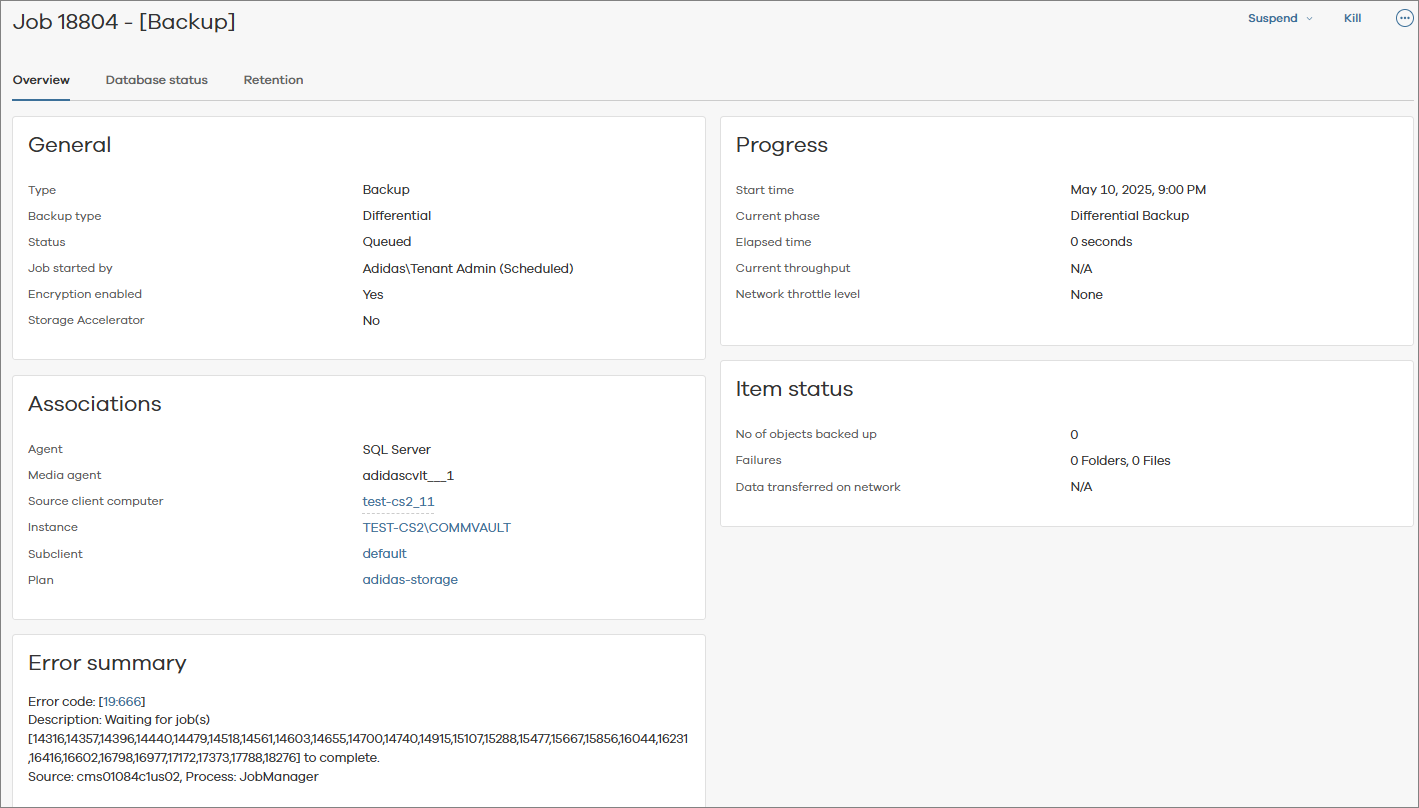
In the Job ID column, click the job ID.
The job details appear, as shown in the following figure:
-
You can perform the following actions:
-
To kill the job, click Kill.
-
To suspend the job, click Suspend, and then select one of the following options:
-
1 hour: Suspends the job for 1 hour.
-
2 hours: Suspends the job for 2 hours.
-
Custom: Suspends the job based on the date and time mentioned in the Suspend until dialog box.
-
Indefinitely: Suspends the job indefinitely.
-
-
To force suspend the job, click Force suspend. Note that this option is not available for all jobs.
-
To resume a suspended job, click Resume.
-
To resubmit the job, click Resubmit.
-
To change the priority of the job, do the following:
-
Click the action button
 and then click Change job priority.
The Change job priority dialog box appears.
-
Enter or select a value from 0 (highest priority) to 999 (lowest priority) in the New Priority box.
-
Click OK.
-
-
To view logs for the job, click the action button
and then click View logs. -
For job alerts, do the following:
-
To add a job alert, click Add alert.
-
To delete a job alert, click Delete alert.
-
To edit a job alert, click Edit alert.
For more information, see Alerts.
-
-