You can send log files from the CommCell Readiness report for one or more entities that have problems.
Procedure
-
Open the CommCell Readiness Report.
-
In the Failure table, select the entity or entities that you want to send logs for:
-
To send logs for a single entity, select an entity, and then at the top of the Failure table, click Send Logs.

-
To send logs for multiple entities, select a group of entities, and then at the top of the Failure table, click Send Logs.
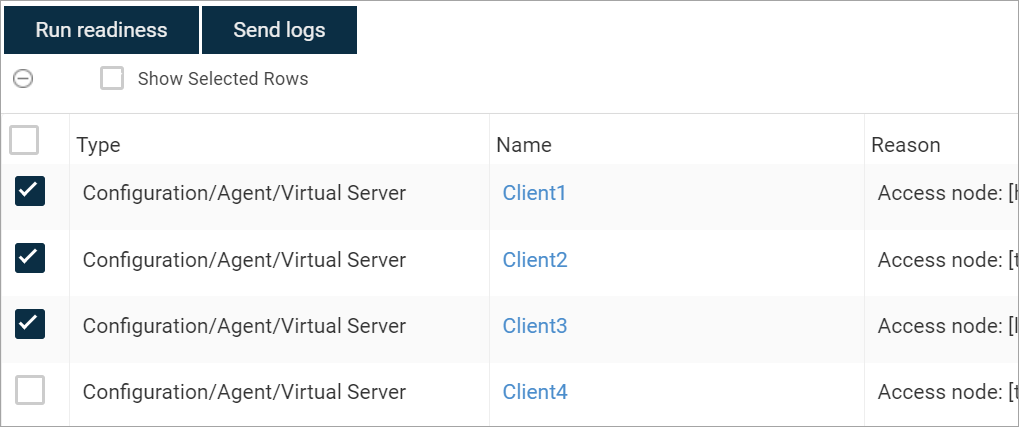
The Send log files page appears.
The Send Logs option is enabled only for the problematic client computers under the Configuration/Agent category.
-
-
Under Output, upload automatically to the default location or a local or network path:
-
To upload to the default CommCell location, select the Auto upload check box.
-
To upload to a local path or network path, select the Output to check box, select Local path or Network path and then browse for a storage location.
You might have to enter network credentials to browse for a Network path location.
-
-
Under Information, select the type of logs to include.
For example, select CommServe database, OS logs.
-
To select additional information and options to include in the bundle, click the Advanced options checkbox and then select any of the following:
-
Database logs: To collect SQL Server error logs.
-
Collect existing process dumps: To collect existing dumps from the Commvault directory.
-
User application logs (ex. Oracle, HANA): To collect user application log files from the trace, dump, and cdump folders. Files up to 7 days old are collected. For large dump files, the last 10,000 lines are collected.
-
Take new process dump: To collect new process dumps based on the Process Name or ID.
-
Take two dumps for memory analysis: To collect two process dumps in an interval based on the Process name or ID. The default time interval is 2 minutes, you can specify the time interval on the Dump Interval (Minutes).
Note
The process ID is not supported for send logs to multiple client computers or sending logs by job ID.
-
-
Remote File Cache: To collect the index remote file cache of the jobs. This option is only valid while performing send logs by job ID.
-
-
Under Notification, select the users that you want to receive an email about the logs.
By default, logs are sent to Commvault support.
-
Click Send logs.