You can create views to control the display of entries on the Targets page.
Procedure
-
From the Command Center navigation pane, go to Secure > Auto recovery > Targets.
The Targets page appears.
-
In the upper-right area of the page, click the settings button
 .
.The Manage views dialog box appears with the Create view tab selected.
-
To create a view, do the following:
-
In the Save view as box, enter a descriptive name for the view.
-
To make the view the default for the Target page, move the Set as default toggle key to the right.
-
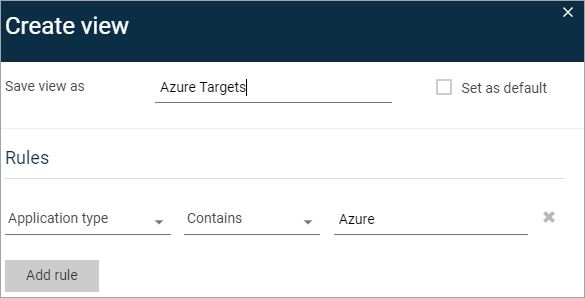
To configure the replication targets that appear in the view, under Rules, select a condition, such as Application type, an operator, such as Contains, and then enter text that is included in the target.
For example, select Application type, select Contains, and then type Azure.
-
Optional: To create additional rules that define the view criteria, click Add rule, and then configure the options.
-
Click Save.
The Targets page appears with the view that you created.
-
-
To go to another view, on the Targets page, click the view tab.
-
To change the sequence of the views, do the following:
-
Click the settings button
.The Manage views dialog box appears.
-
Go to the Reorder views tab.
-
Click and drag the views in the order you want, and then click Save.
The view listed first identifies the default view for the page.
-