You can view an overview of individual resources. You can also analyze the resources using Arlie AI Assistant.
Procedure
-
From the Command Center navigation pane, go to Security services > Threat scan.
The Threat Scan page appears.
-
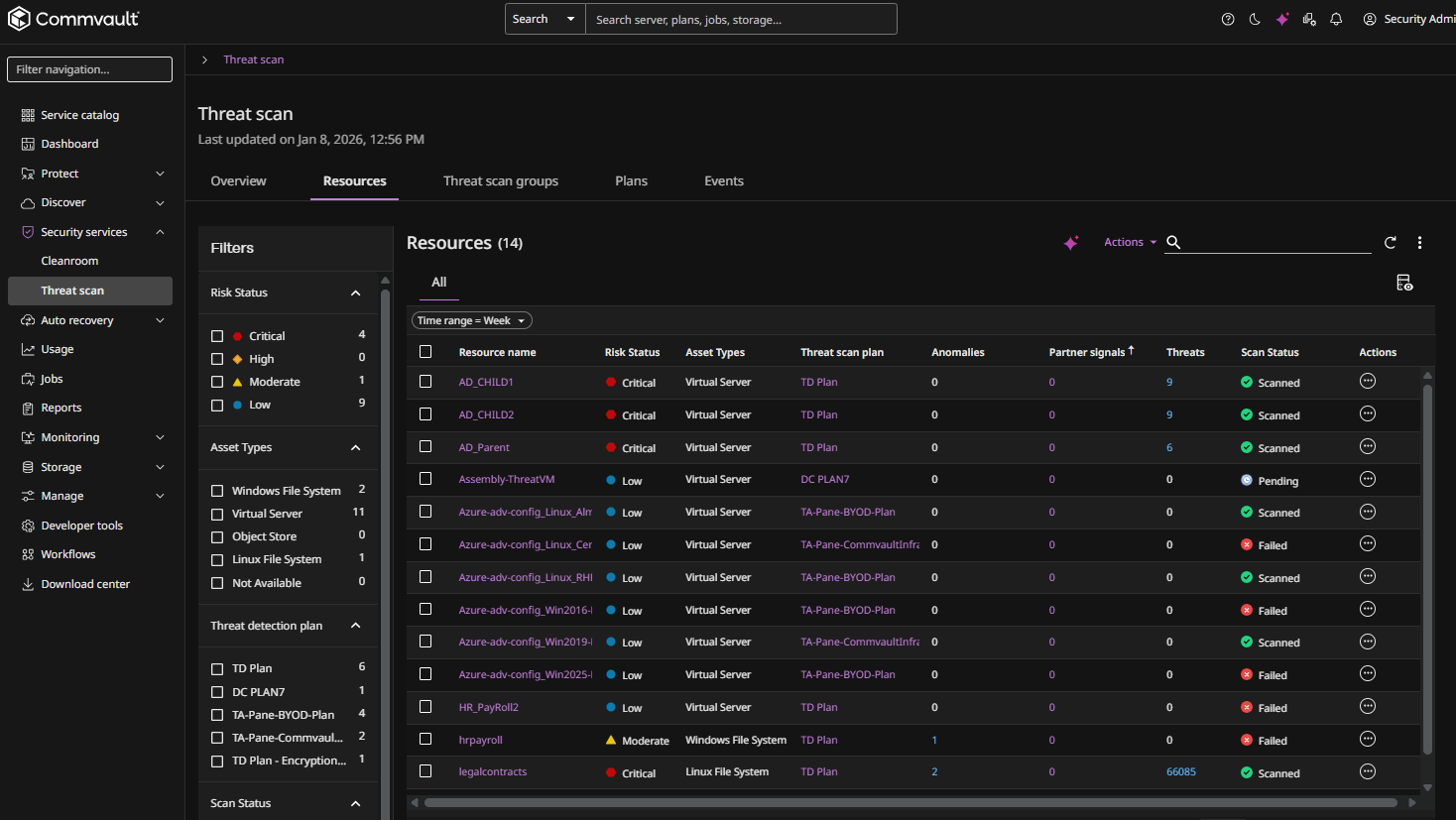
Click the Resources tab to show the resources that are currently scanned by Threat Scan, as follows:
-
Click the name of a resource.
The Threat Scan page for the resource appears.
-
Click the Overview tab to view the Threat Scan overview of that resource, as follows:
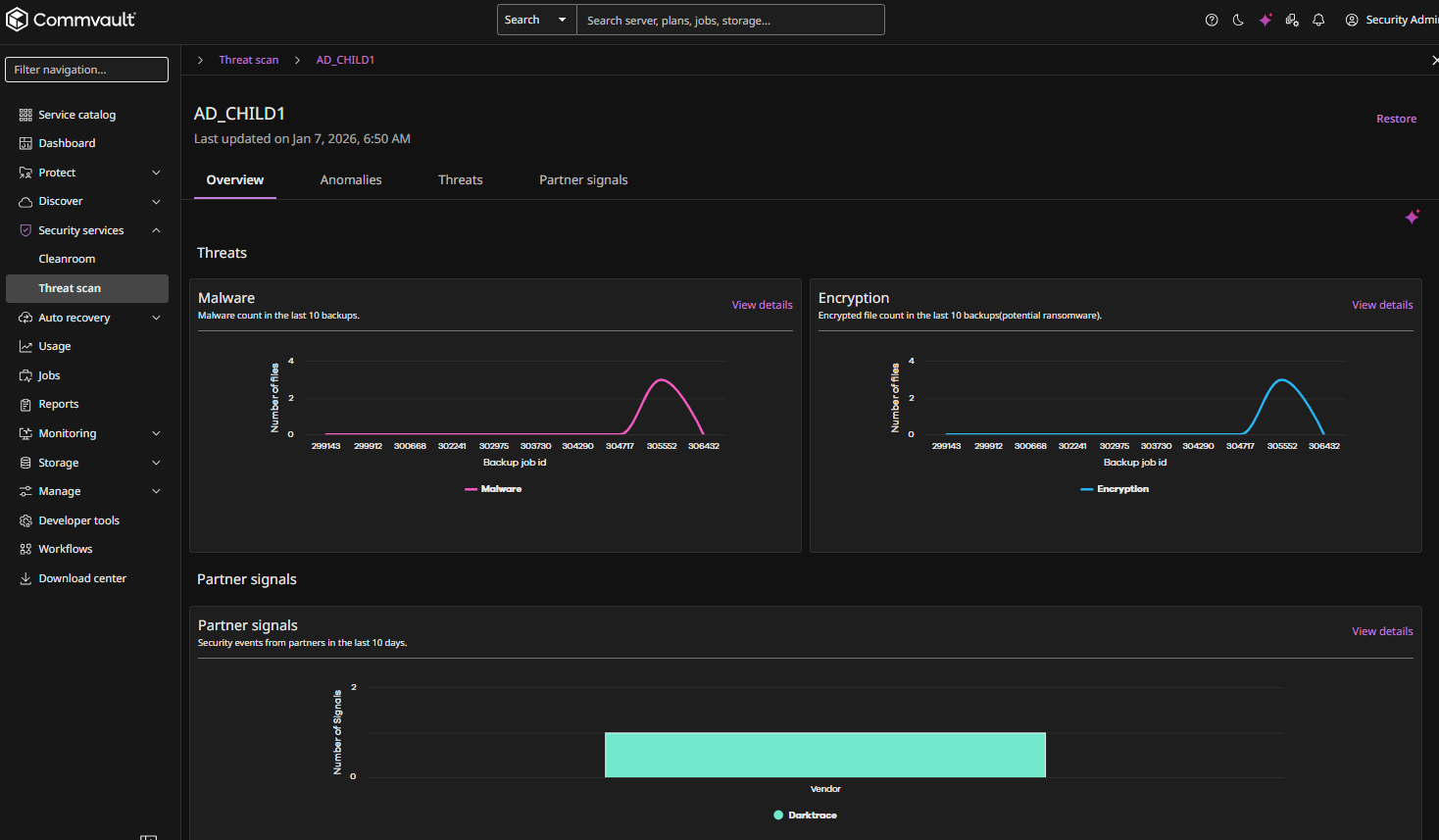
Threat Scan Resource Overview Tiles
Threats
These tiles display the following threats for the resource, as follows:
-
Malware: Malware count in the last 10 backups.
-
Encryption: Encrypted file count in the last 10 backups. Encrypted files indicate the potential presence of ransomware in backup files.
For more information about threats, see Monitoring Threats.
Partner Signals
This tile displays security events from partners (for instance, CrowdStrike, Darktrace, and Netskope) in the last 10 days.
For more information about partner signals, see Monitoring Partner Signals.
Anomalies
This tile displays information about anomalous file activity on active client computers and in backup jobs, as follows:
-
File Type Anomaly: MIME mismatches across 10 backups with machine learning thresholds flagging anomalies.
-
File Extension Anomaly: Top 5 file extensions across 10 backups with machine learning thresholds flagging largest growth.
-
File Activity Anomaly: File system changes across 10 backups with machine learning thresholds flagging unusual spikes.
-
Backup Size Anomaly: Backup size fluctuations across 10 backups with machine learning thresholds flagging deviations.
For more information about anomalies, see Monitoring Anomalies.
Analyze the Resource Using Arlie
To analyze the resource using Arlie AI Assistant, click the Analyze with Arlie button .
Note
Arlie's responses are AI-generated and may not always be accurate. Please verify information independently where needed and avoid entering sensitive or personal information. All interactions are processed in accordance with our Privacy Policy.
The Arlie chat box appears, as follows:
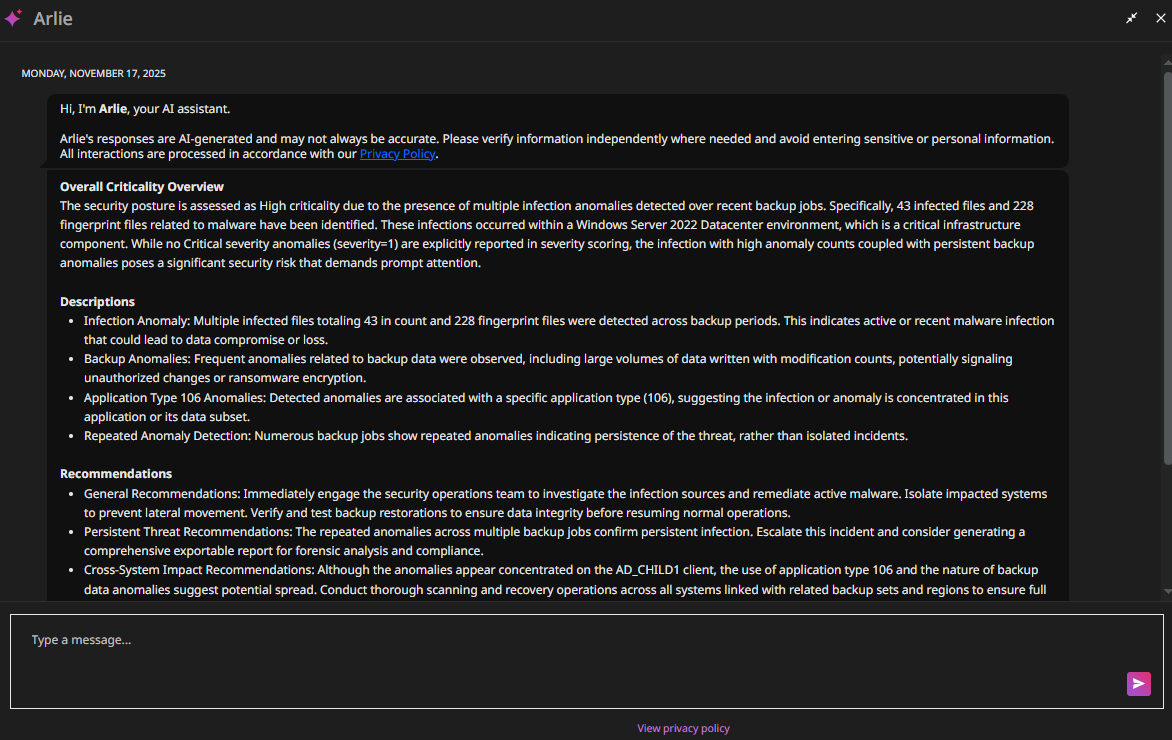
The Arlie chat box shows a detailed analysis of the resource, including a Overall Criticality Overview, Descriptions, and Recommendations. To prompt further AI-driven analysis from Arlie, type a message at the bottom of the chat box.
For more information about Arlie, see Arlie AI Assistant.