Commvault provides a third-party plugin for the Cisco Extended Detection and Response (XDR), helping to protect your data and related infrastructure, monitor data risk, and rapidly recover data and applications.
Note
The Commvault third-party plugin for Cisco Extended Detection and Response (XDR) is verified only with Commvault release 11.42 CU83.
The plugin offers the following two workflows designed for managing virtual machines (VMs) using Commvault. These workflows are as follows:
-
Backing up a VM to Commvault.
-
Creating a Cleanroom Recovery Group for a VM.
Procedure
-
Log in to Cisco XDR.
-
Install the Commvault Cloud third-party integration from within Cisco XDR.
-
Create a user. For more information, see Creating a User.
-
Assign the following permissions to the user. For more information, see User Security Permissions.
-
View permission on the CommCell.
-
Client Admin on Selected Servers.
-
View permission on All Servers.
-
-
Create an access token and refresh token for the user. For more information, see Creating an Access Token.
Note
To ensure the service user cannot run workflows, the admin user must restrict access to the following required APIs only:
-
/api/v4/accesstoken/renew
-
/api/v2/vsa/vm
-
/api/Job
-
/api/v4/accesstoken/renew
-
/api/v4/virtualmachines
-
/api/v4/recoverytargets
-
/api/recoverygroup
-
-
In Cisco XDR, locate the Commvault Cloud third-party integration tile and then click the + button:
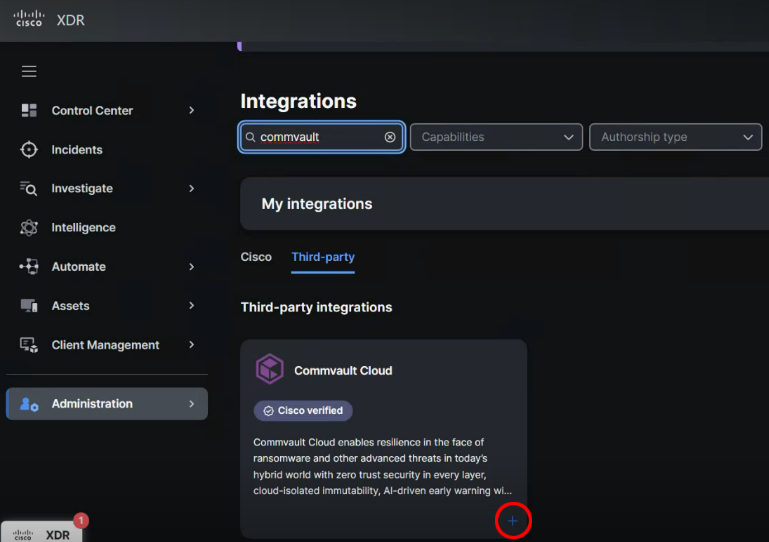
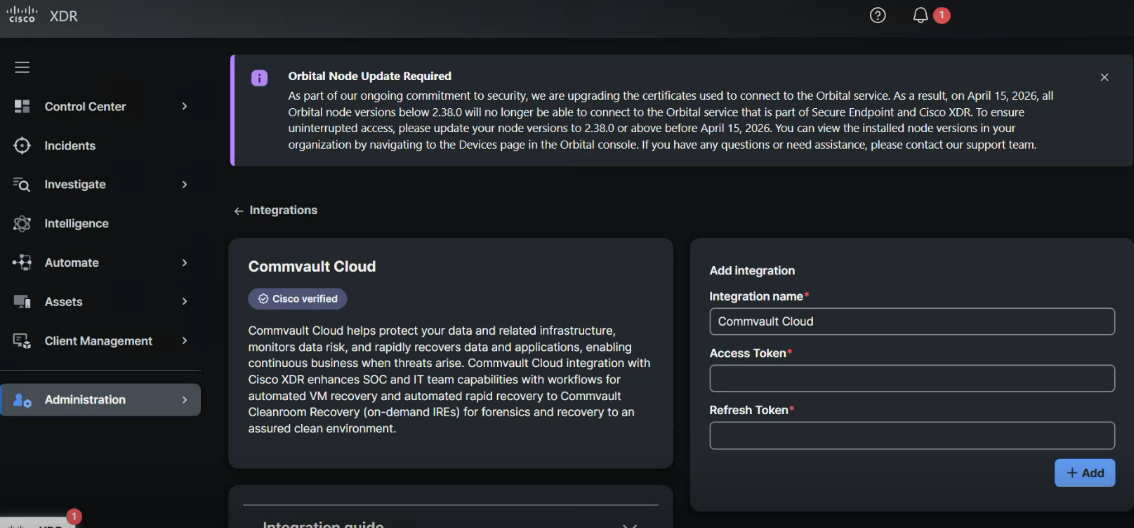
The Commvault Cloud integration screen appears:
-
In the Add integration section, enter the following:
-
Integration name: Enter "Commvault Cloud".
-
Access Token: Enter the access token that you created in Step 5, above.
-
Refresh Token: Enter the refresh token that you created in Step 5, above.
-
-
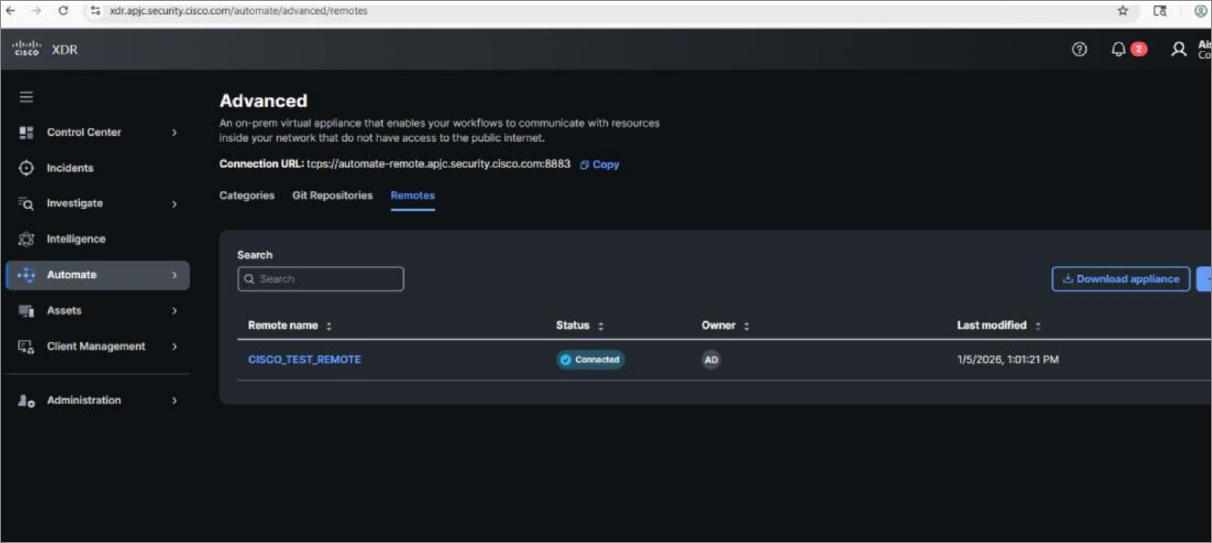
From Automate > Advanced > Remotes, add a remote virtual appliance. For more information, see Cisco XDR - Remote Setup and Deployment.
Workflow 1 - Back Up a VM
Overview
This workflow backs up a virtual machine (VM) to Commvault using the provided VM GUID. It ensures that the VM is protected by triggering a backup job and monitoring its status.
Prerequisites
The Commvault WS should be accessible by the remote VA provided by Cisco or it should be internet facing. Virtual machine should be added by configuring a hypervisor in the Commvault CommServe server.
Use Case
Triggers a backup job for the specified VM hostname.
Workflow Steps
-
Input Validation:
-
Accepts the "vm_guid" as input.
-
Validates the GUID format.
-
-
Renew Access Token:
-
Uses the refresh token to renew the access token for authentication.
-
If the token renewal fails, the workflow exits with an error.
-
-
Trigger Backup Job:
-
Sends an HTTP request to the Commvault API to initiate a backup job for the VM.
-
Extracts the "jobld" from the response.
-
-
Monitor Backup Job:
-
Periodically checks the status of the backup job using the jobId.
-
Retries up to a maximum number of attempts (MAX_RETRIES JOB_STATUS) with a sleep interval (SLEEP_TIME_SECONDS) between retries.
-
If the job fails, the workflow exits with an error, providing the failure reason.
-
-
Completion:
- If the backup job is completed successfully, the workflow exits with a success messag.
Key Variables
-
Input:
- vm_guid: The GUID of the VM to back up.
-
Local:
-
SLEEP_TIME_SECONDS: Interval between job status checks (default: 60 seconds).
-
MAX_RETRIES_JOB_STATUS: Maximum number of retries for job status checks (default: 10).
-
API Endpoints Used
-
Renew Access Token: /api/v4/accesstoken/renew
-
Trigger Backup Job: /api/v2/vsa/vm/{vm_guid}/backup?backupLevel=FULL
-
Check Job Status: /api/Job/{jobld}
Workflow 2 - Create a Clean Recovery Group Overview
Overview
This workflow creates a cleanroom recovery group for a VM in Commvault. It isolates the VM in a secure environment for recovery purposes.
Prerequisites
-
The Commvault WS should be accessible by the remote VA provided by Cisco or it should be internet facing.
-
Virtual machine should be added by configuring a hypervisor in the Commvault CommServe server.
-
Cleanroom recovery target must be already added and present in the Commvault CommServe server.
Use Case
Consider a customer has Cisco XDR, Commvault, and another third party ransomware/malware/virus detection application in their environment. This workflow is useful in post-attack recovery.
In the event of a ransomware/malware detected by the third party IDS/IPS/AV application, this workflow could be triggered manually by an admin user or automatically as a part of any other workflow. The VM hostname and cleanroom target would have to be supplied by the admin user/other workflow as inputs. Once this workflow runs, a new recovery group with the name "CISCO XDR RECOVERY GROUP" will be created and the compromised VM will be added to it, which can be restored later to a clean recovery point. A runbook configuration would also be added to the cleanroom group with the VM recovery point set to AUTOMATIC.
This will ensure that the last good/clean instance of the VM/VMs are present in the recovery group for restoring later. The correct operation of this is contingent on the setting of AUTOMATIC recovery point by the cleanroom feature. This could be extended further to set the Clean Recovery point to a point in time that is before the ransomware/malware is detected.
The flow would be something like the following for the following attack vector:
Ransomware infects a VM -> IDS detects it -> Workflow 2 - Create a Clean recovery Group -> Clean VM available in the CISCO_XDR_RECOVERY_GROUP
Workflow Steps
-
Input Validation:
-
Accepts the vm_guid as input.
-
Validates the GUID format.
-
-
Renew Access Token:
-
Uses the refresh token to renew the access token for authentication.
-
If the token renewal fails, the workflow exits with an error.
-
-
Fetch VM Details:
-
Retrieves VM details using the provided "vm_guid".
-
Extracts necessary information such as vmBackupSetld,vmGroupld,vmClientId, and vmName.
-
-
Fetch Recovery Target:
-
Retrieves a list of recovery targets from the Commvault API.
-
Filters the targets to find one with the CLEAN ROOM application type.
-
-
Create Recovery Group:
-
Generates a unique name for the recovery group.
-
Sends an HTTP request to create the recovery group with the selected recovery target.
-
-
Add VM to Recovery Group:
- Adds the VM to the newly created recovery group using its GUID and other extracted details.
-
Completion:
- If all steps succeed, the workflow exits with a success message, including the recovery group name.
Key Variables
-
Input:
vm_guid: The GUID of the VM to add to the recovery group.
-
Local:
-
vm_info_response: Stores the VM details fetched from the API.
-
recovery_group_id: Stores the ID of the created recovery group.
-
API Endpoints Used
-
Renew Access Token: /api/v4/accesstoken/renew
-
Fetch VM Details: /api/v4/virtualmachines
-
List Recovery Targets: /api/v4/recoverytargets
-
Create Recovery Group: /api/recoverygroup
-
Add VM to Recovery Group: /api/recoverygroup/{recovery_group_id}/entity
Notes
-
Both workflows rely on global variables for storing access and refresh tokens (CVLT_ACCESS_TOKEN and CVLT_REFRESH_TOKEN).
-
Ensure that the Commvault API endpoint and credentials are correctly configured in the workflow settings.
-
Error handling is implemented at each step to ensure proper logging and graceful exits in case of failures.
For further details, refer to the workflow JSON files:
-
Backup Workflow: Commvault - Backup a VM.json
-
Recovery Group Workflow: Commvault - Create a Clean Recovery Group.json
Further enhancement: Another Workflow that updates the malware detection time to Commvault via Command Center REST API or including this as a part of other workflows:
Malware detected on VM by IDS/AV -> Workflow 3: Update detection time and subsequently the restore point to Commvault -> Workflow 2 - Clean a Clean recovery Group -> Clean VM available in the CISCO_XDR_RECOVERY_GROUP
Minimum Permissions Required for User Account Per API
Note
For reference, see User Security Permissions by Feature.
-
Renew Access Token: /api/v4/accesstoken/renew
Minimum Permission:
-
The user must have an active access token and refresh token generated for their account.
-
No additional permissions are required beyond the ability to create and manage access tokens for their user account.
-
The token scope (All, Custom, Hyperscale) must allow renewal.
-
-
Trigger Backup Job: /api/v2/vsa/vm/{vm_guid}/backup?backupLevel=FULL
Minimum Permission:
-
Data Protection/Management Operations permission on the target VM, subclient, or agent.
-
The user must be associated with the VM or have permissions at the client, agent, or subclient level to initiate backup jobs.
-
For VMware, ensure the user has the required vCenter permissions for backup operations.
-
-
Check Job Status: /api/Job/{jobid}
Minimum Permission:
-
View permission on the job or associated entity (client, agent, subclient, etc.).
-
The user must be able to view job history and status for the relevant object.
-
-
Fetch VM Details: /api/v4/virtualmachines
Minimum Permission:
-
Browse permission on the client, agent, or VM group.
-
The user must be associated with the virtualization client or VM group to list and view VM details.
-
-
List Recovery Targets: /api/v4/recoverytargets
Minimum Permission:
-
View permission on recovery targets.
-
The user must be associated with the recovery group or have global view permissions for recovery targets.
-
-
Create Recovery Group: /api/recoverygroup
Minimum Permission:
-
Create permission for recovery groups or Resource Group Creator role.
-
The user must be able to create new recovery groups in the Command Center.
-
-
Add VM to Recovery Group: /api/recoverygroup/{recovery_group_id}/entity
Minimum Permission:
-
Edit or Manage permission on the recovery group or.
-
The user must be able to modify the recovery group and associate entities (VMs) with it.
-