You can view Threat Scan threats for individual resources, and you can analyze them using Arlie AI Assistant.
Procedure
-
From the Command Center navigation pane, go to Security services > Threat scan.
The Threat Scan page appears.
-
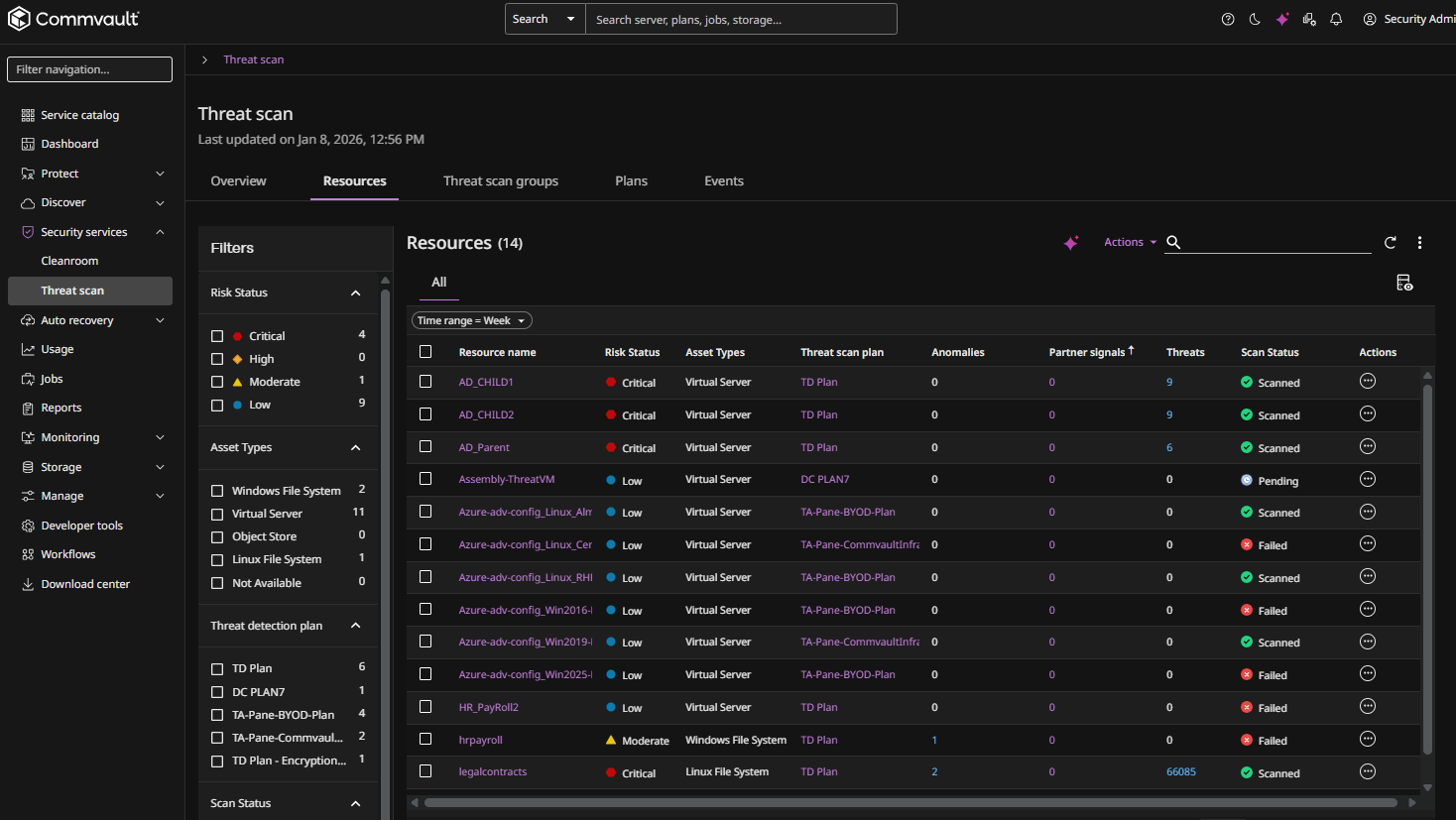
Click the Resources tab to show the resources that are currently scanned by Threat Scan, as follows:
-
Click the name of a resource.
The resource page appears.
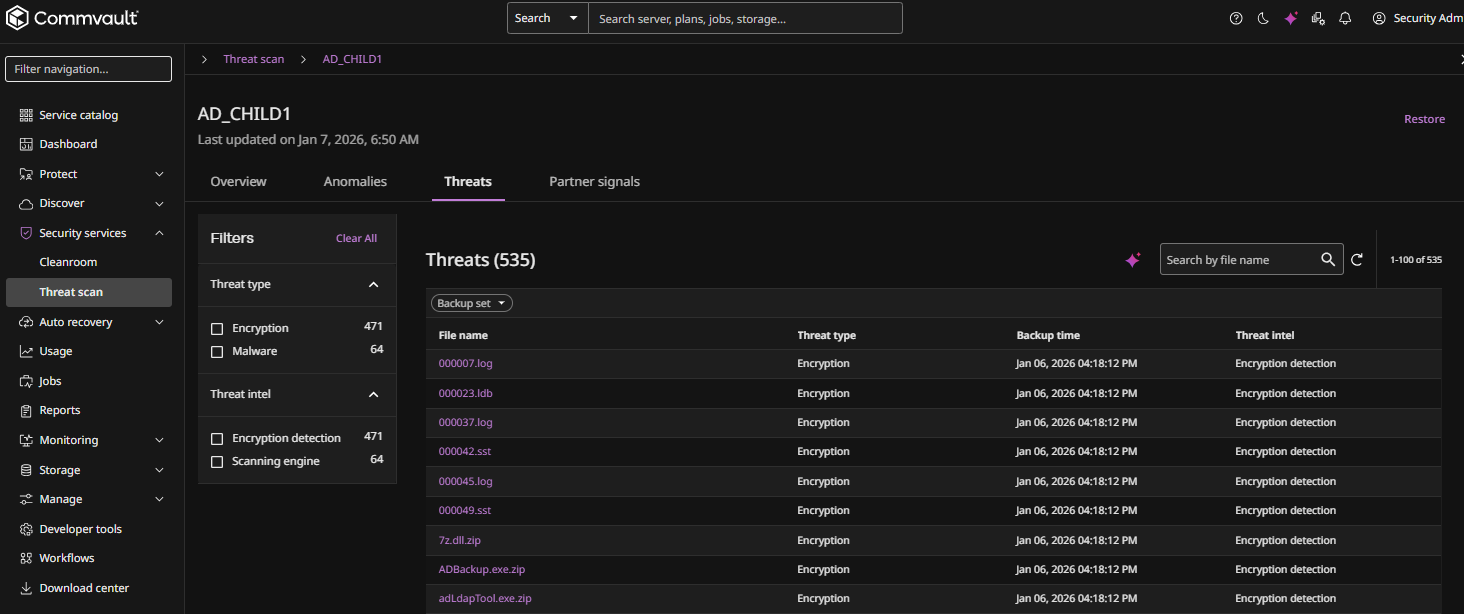
The Threats tab displays all threats found in files on the resource, as follows:
-
In the left column, refine the resource list by selecting filters in the following categories:
-
Threat type
-
Threat intel
-
-
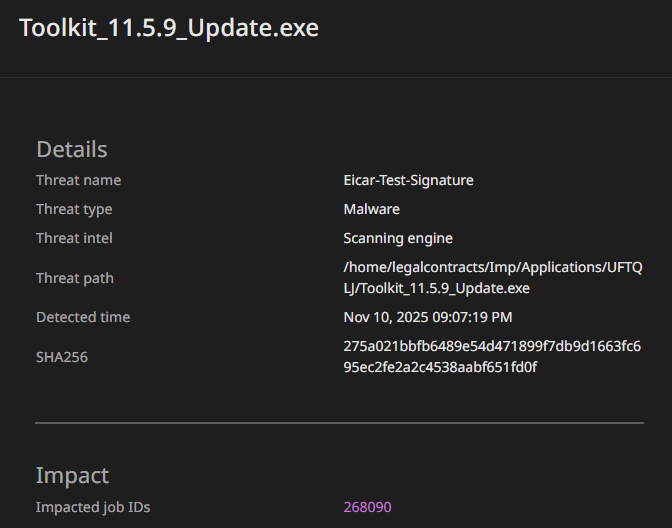
To view the threat details for a file, click the file name.
The threat details dialog box appears, as follows:
-
To view the job associated with the backed up file, click the Job ID link.
Analyze Threats Using Arlie
To analyze all threats using Arlie AI Assistant, click the Analyze with Arlie button .
Note
Arlie's responses are AI-generated and may not always be accurate. Please verify information independently where needed and avoid entering sensitive or personal information. All interactions are processed in accordance with our Privacy Policy.
The Arlie chat box appears, as follows:
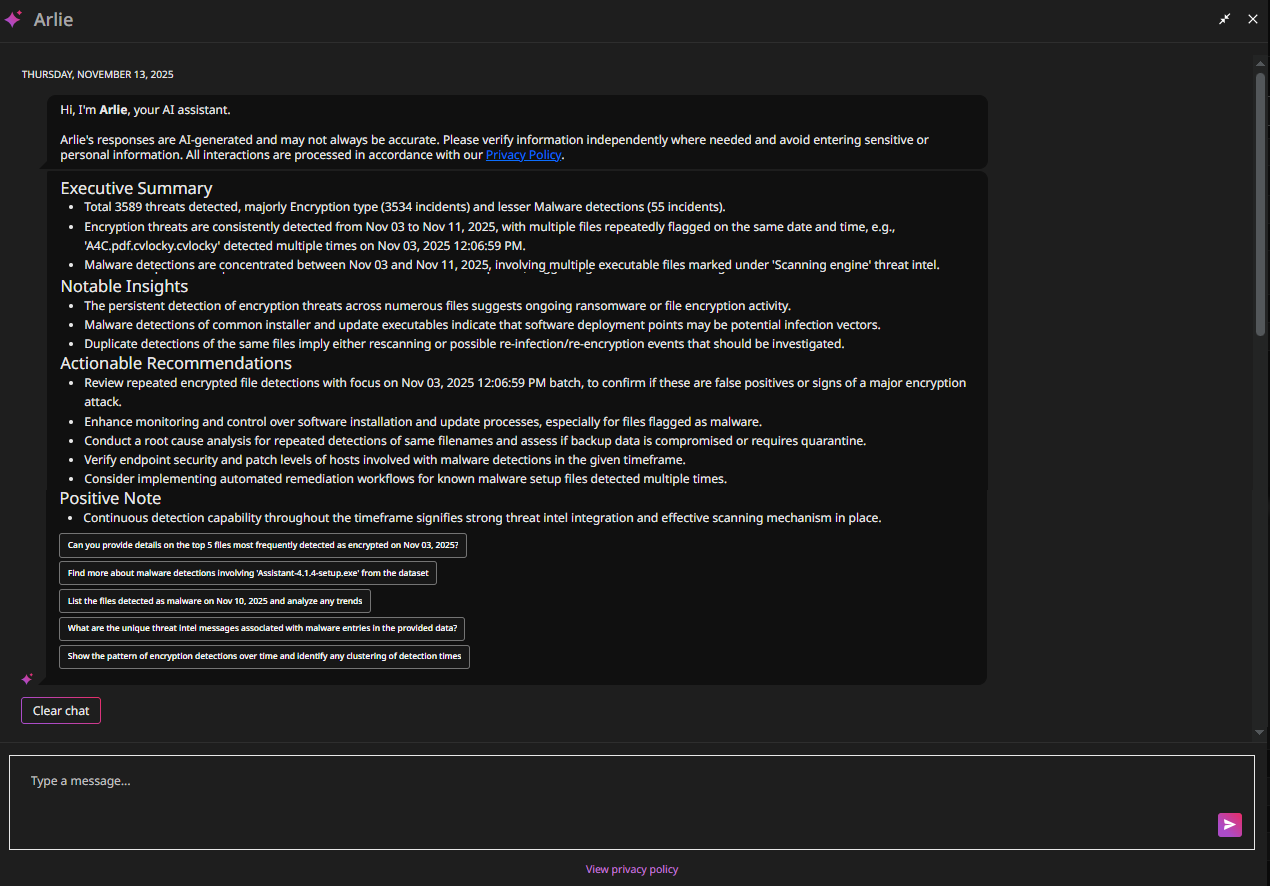
The Arlie chat box shows a detailed analysis of all threats, including an Executive Summary, Actionable Insights, a Risk Summary, and a Positive Note. To prompt further AI-driven analysis from Arlie, type a message at the bottom of the chat box, or select one of Arlie's suggested inputs.
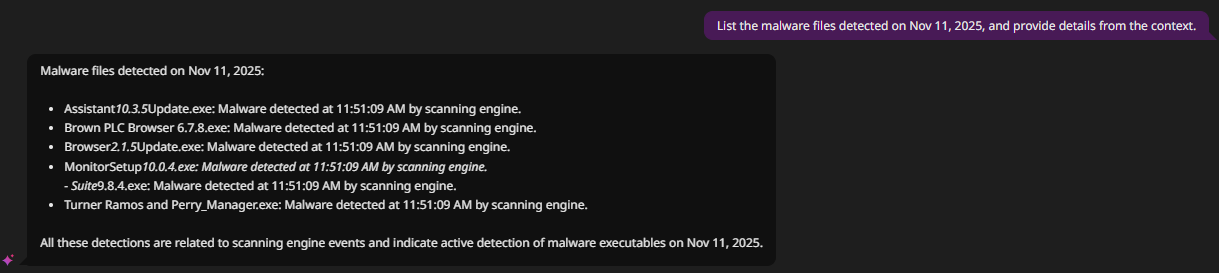
For example, in the figure below, the user selected the following suggested chat input: "List the malware files detected on Nov 11, 2025, and provide details from the context.". Arlie responded with the following list of files:
For more information about Arlie, see Arlie AI Assistant.