You can use Arlie Recover together with Swiftly, an Arlie Agent, to execute an automated threat response plan for virtual machines that Threat Scan identifies as high risk. Swiftly guides you through the recovery process and orchestrates the required Cleanroom Recovery tasks.
Prerequisites
-
Only Azure virtual machines are supported.
-
Enable the Arlie Recover toggle key for the Arlie AI Assistant.
-
A Threat Scan or Threat Analysis job must have detected threats on one or more virtual machines.
-
You must have access to Threat Scan (Security Services > Threat Scan).
-
A clean room site must already exist in the same Azure region as the affected virtual machine.
-
The virtual machine must have a backup on an Air Gap Protect copy that supports clean room recovery.
For information about creating and configuring clean room sites, see Cleanroom recovery: Isolated Recovery Environments (IREs) for cyber resilience.
Start an automated threat response plan
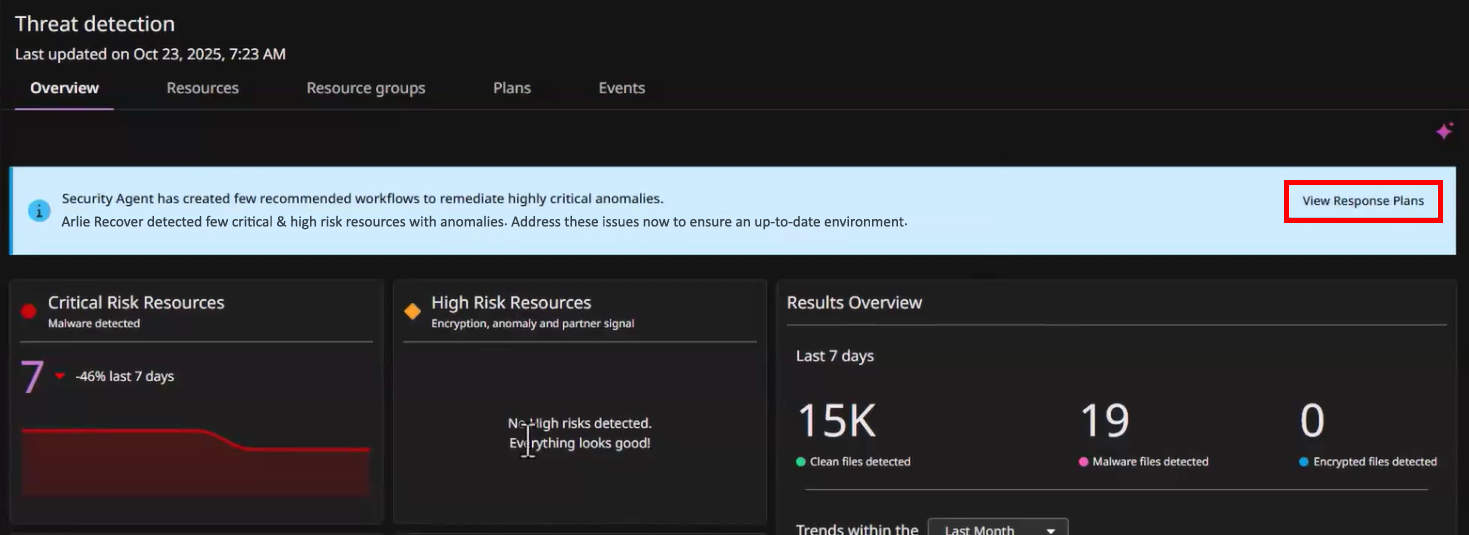
From the Threat Scan dashboard, you can review AI-generated response plans for affected virtual machines and start an automated cyber recovery workflow.
-
Go to the Threat Scan dashboard.
-
Click View Response Plans.
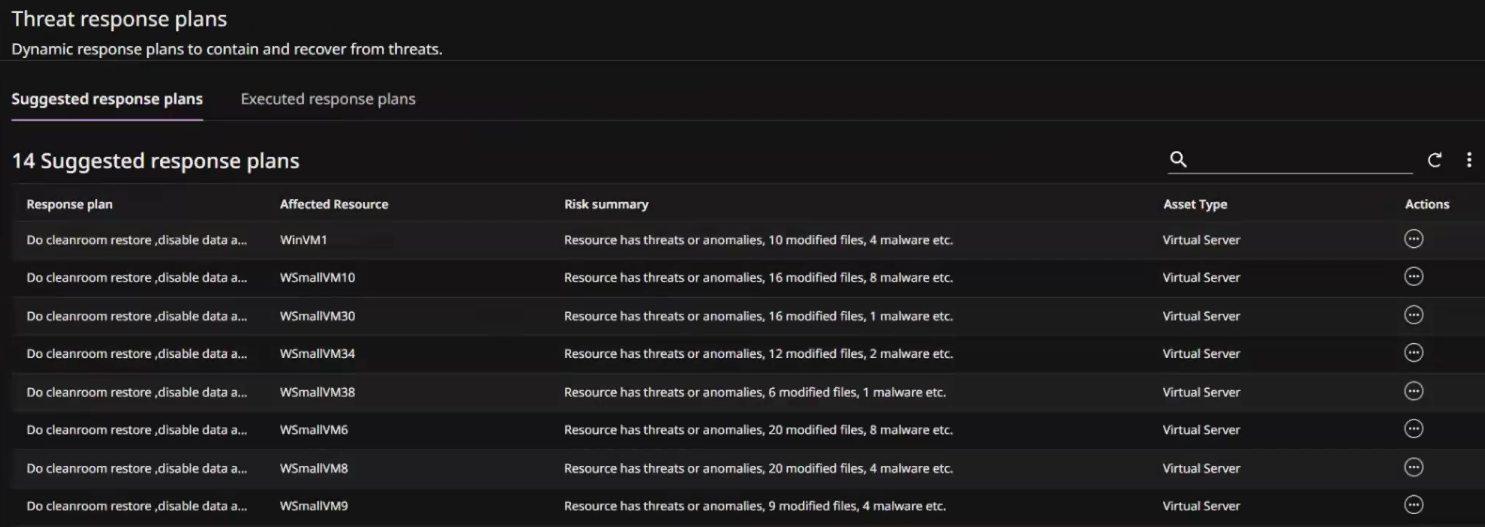
The Threat response plans page appears. The Suggested response plans tab shows recommendations for resources that are critically affected.
-
For the affected virtual machine, click the action button
 , and then click Review & execute.
Swiftly analyzes the response plan and verifies that a clean room site is available for the resource's Azure region. If no compatible clean room site exists, create one and restart the response plan.
-
Review the planned actions.
Swiftly performs the following actions during the recovery workflow:
-
Disables data aging for the affected resource.
-
Creates the required recovery group.
-
Selects an existing clean room site.
-
Selects the optimal clean recovery point.
-
Executes the clean room runbook.
-
-
When Swiftly prompts for input, provide the requested information.
Most recovery actions are completed automatically. Swiftly requests input only when your decision is required.
-
Click Run.
Swiftly completes the remaining recovery workflow and restores the affected virtual machine to the selected clean recovery point.
Retry an executed response plan
If a response plan does not complete because of a temporary Arlie service issue, you can retry the workflow.
If the workflow stops because of a product or page error, resolve the underlying issue before starting the response plan again.
-
On the Threat response plans page, click the Executed response plans tab.
-
For the response plan, click the action button
, and then click Retry.