Investigate the contents of analyzed resources to understand where sensitive data is located and what sensitive information Data Posture 360 detected. Use the Data Catalog dashboard to review data hygiene and distribution, narrow the analyzed data by sensitivity and other characteristics, and examine individual items in more detail.
From the navigation pane, go to Secure > Data Posture 360, and then click the Data Catalog tab. Select the resource that you want to investigate from the resource list on the top-right corner of the dashboard.
Find and review sensitive data
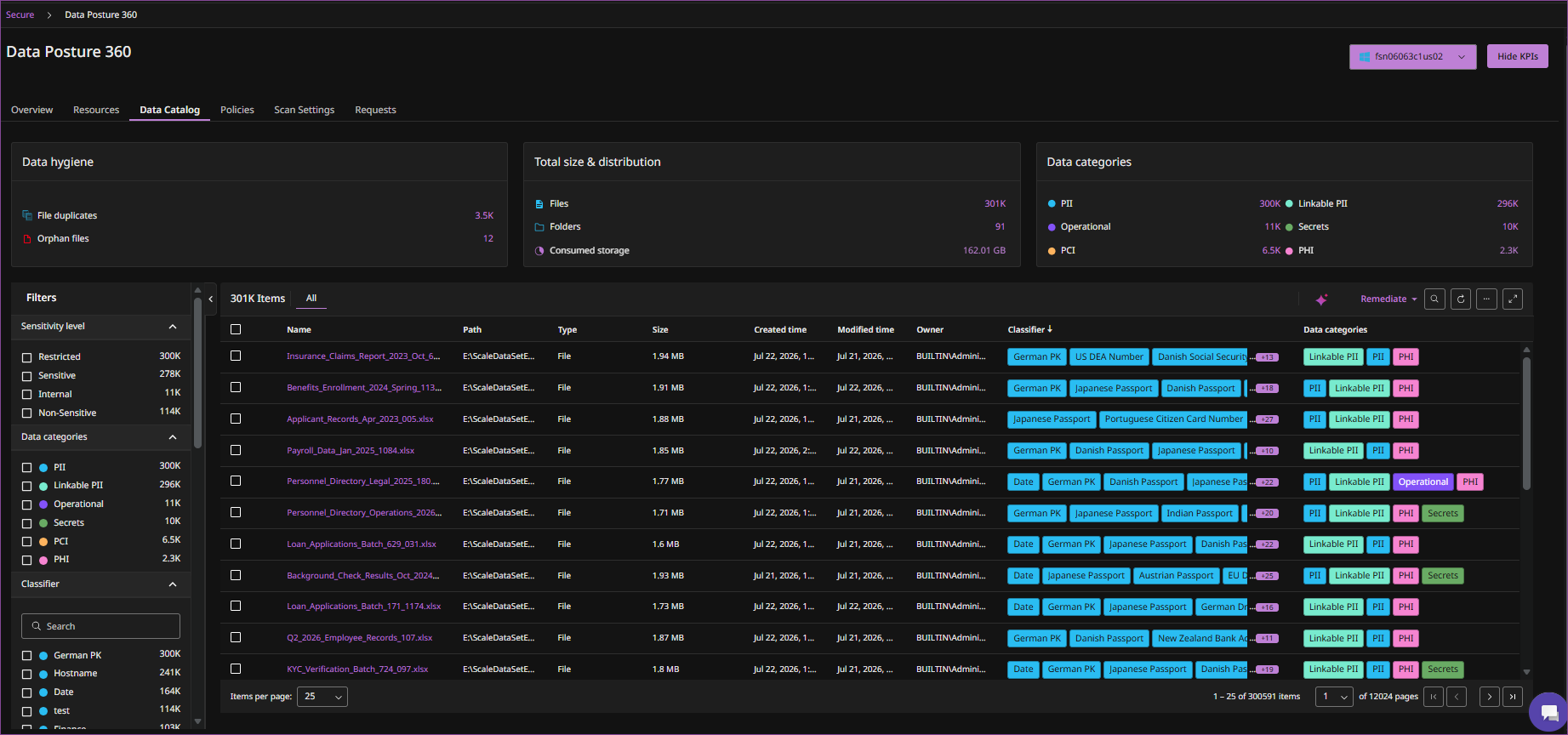
The Data Catalog dashboard summarizes the analyzed contents of the selected resource:
-
Data hygiene shows information such as duplicate files and orphan files. Orphan files are files for which owner or security identifier (SID) information is not available.
-
Total size & distribution shows information about the distribution of data in the selected resource, such as the number of files and folders and the amount of consumed storage.
-
Data categories shows the number of items associated with each detected data category, such as PII, Linkable PII, PHI, PCI, Operational, and Secrets.
Click the summary count to filter the items to the corresponding data. For example, click the PII count under Data categories to display items associated with the PII data category.
Use the Filters pane to further narrow the displayed items. You can filter by Sensitivity level, Data categories, Classifier, Store, Location, Type, Date, and Size.
The information displayed for individual items varies based on the resource type.
To provide more space for reviewing the items, click Hide KPIs. Click Show KPIs to display the summary information again.
Investigate a data item
Click the name of a data item to view its details. Depending on the information available for the item, the details include:
-
General: Information such as the item type, path, size, and modified time.
-
Risk: Information about the sensitivity level, detected data categories, and classifiers.
-
Access control: Ownership and access information for the item.
Remediate data
Select the data you want to remediate, and then select Remediate > Delete. Configure the following options and click Delete to submit the remediation request:
-
File options: Select whether to delete only the selected files or all files in the current scope.
-
Delete from backup: Enable this option to delete data from backup.
-
Request name: Enter a name for the remediation request.
-
Reviewers: Select the users who will review the request.
-
Approvers: Select the users who will approve the request.
To track and review remediation requests, see Manage Data Posture 360 remediation requests.