You can use this procedure install the Commvault Flex Appliance software in your environment.
Procedure
-
Log on to the node and download the most recent version of the HyperScale Flex software from Commvault Store.
-
Access the node using the KVM management console in your environment and map the downloaded ISO image as a virtual media from the KVM Management console.
-
Mount the appropriate ISO and power cycle the node as follows:
-
During the boot sequence press <F11> when the following message is displayed. (This message will be displayed briefly for a few moments only during the boot sequence.)
Note
The key combination or function to enter the boot menu maybe different, depending on the server model. Use the appropriate combination to open the boot menu.
-
Select the virtual media as the boot device and press <Enter>.
UEFI boot mode is required. Disable UEFI secure boot, if it is enabled. Refer to the documentation associated with your server for more information.
-
-
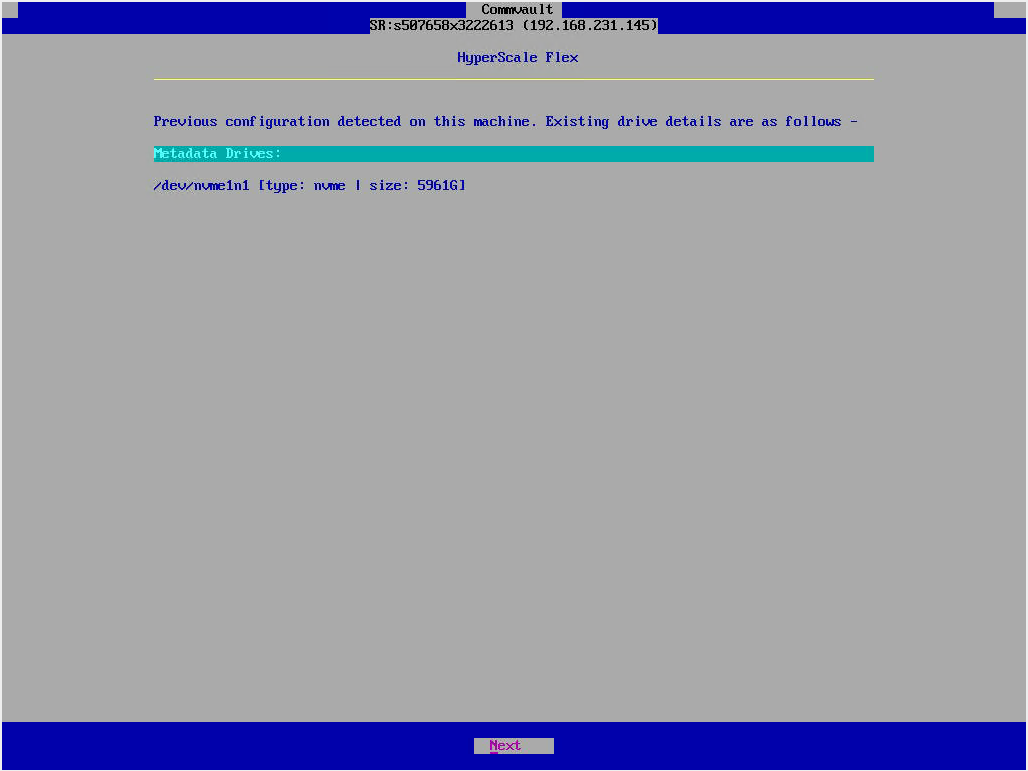
The HyperScale Flex configuration screen is displayed. Click Next.
Note
The screen may look different, depending on the number of drives.
-
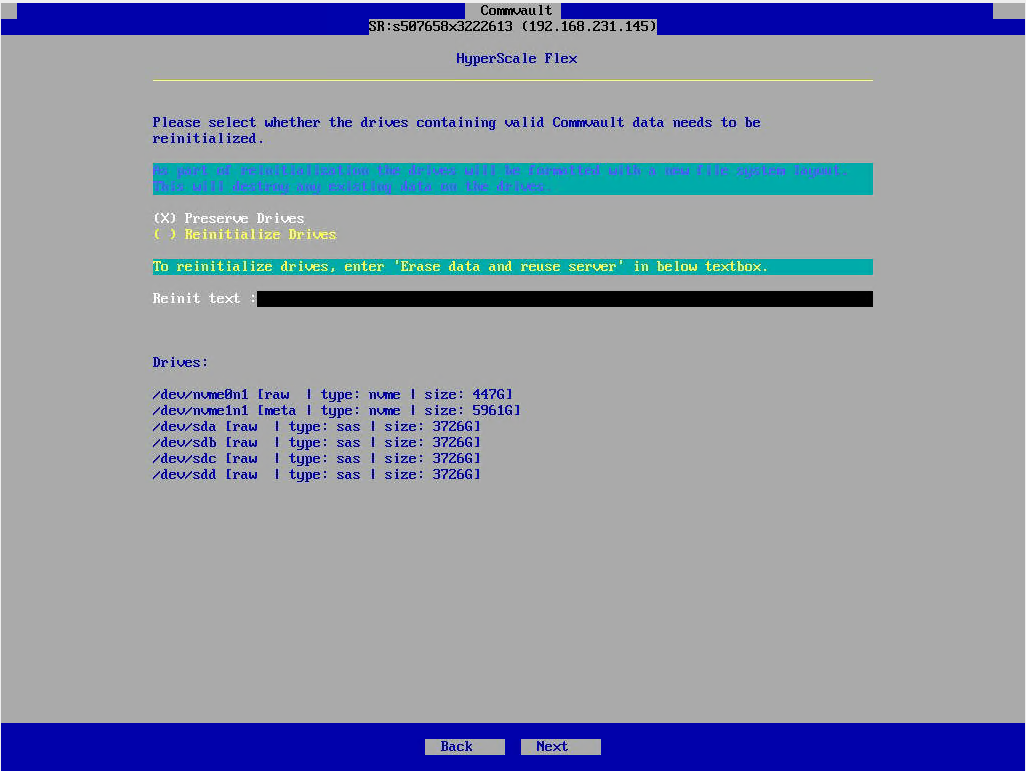
Select Reinitialize Drives option, and enter the text as requested, and then click Next.
-
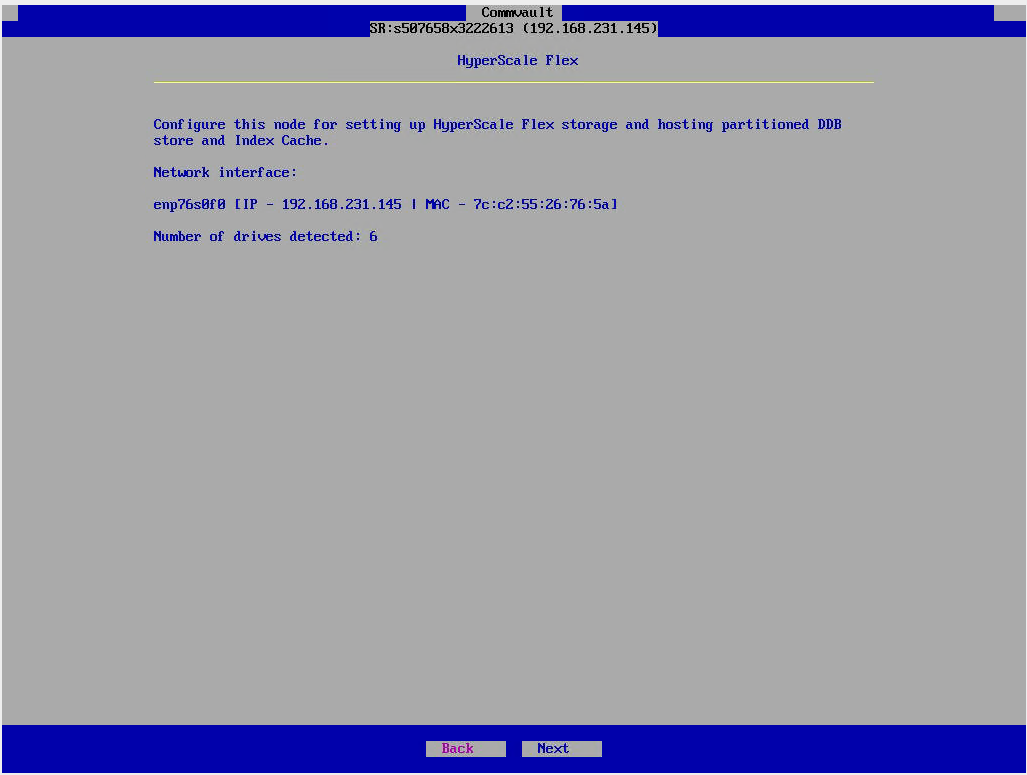
Review the drives information that appears, and then click Next.
-
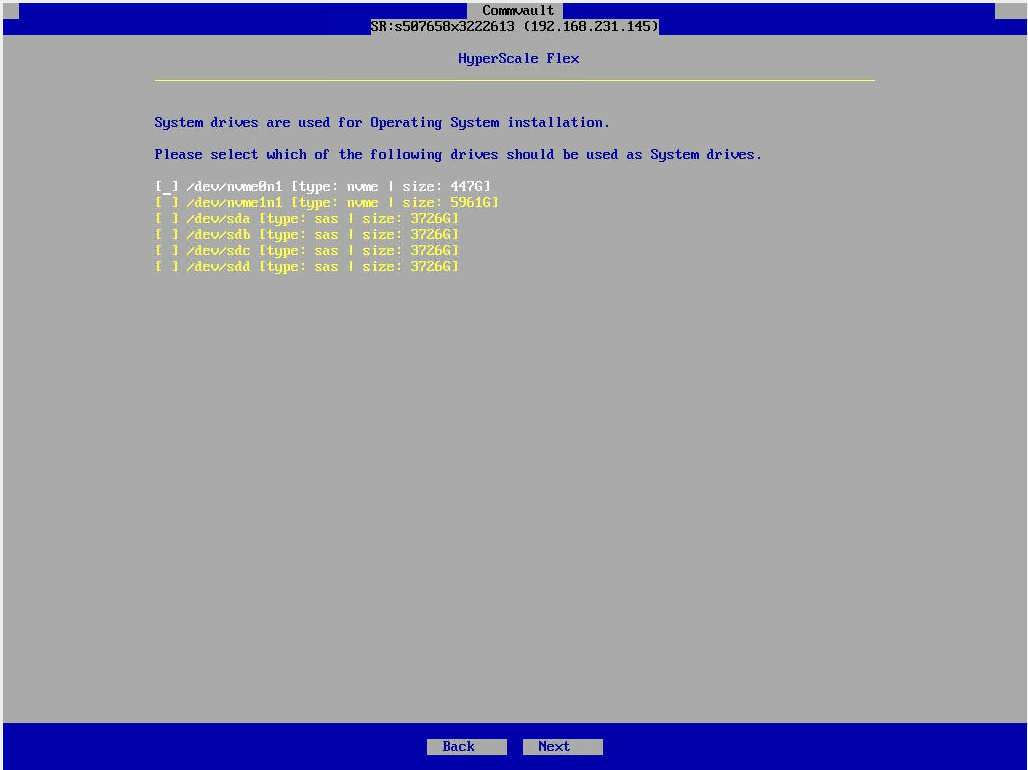
Select the drive to store operating system files, and then click Next.
The drive with supported system configuration is preselected by default. You can select any other drive, if required.
-
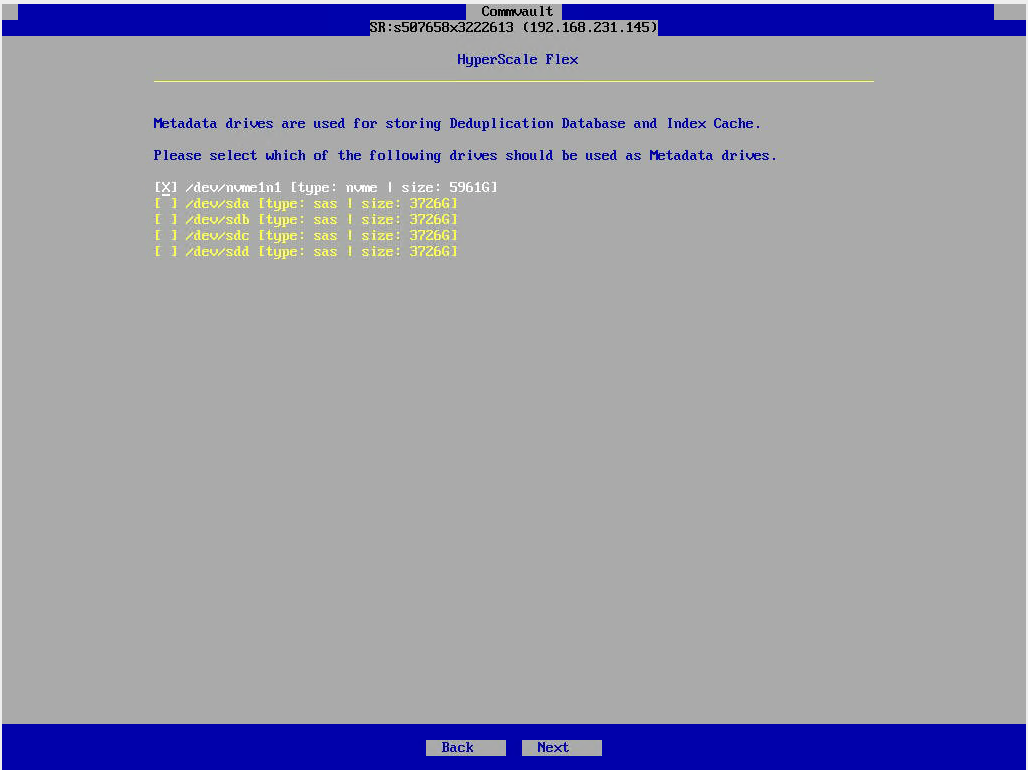
Select the drive to store metadata files, and then click Next.
The drive with supported system configuration is preselected by default. You can select any other drive, if required.
-
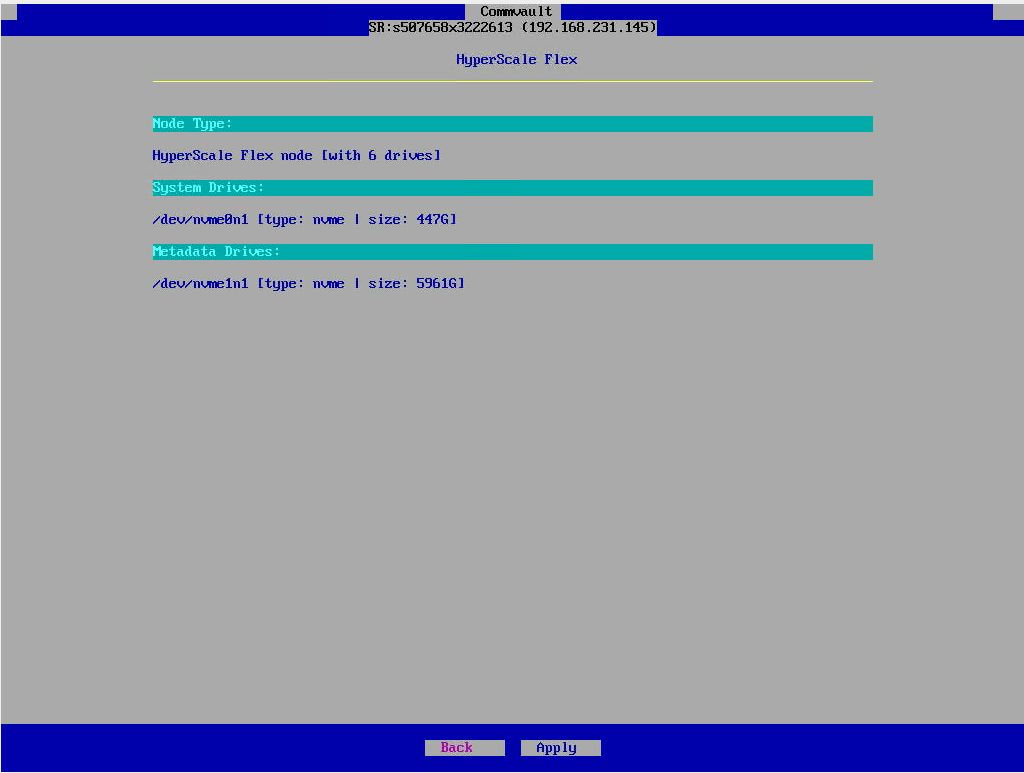
Review the list of drives and then click Apply.
The installation process will start. This process will take some time to complete.
-
After the installation is complete, click Finish.
The node reboots automatically.
-
After reboot, launch the installer using the following default credentials:
Login: root
Password: cvadmin
(Press <Alt> + <Ctrl> + <F2> if the login prompt is not displayed.)
Note
This password can be changed during setup.
Important: Note down the Hostname, which is the node serial number. This will be useful to identify the node when you deploy the HyperScale Flex software.