You can view Threat Scan subscription usage in the Threat Scan Usage Report.
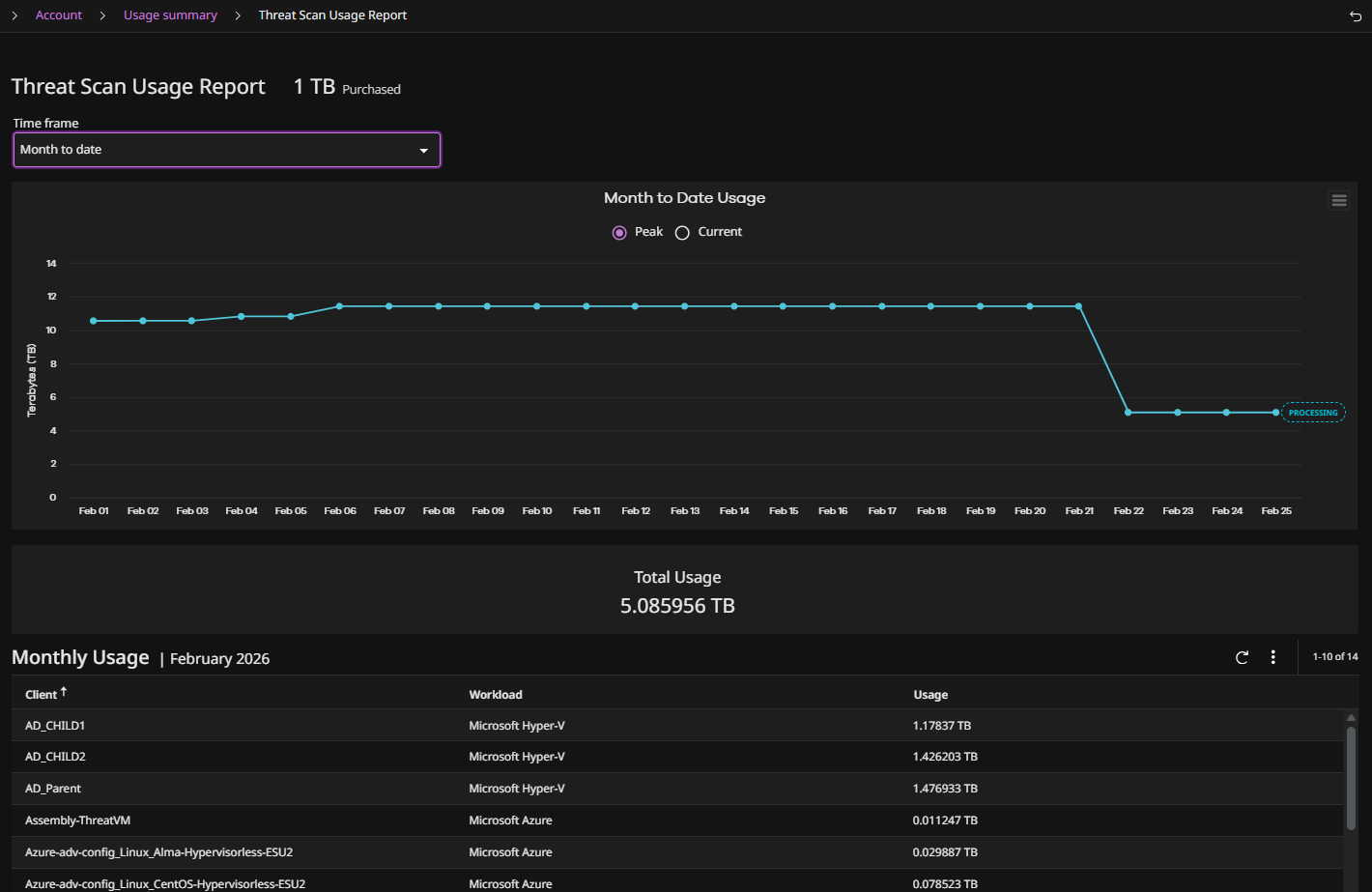
The report displays the peak or current front-end terabytes per client scanned. The front-end size is the source data capacity before compression and deduplication.
Threat Scan Metering and FETB Usage
Threat Scan is licensed and metered based on Front-End Terabytes (FETB), which is calculated exclusively from the data protected during backup copy jobs. It does not use snapshot (snap) backups, application-reported sizes, or incremental backup sizes.
Note
Because metering is based on the full backup copy size (not incrementals), customers should size their Threat Scan FETB entitlement against the total protected data size as reflected in full backups, not against daily incremental change rates.
Virtual Machines and File Servers
-
Usage is based on the application size from the most recent full or synthetic full backup copy job.
-
Configuring a workload under multiple subclients increases total reported usage, as all associated backup streams are counted—not just a single instance of the workload.
-
If a VM belongs to multiple subclients (for example, protected separately as both a file system client and a VM client), each subclient is measured independently and the results are aggregated.
Objects and Other Workloads
- Usage is based on backup copy job size.
What is Not Included in Threat Scan Metering
-
Snap backup copies.
-
Incremental backup jobs (only the last full/synthetic full is used).
-
Application size as shown for snap jobs in the UI.
What Drives Overconsumption
-
More workloads are enrolled in Threat Scan than the purchased capacity supports.
-
Workloads configured under multiple subclients increase usage, because each subclient stream is counted independently.
-
Snap backup sizes shown in the UI can be misleading, creating the impression that metering is incorrect when it is actually working as designed.
How Subscription Usage is Calculated
Commvault Cloud - Software
For Commvault Cloud - Software, Threat Scan metering is based on the amount of data that is backed up for a source VM, measured in FETB. Commvault defines a FETB as a TB of written client data, prior to Commvault compression or deduplication.
There are two types of calculations for data:
-
FETB: This calculation is used for single full backups.
-
FETB+: This calculation is used for combinations of full backups, incremental backups, and synthetic full backups. For FETB+, there are three different scenarios and calculations:
-
Full backups and incremental backups only: In this case, all full backups and all incremental backups are taken into consideration when calculating FETB.
-
Full backups, incremental backups, and synthetic full backups: In this case, all full backups and all incremental backups are taken into consideration, and synthetic full backups are ignored, when calculating FETB.
-
Incremental backups and synthetic full backups only: In this case, the maximum of the synthetic full backups and all the incremental backups are taken into consideration when calculating FETB.
-
Commvault Cloud - SaaS
For Marketplace SaaS customers, Threat can metering is based on FETB+ calculation (see above).
For regular SaaS customers, Threat Scan metering is based on either current usage or peak usage, measured in front-end TB (FETB). Commvault defines a FETB as a TB of written client data, prior to Commvault compression or deduplication.
-
Current: Current usage is the current amount of data scanned at any given time. The current license usage changes any time the size of scanned data increases or decreases, or any time an entity is added or removed.
-
Peak: Peak usage is the total amount of data scanned throughout the selected time frame. The peak continues to grow over the course of the time period as more data is scanned.
Note
-
These calculations are updated every 24 hours.
-
These calculations use FETB+ only (see description in "Commvault Cloud - Software", above).
-
These calculations are based on the primary data copy. Snap copies and secondary copies are not included in the calculations.
Procedure
-
From the Command Center navigation pane, go to Manage > Account > Subscription and Usage > Usage.
The Usage summary page appears, showing a summary of service subscriptions and their usage.
-
Click Threat Scan.
The Threat Scan usage report appears, showing the names of all the clients with front-end size scanned, as follows:
-
To view information for a specific time frame, click Time frame, and then select one of the time options.