Error Messages when installing the Laptop package on Mac computers
If the installation fails, try the following:
Resolution 1
From the Installer menu, click Window and then click Installer Log. The contents of the log file related to the error messages are displayed in the Installer Log dialog box.
If the error message displayed is due to software failure, contact your software provider.
Resolution 2
If the installation failed at the very beginning, unmount all Commvault disk images as follows:
-
On your Mac computer, open the Finder window and navigate to the sidebar.
You can see the disk images listed under Devices.
-
Click the arrow next to the disk images to unmount.
-
Retry the laptop package installation.
Error at the end of Laptop package install on Mac computers
Symptom
At the end of the laptop package installation on a Mac computer, you may see the following error message
Starting BackupUninstall.app ...LSOpenURLsWithRole() failed with error -10810 for the file /opt/commvault/Base/Process Manager.app/Contents/Resources/BackupUninstall.app.
FAILED.
Cause
At the end of the installation, the installer tries to launch BackupUninstall.app using the open command. Since Mac applications need a dock and a user interface specific to each user, BackupUninstall.app fails to launch as the applications may be unavailable on remote terminal sessions. The application will be launched automatically when the user logs in with a GUI session.
Resolution
The error can be ignored. No action is required.
Web Console
I encounter issues when performing a search on my backup data, such as inaccurate search results
When you are searching your backup data and encounter the issues listed below, contact your Administrator as your backups may not be getting content indexed:
-
Search takes too long to display search results
-
Search results are not very accurate
-
Files obtained from the results cannot be previewed
I get an error when trying to remove a backup filter from my client
If you receive an error when attempting to remove a filter defined by the Administrator (usually grayed out) , it means that it is a global filter defined in the CommCell. Global filters cannot be removed from the Web Console. If you need to have this filter removed, contact your Administrator for more information.
Single Sign On authentication fails on Firefox browser
If Single Sign On (SSO) fails to log you into the Web Console on a Firefox web browser, perform the following steps to ensure that the Firefox browser is enabled to perform Single Sign On authentications.
-
Open your Firefox web browser, and type about:config in the address bar.
-
Click I'll be careful, I promise.
-
Select the authentication protocol to be used in the web browser:
For Kerberos Authentication
-
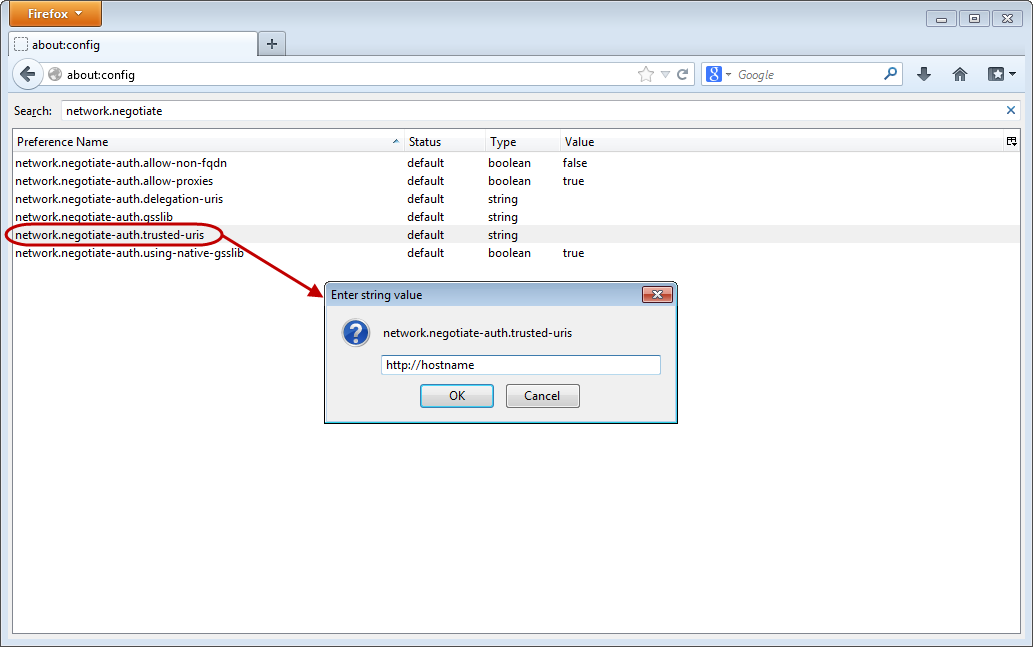
Double-click network.negotiate-auth.trusted-uris from the Preference Name list.
You can easily find this preference by typing network.negotiate in the Search box.
-
Enter the domain name or URL of your CommServe in the popup window. For example, http://hostname. If there is more than one domain, enter the values delimited by a comma.
-
Click OK.
For NTLM Authentication
-
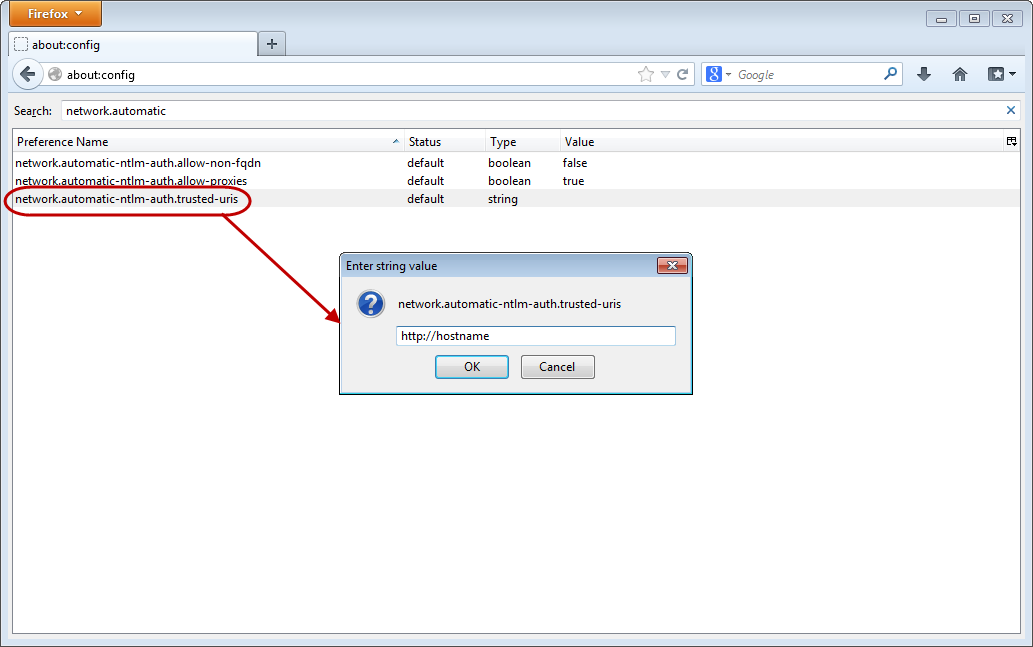
Double-click network.automatic-ntlm-auth.trusted-uris from the Preference Name list.
You can easily find this preference by typing network.automatic in the Search box.
-
Enter the domain name or URL of your CommServe in the popup window. For example, http://hostname. If there is more than one domain, enter the values delimited by a comma.
-
Click OK.
-
Restart the Firefox web browser.