The Unusual file activity report for threat analysis summarizes the list of files containing anomalies on the latest backup cycle. You can use this report to track different versions of a document to see if the file has been modified drastically. Modifications may occur if the file is encrypted or corrupted by malware attacks.
The anomaly check is performed on backup jobs that use File Indexing Version 2.
The following options are available in the upper-right corner of the page in the report:
-
To delete anomalies of a client with unusual file data-related activity, from the client list in the report, click Delete anomaly.
-
To restore a file from a client that has unusual file data-related activity, click Recover files.
By default, the Browse option lists the previous good version of files available in latest cycle. If there are no good versions available in the latest backup cycle, the files are not listed.
The file version prior to the anomaly is recovered.
For more information, see Monitoring Unusual File Activity.
Note
Configure "File anomaly alert" with event code 69:52 to receive alerts after every threat analysis job.
Procedure
-
From the navigation pane in the Command Center, click Monitoring > Unusual file activity.
The Unusual file activity panel appears.
-
Click the Threat Analysis tab.
A list appears, showing clients and subclients that contain infected files.
-
To view the report, click the name of the client or subclient for which you want to view the report.
The report appears.
Report Description
Threat Analysis Charts
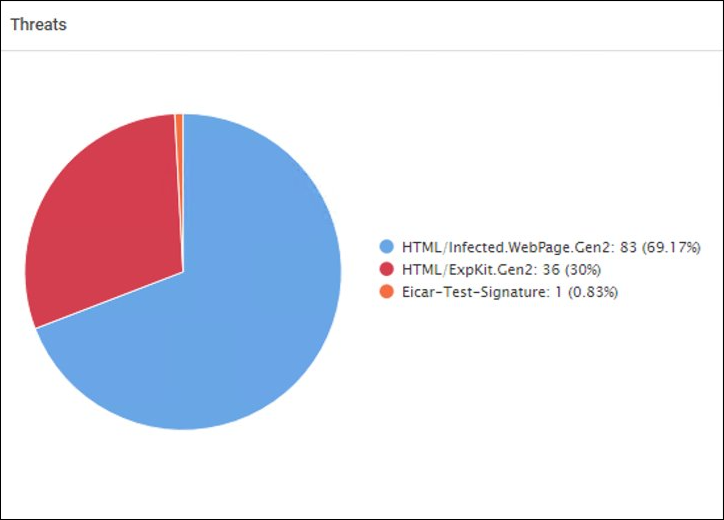
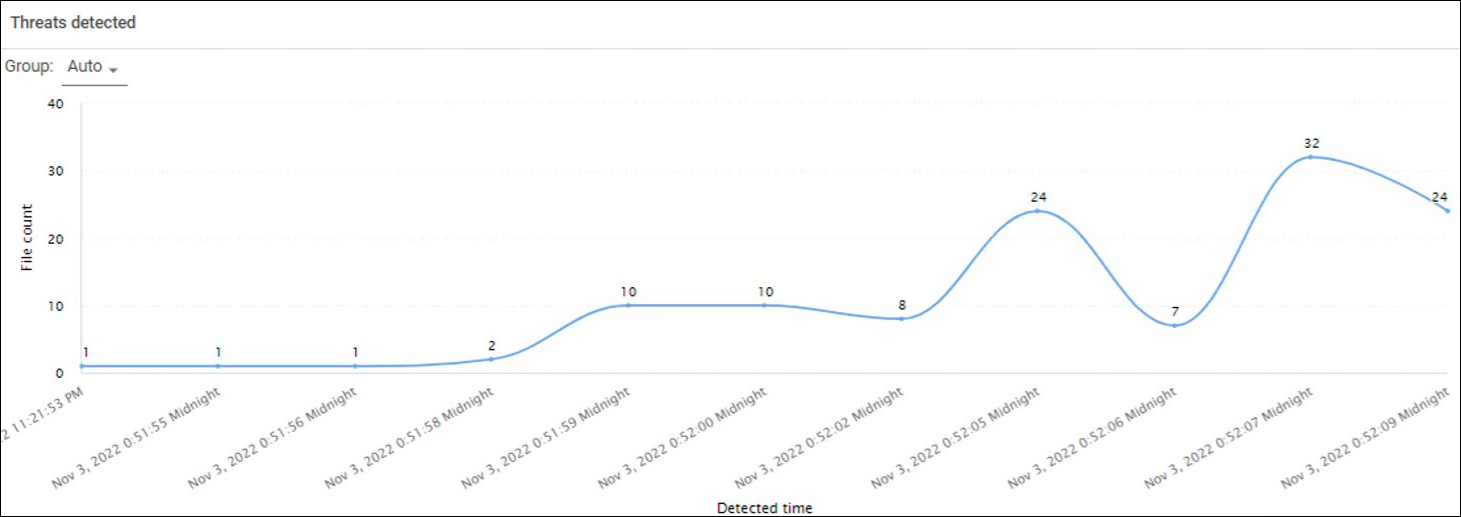
These charts display the number of infected files in the selected client for a specified time range.
The following images are examples of the threat analysis charts:
File Information
|
Column |
Description |
|---|---|
|
Threat name |
The name of the threat |
|
Backup job id |
The ID of the backup job that backed up that file |
|
Backup job time |
The time at which the backup was performed |