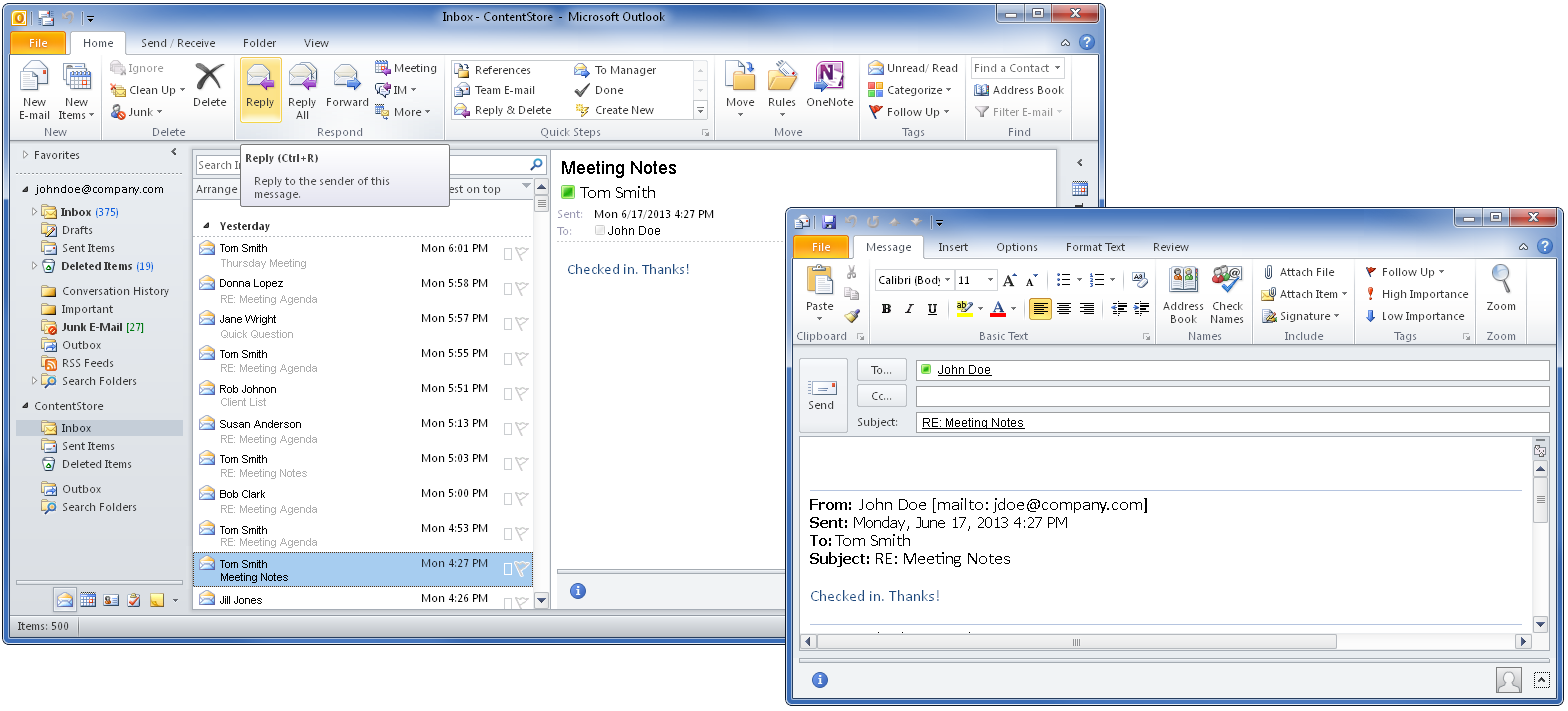
You can reply to archived messages in the ContentStore using reply, reply all, or forward from Microsoft Outlook with the ContentStore Email viewer.
Procedure
-
From Microsoft Outlook, expand the ContentStore node and go to the folder you want to view.
-
Select the archived message to which you want to Reply, Reply All, or Forward.
The contents of the selected message appear in the preview pane.
-
On the ribbon, on the Home tab, do any of the following:
-
To reply to sender of the archived message, click Reply.
A draft message appears with the sender's address in the To field.
-
To reply to all of the recipients and sender of the archived message, click Reply All.
A draft message appears with all of the recipients and sender's address in the To and Cc fields.
-
To forward the contents of the archived message to a different email address, click Forward.
A draft message appears with blank To and Cc fields.
Note
When forwarding messages from the ContentStore Email Viewer, the original message is recalled and then forwarded. If the forwarded message contains an attachment, then the attachment is recalled in its original format before the message is forwarded.
-
-
Type your message, and then click Send.