You can restore specific volumes on the client computer. You can select only system volumes during restore and add the non-system volumes later. This feature is useful in the following scenarios:
-
The non-system volumes reside on disks provisioned by iSCSI or SAN.
-
You do not want to restore the data from the non-system volumes.
Procedure
-
Use the 1-Touch Live CD to boot the client computer.
-
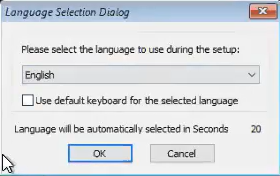
Optional: In the Language Selection Dialog dialog box, select a language from the list. To use the same language for the keyboard, click Use default keyboard for the selected language check box and click OK.
The 1-Touch Recovery Wizard appears.
-
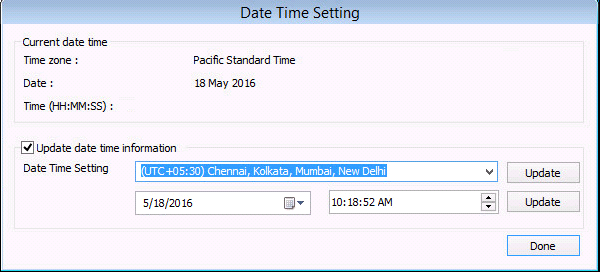
On the WinPE computer notification area, click on the clock and date settings. If you select a time from the Date Time Setting drop down list, click Update and then click Done.
-
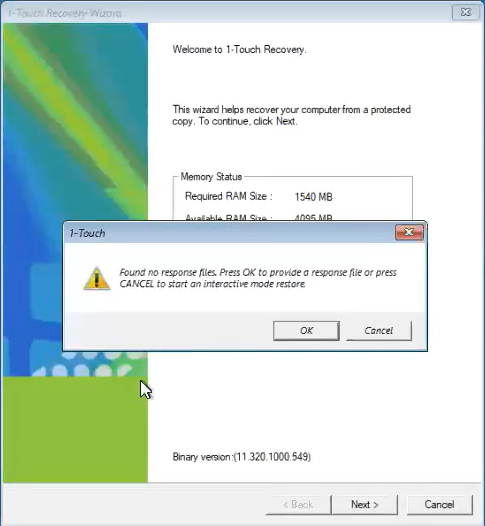
On the Welcome page, a warning message appears that says that the response files are not found. Click Cancel to start the interactive restore, and then click Next.
Make sure that you are installing the latest ISO updates by verifying the Binary version area for the latest service pack.
-
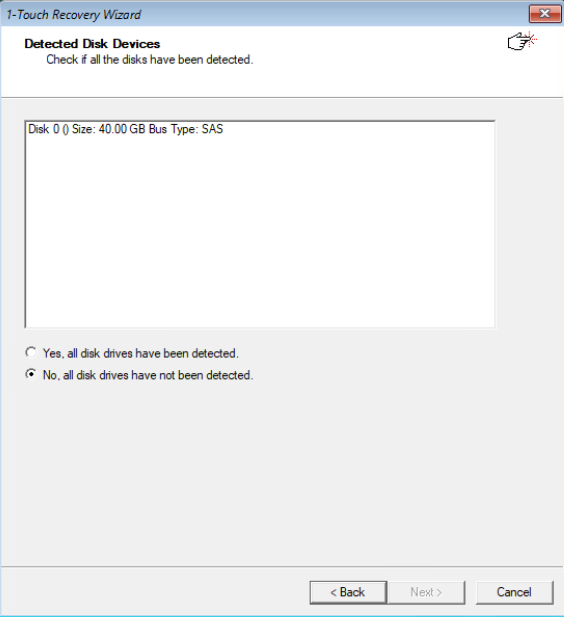
On the Detected Disk Devices page, do the following:
-
Click Yes, all disk drives have been detected.
If you do not see the required drivers, add the drivers to the downloaded ISO.
-
Click Next.
-
-
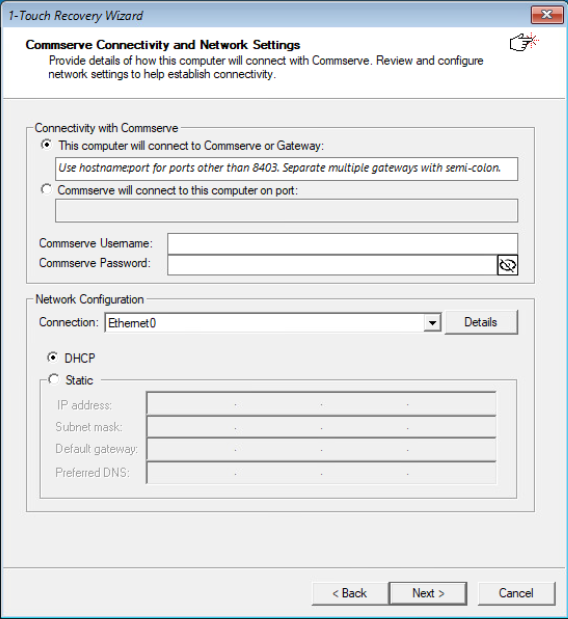
On the Commserve Connectivity and Network Settings page, make the required selections, and then click Next.
-
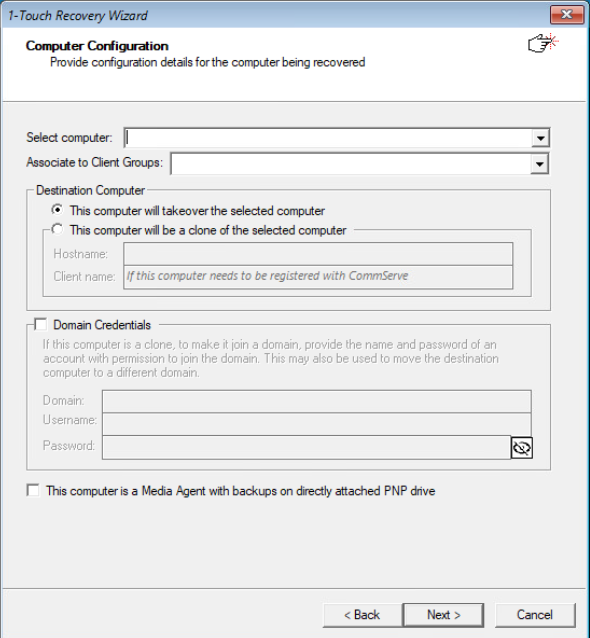
On the Computer Configuration page, make the required selections, and then click Next.
-
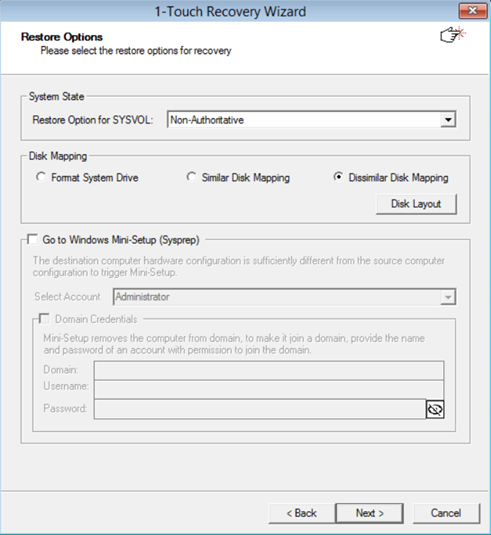
On the Restore Options page, review the restore options, and then click Next.
-
On the next page of Restore Options, select Dissimilar Disk Mapping, and then click Next.
For more information, see Disk Mapping Options.
-
On the Excluded Folders for Restore page, click Next.
-
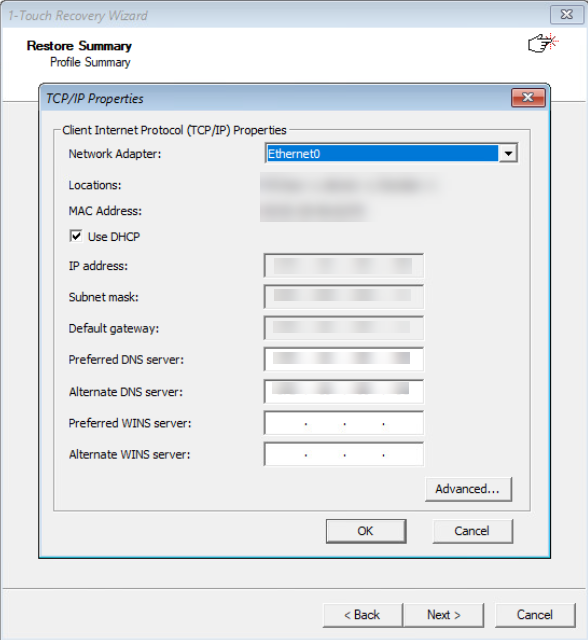
In the TCP/IPProperties dialog box, review the Client Internet Protocol (TCP/IP) Properties, and click OK.
-
On the Customize the Disks page, you must customize the disk layout of the destination computer.
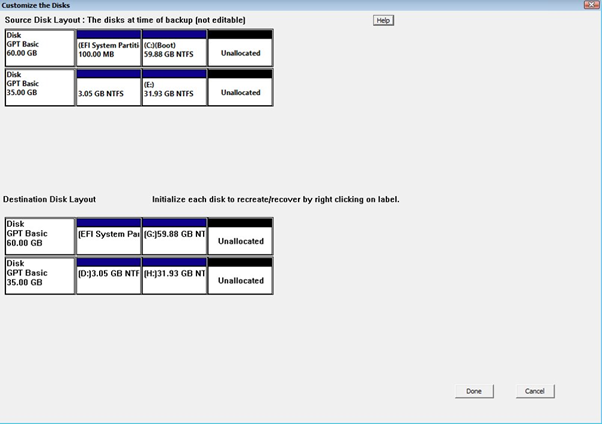
The Source Disk Layout is the disk layout of the client computer at the time of the backup
The Destination Disk Layout is the disk layout of the target computer.
-
Before creating disk partitions on the destination disk, you must initialize the disk. Right-click any disk in the Destination Disk Layout and select one of the following options:
-
Initialize as MBR Basic Disk
-
Initialize as MBR Dynamic Disk
-
Initialize as GPT Basic Disk
-
Initialize as GPT Dynamic Disk
-
-
Click Yes.
-
Repeat steps 13 and 14 for the required disks in the Destination Disk Layout. Once all the required disks are initialized, you can map the volumes from the source disk to the destination disks.
-
Right-click a volume in the Source Disk Layout and select Map.
-
In the Customize the Volumes dialog box, select a disk from the Available Disk List. The volume selected in the previous step will be created on the selected disk.
-
Repeat steps 16 and 17 for all the volumes from the Source Disk Layout, which you want to create in the Target computer.
-
Click Done
-
Perform the Interactive Restore. The client will be restored with original computer name.