For increased security, you can configure Azure to allow the Cloud Rewind connection only from Cloud Rewind's fixed IP address. A configured IP-based access policy defends against the (unlikely) scenario of a bad actor obtaining Cloud Rewind's credentials to the Azure connection.
In Azure, you'll create a conditional access policy that will apply specifically to the Cloud Rewind application. You'll configure the policy to block access from all locations other than Cloud Rewind's fixed IP address.
Prerequisites
-
Azure Workload Identities Premium license
-
Azure user with the following Entra roles:
-
Application Administrator
-
Conditional Access Administrator
-
-
Cloud Rewind application already configured in your Azure tenant
Configuring the Access Policy
To configure an Azure IP-based access policy:
-
Log into Azure as a user with the above required roles.
-
Define the Cloud Rewind IP location:
-
Obtain the NAT IP address of the relevant Cloud Rewind endpoint, from here.
-
In Azure, go to Microsoft Entra ID > Manage > Security > Manage > Named locations.
-
Click + IP ranges location and Name the location.
-
Select Mark as trusted location, and add the IP address with CIDR extension /32 .
-
Click Create.
-
-
Create a new policy for the Cloud Rewind application:
-
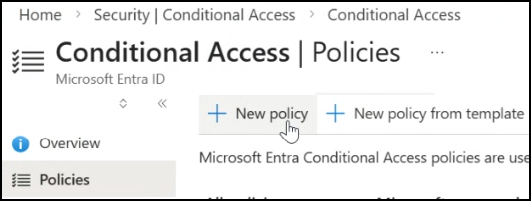
Go to Conditional Access and click + New policy:
-
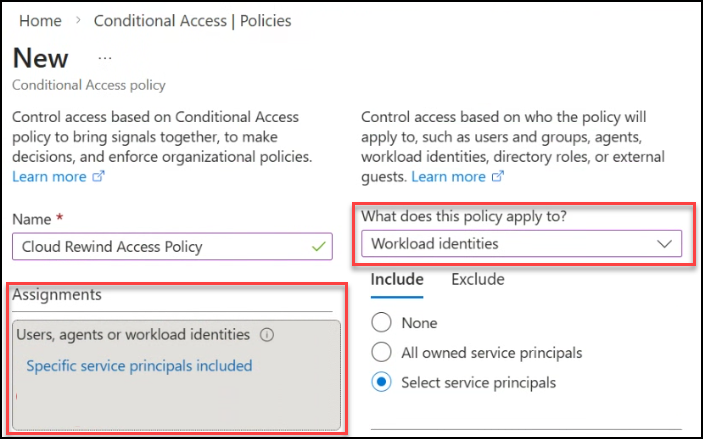
Name the policy.
-
Under Assignments select Users or workload identities, and then under What does this policy apply to? select Workload identities:
-
Select Include > Select service principals, and select the Cloud Rewind application.
-
-
Configure the policy to block access from all locations other than the Cloud Rewind IP address:
-
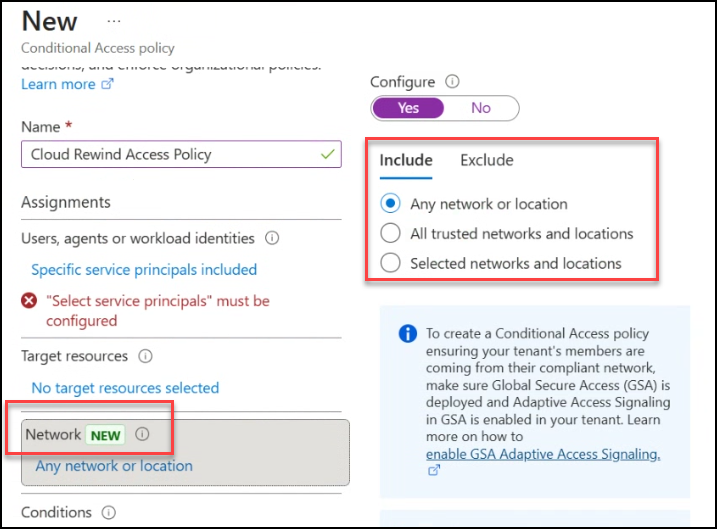
Under Target resources select Network, and then on the right select Include > Any network or location:
-
Select Exclude > Selected locations, and select the IP location configured above.
-
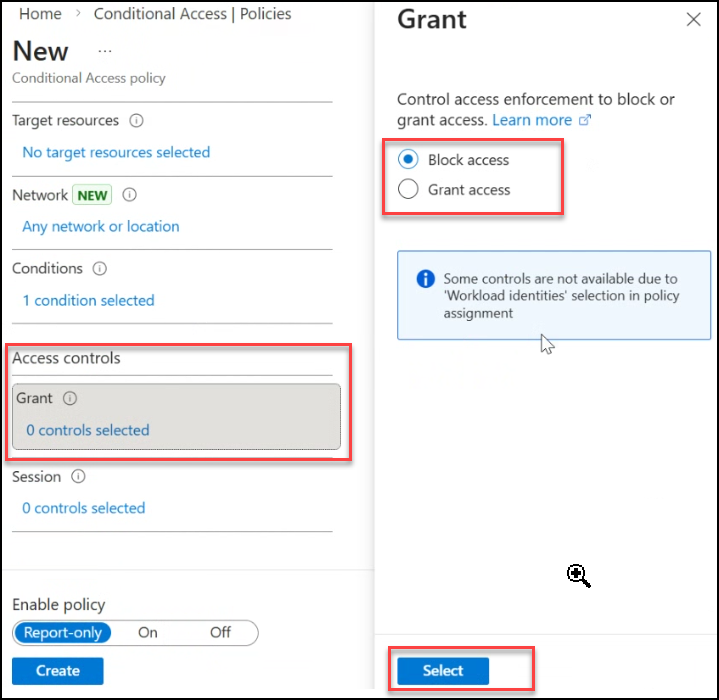
Select Grant > Block access > Select:
-
-
Under Enable policy select On, and click Create.
It may take a few minutes for the new configuration to apply.