As restoring your backup data is very crucial, it is recommended that you perform a restore operation immediately after your first full backup to understand the process.
Use the following steps to restore data using the browse and restore feature.
-
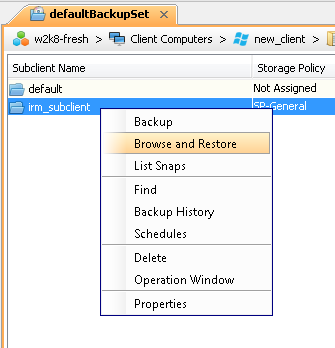
From the CommCell Browser, navigate to Client Computers| <Client>| File System | defaultBackupSet
Right-click the subclientand then click Browse and Restore.
-
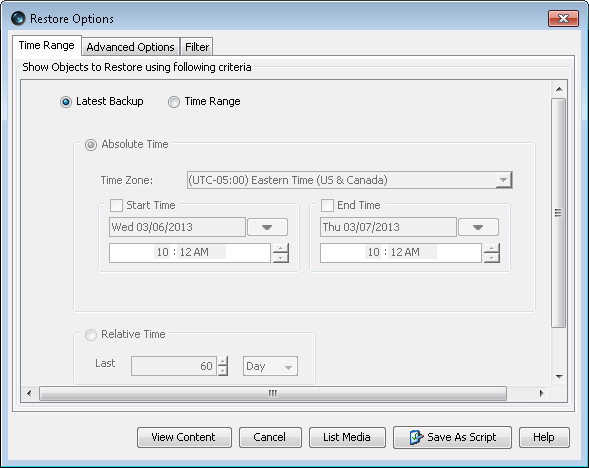
By default Latest Backup is selected to browse the latest protected data.
You can specify a specific time to view the last time the data was indeed on the production LUN by selecting the Time Range option.
Click View Content.
-
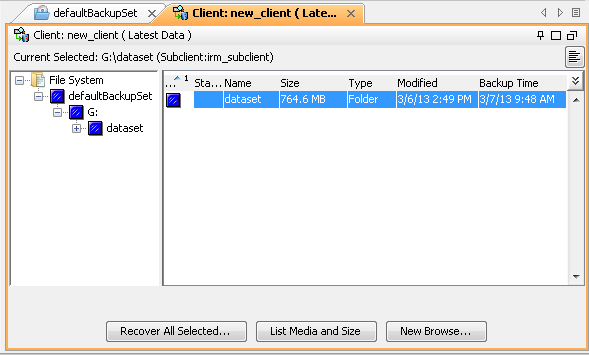
Select the instance node in the left pane. The data will be automatically selected in the right pane.
Click Recover All Selected to restore the data you have selected.
-
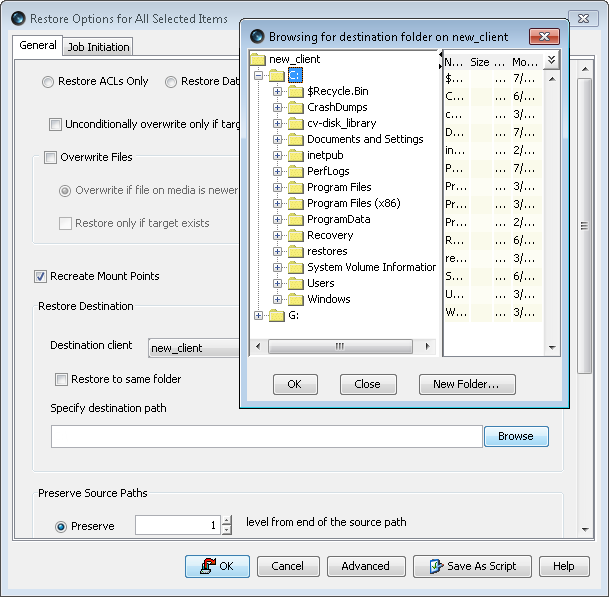
Clear the Overwrite Files and Restore to same folder options.
Specify the destination path by clicking Browse button.
This will ensure that the existing files are not overwritten.
Click OK.
-
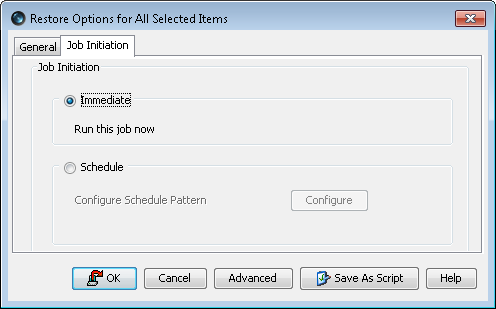
Click the Job Initiation tab.
Select Immediate to run the job immediately.
Click OK.
-
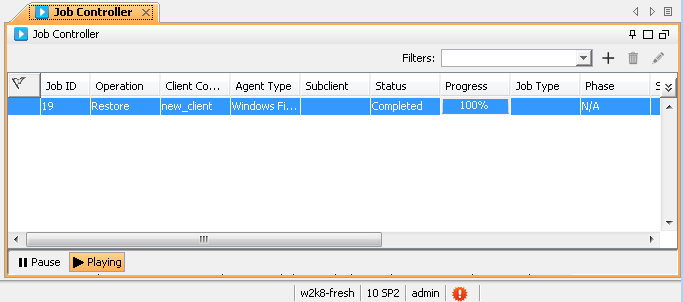
You can monitor the progress of the restore job in the Job Controller window of the CommCell Console.