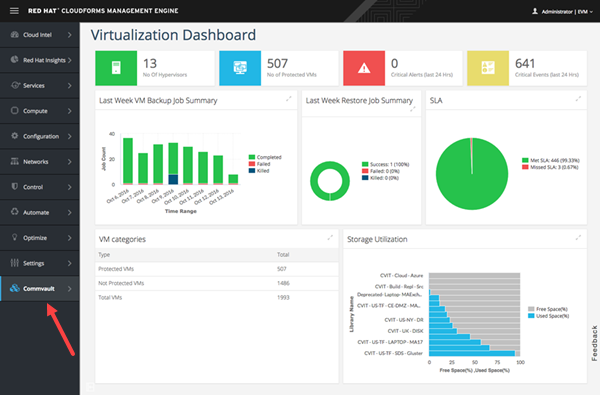
If you use Red Hat CloudForms, you can add the Command Center to the CloudForms menu. When you click on the Command Center from the CloudForms menu, the Command Center appears in the CloudForms application. For information on Red Hat CloudForms, go to the Red Hat website, CloudForms.
Best Practice: Perform these steps on a test system. If you do not have access to a test system, make backup copies of all of the Red Hat files before you make changes to them.
Before You Begin
Add the additional settings needed to view the Command Center in an iFrame. For instructions, see Viewing the Command Center in an iFrame.
Procedure
-
Go to the Red Hat /var/www/miq/vmdb/product/menubar directory, and then create section and item configuration files:
-
Create a section file named commvault_section.yml with the following content:
 type: section
name: Commvault
id: commvault_admin_console_menu
icon: optional icon
before: optional positioning in the menu
section_type: big_iframe
Note
The default placement of the Command Center is at the end of the menu. Go to the permissions.yml file to find the value you need to populate the before parameter. For example, to place Command Center before Automate in the CloudForms menu, add before: aut to the commvault_section.yml file.
-
Create an item file named commvault_item.yml with the following content:
 type: item
name: Access
id: admin_console_access
feature: admin_console_access
rbac:
  feature: admin_console_access
parent: commvault_admin_console_menu
href: URL to Command Center
item_type: big_iframe
-
-
Go to the Red Hat /var/www/miq/vmdb/db/fixtures/miq_product_features directory, and create a menu configuration file:
-
Create a menu file named commvault_menu.yml with the following content:
 :name: Commvault
:description: Access to the Commvault Command Center
:feature_type: node
:parent: everything
:identifier: commvault
:children:
- :name: Access
  :description: access.commvault.admin.console
  :feature_type: node
  :identifier: admin_console_access
-
-
Go to the Red Hat /var/www/miq/vmdb/db/fixtures/miq_product_roles/ directory, and add the identifiers from the commvault_menu.yml file to the redhat_access_user_roles.yml file:
:miq_product_feature_identifiers: - existing identifiers - commvault - admin_console_access -
Go to the Red Hat /var/www/miq/vmdb/config directory, and add the ID from the commvault_section.yml file to the permissions.yml file:
:existing section IDs :commvault_admin_console_menu -
Go to the Red Hat /var/www/miq/vmdb directory and run the following command:
# RAILS_ENV=production rake assets:clean
# RAILS_ENV=production rake assets:precompile
# systemctl restart evmserverd
Tip
If you receive an error, check the production.log file.
Results
Commvault will appear as an entry in the CloudForms menu.