Start the Discover Active Directory Forest Wizard
-
From the Command Center navigation pane, go to Protect > Active Directory.
The Overview page appears.
-
On the Forests tab, click Add Active Directory forest app.
The Discover Active Directory Forest wizard appears.
General Page: Configure a Domain Controller
To configure a domain controller that will discover your AD forest, install the Active Directory Agent package. If your environment has multiple domains, install the Active Directory Agent on the root domain controller.
-
For Name, enter a descriptive name for the forest.
-
For Root domain controller, click the add button
 .
.The Install new root domain controller dialog box appears.
-
Download the Active Directory package, and then copy it to a domain controller (in a multi-domain environment, to the root domain controller).
-
Run the ActiveDirectory64.exe file and provide the CommServe hostname.
-
For Root domain controller, click the refresh button, and then select the domain controller.
-
Click Next.
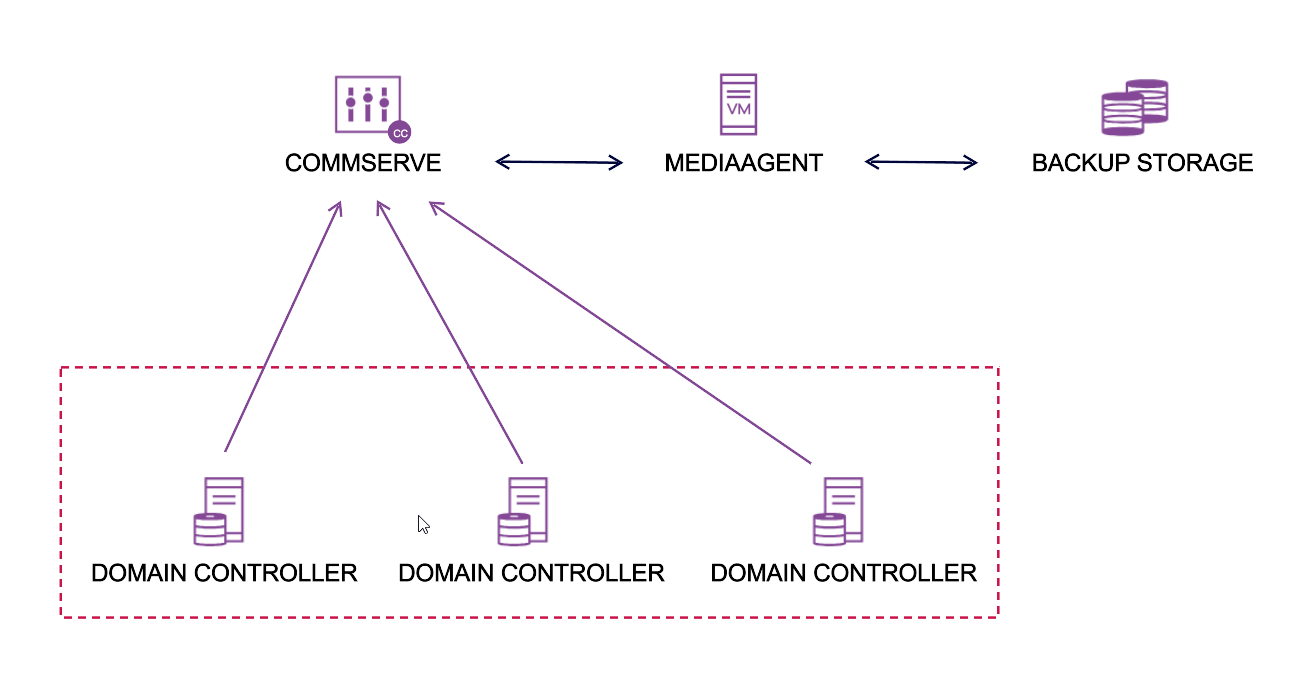
Backup configuration of source DCs
Backup Plan Page: Create Primary On-Premises Backup and Secondary Cloud Backup
Create a Backup Plan with a Primary Backup Copy on On-Premises Disk Storage
-
Click the add button
.The Create backup plan dialog box appears.
-
For Plan name, enter a name for the backup plan.
-
For Storage, click the add button
, and then select Disk.The Add disk storage dialog box appears.
-
For Name, enter a name for the storage.
-
For Backup Location, click Add.
The Add backup location dialog box appears.
-
For MediaAgent, select your storage server.
-
For Type, select Network.
-
Enter the user name and password for an account that has access to the backup location.
-
In the Backup location box, enter the network path to the storage.
Important
Enter a network path, not a local path, because some servers must access the path remotely.
-
Click Save.
-
Specify retention settings for the backup plan.
-
Click Done.
-
Select the backup plan.
Create a Secondary Backup Copy in the Cloud (Recommended)
Storing a secondary copy of your backups in the cloud is recommended. Instead of creating the secondary backup copy now, you can do it later.
-
Click Add copy.
-
For Name, enter a name for the storage.
-
For Storage click the add button
, and then select Cloud.The Add cloud storage dialog box appears.
-
For Type, select the cloud storage provider.
-
Enter the details for the cloud storage.
-
Click Save.
-
Click Next.
Service Account Page: Create Admin Credentials
-
For Credential, click the add button
.The Add credential dialog box appears.
-
Enter a name for the credential.
-
Enter the user account and password for an administrative account that belongs to the Backup Operators group in the root domain of the forest. The user account must be in the Domain_Name\User_Name format.
The Commvault software uses this account to discover the AD forest topology.
-
Click Save.
-
Select the credential.
-
Click Submit.
Summary Page: Review Your Settings
-
Review the summary.
-
Click Next.
Domain Controllers Page: Review Your Discovered AD Forest
The Domain Controllers page shows your discovered Active Directory forest.
You can close the wizard.