Create a recovery group that specifies the resources to recover. For application-aware recovery, include the VM and its associated databases or applications so the VM is recovered first, followed by the application data.
Start the recovery group wizard
-
In the Command Center navigation pane, go to Secure > Cleanroom recovery.
-
On the Recovery groups tab, in the upper-right area of the page, click Add recovery group.
Resource selection page
When selecting resources:
-
Include VMs and their associated applications or databases.
-
By default, selecting a VM includes its discovered applications or databases.
-
Expand the VM to review its nested applications or databases and clear any application you do not want to recover.
-
Make sure related components are grouped together for coordinated recovery.
Manual association
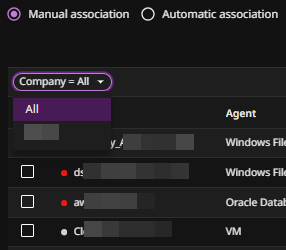
With Manual association, you simply select the resources.
To view only resources that belong to a certain company, select the company.
Automatic association
Select a client scope, and then specify rules and/or rule groups.
-
For Client scope, select the primary criteria—either company, user, or user group.
Example
Select all resources that belong to the Domain1\end_users user group:
- Client scope: Select Clients of user group.
- Company: Enter Domain1\end_users.
-
Click Add rule, and then specify the rule criteria.
Example
Select all resources that are associated with a plan that contains Finance:
- Select rule type: Select Clients associated with plan.
- Which matches with: Select contains.
- Value: Enter Finance.
Summary page
The Summary page shows the resources that are associated with the recovery group.
Verify that:
-
All required VMs are included
-
Associated applications or databases are included
-
Any applications or databases you do not want to recover have been cleared before you create the runbook
To proceed with creating a runbook, click Create & start runbook creation.