Terminology
This agent uses the following entities to manage backup and restore operations from the CommCell Console.
Agent: Defines the Exchange Server to be archived.
Backup Set: Facilitates automatic discovery of Public Folders.
Subclient: Defines the Public Folders to be archived.
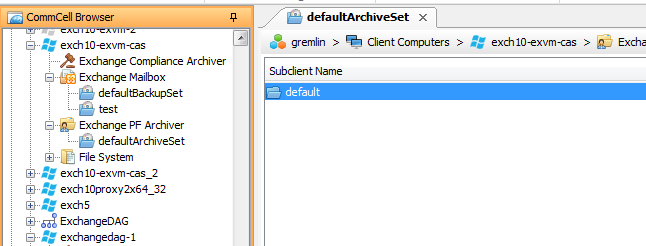
Configuring Archive Rules for Messages
Archiving rules specify the criteria for the type of data to be archived. Messages that meet these criteria are rendered available for archiving if they satisfy any or all the archiving rules.
Based on Message Properties
You can set rules to archive messages based on the messages properties. All the messages that match these criteria will be archived.
-
From the CommCell Browser, navigate to Client Computers | <Client> | Exchange PF Archiver | <Archive Set>.
-
Right-click the Subclient, and then click Properties.
-
Select the Archiving Rules tab.
-
Select the Enable all rules check box.
-
In the Archive message after box, type or select the number of days since the message was last accessed.
-
In the Archive message only if size is greater than box, type or select the size of the message in KB.
-
Select the Select items with attachment(s) only check box to archive only those items that have attachments.
-
Select Use either Age or Size rule check box to archive if either the Age or Size of the message or item matches the respective rule.
-
Select the Use Sent/Received time for Age rule check box.
-
Click OK.
Based on Stubs
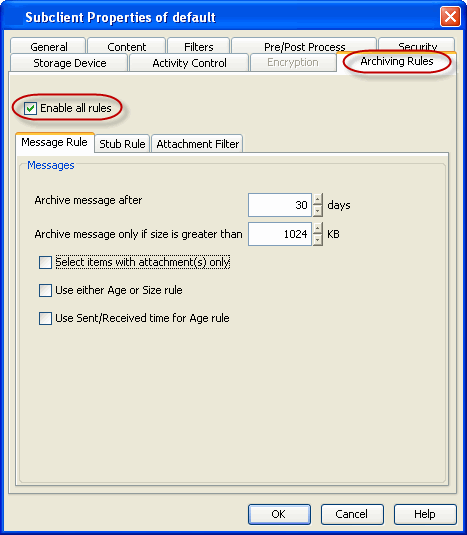
You can set rules to archive messages based on the stub properties. All the messages that match these criteria will be archived.
-
From the CommCell Browser, navigate to Client Computers | <Client> | Exchange PF Archiver | <Archive Set>.
-
Right-click the Subclient, and then click Properties.
-
Select the Archiving Rules tab.
-
Select the Enable all rules check box.
-
Click the Stub Rule tab.
-
Click Preserve stubs until the media has been pruned to preserve stubs until the media has been pruned.
-
In the Prune stub only after box, type or select the number of days after which the stubs should be pruned.
-
Select the Do not create stub check box if you do not want to have a stub to be created after archiving.
-
Click OK.
Based on Attachments
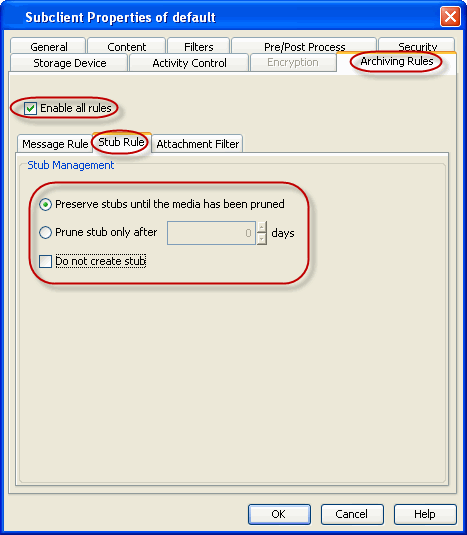
You can include or exclude attachments from an archive operation. Use the following steps to configure an Attachment Filter.
-
From the CommCell Browser, navigate to Client Computers | <Client> | Exchange PF Archiver | <Archive Set>.
-
Right-click the Subclient, and then click Properties.
-
Select the Archiving Rules tab.
-
Select the Enable all rules check box.
-
Click the Attachment Filter tab.
-
Click Add, double-click the desired file extension of the attachment.
-
Click Include to include all the attachments with the selected extension in the Archive operation.
-
Click Exclude to exclude all the attachments with the selected extension in the Archive operation.
-
Click Close.
-
-
Click OK.
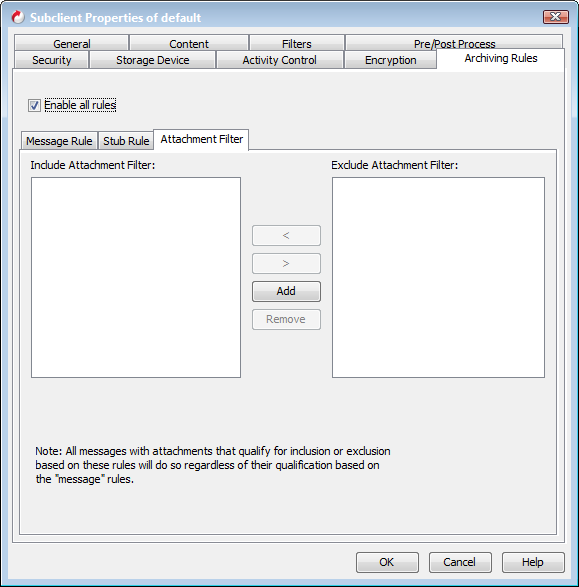
Selecting Folders for Archiving
Filter Specific Folders
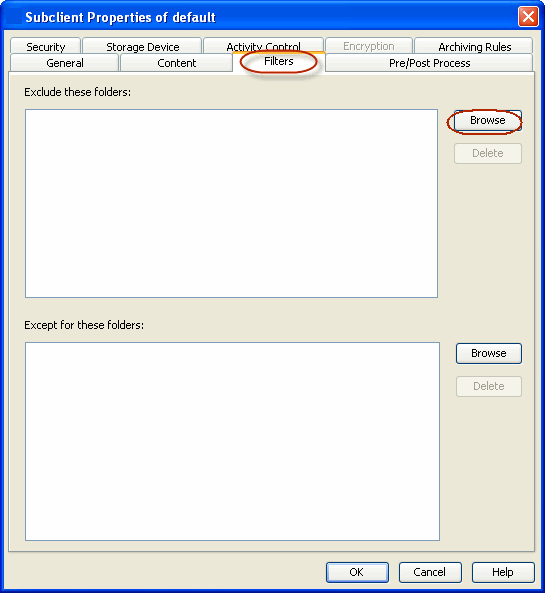
Use the following steps to exclude folders from archive operations.
-
From the CommCell Browser, navigate to Client Computers | <Client> | Exchange PF Archiver | <Archive Set>.
-
Right-click the Subclient, and then click Properties.
-
Click the Filters tab.
-
Click Browse next to Exclude these folders.
-
Select the folders that you want to exclude from archive operation, and then click Add.
-
Click OK.
Include Specific Folders
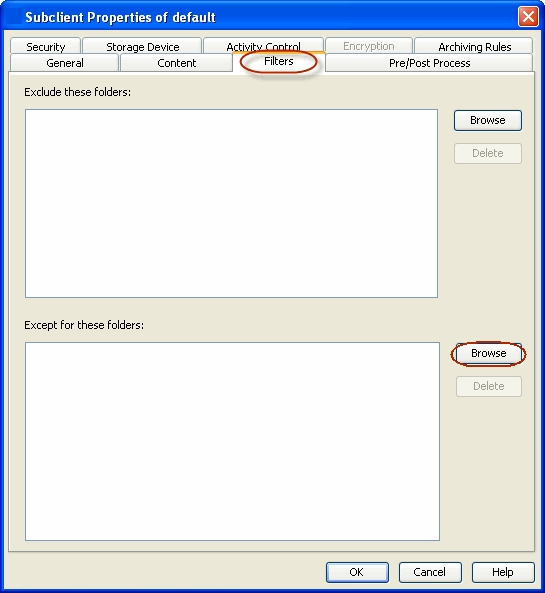
You can include specific folders in archive operations for a subclient in cases where a parent object is listed in the Exclude filter.
-
From the CommCell Browser, navigate to Client Computers | <Client> | Exchange PF Archiver | <Archive Set>.
-
Right-click the Subclient, and then click Properties.
-
Click the Filters tab.
-
Click Browse next to Except for these folders.
-
Select the folders that you want to include in the archive operation, and then click Add.
-
Click OK.
Change User Accounts for Exchange Agents
The Exchange agents require a user account that has Exchange administrator privileges to:
-
Perform backups and restores
-
Log on to the related server to access the data
Additional accounts should be established by the Exchange database administrator.
By default, when you add the agent, a user account with Exchange Administrator privileges is provided. You can change the user account at the agent level.
-
From the CommCell Browser, expand Client Computers > client.
-
Right-click Exchange, and then click Properties.
The Properties dialog box appears.
-
Click Change Account.
-
Type the user name in the Exchange Administrator Account box.
-
Type the password in the Password box and reenter it in the Confirm Password box.
-
Click OK.
Managing the Default Subclient
By default, all mailboxes are automatically assigned to the default subclient. This default behavior is designed to ensure all public folders are archived.
If you do not want all public folders to be included in the default subclient automatically, you can do so as described in the following sections.
Caution
We recommend that you do not modify these settings. Doing so would disable the default subclient's capability to serve as a catch-all entity for mailbox data. As a result, some data may not get archived.
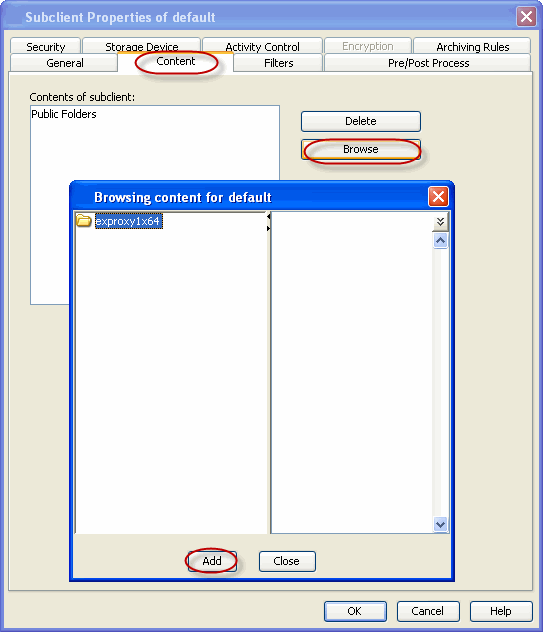
Use the following steps to select the subclient's content for archiving:
-
From the CommCell Browser, expand Client Computers > client > Exchange PF Archiver > archive_set**.
-
Right-click the Subclient, and then click Properties.
-
Click the Content tab.
-
Click Browse to select the folders you want to archive.
-
Click Add.
-
Click OK.
Modifying an Agent, an Archive Set, or a Subclient
There are several configurable properties available for your agent that can be modified from the agent, archive set or subclient level as per your need.
The following table describes the properties that can be configured from the agent, archive set and subclient levels.
|
Option |
Description |
Related Topics |
|---|---|---|
|
Change the Profile Name |
You can modify the profile that is associated with the appropriate Administrator Mailbox.
|
|
|
Change the Mailbox Name |
You can modify the name of the mailbox that is associated with the appropriate Administrator profile.
|
|
|
Change the Exchange Server Name |
You can modify the name of the Exchange Server that is installed on the client computer. However, the Exchange server name should not be the same as Client or Host Name.
|
|
|
Rename Archive Set and Subclient |
You can rename a archive set and subclient: Renaming Archive sets:
|
|
|
Change Storage Policies |
You can modify the storage policies in any of the following situations:
|
Refer to Storage Policies. |
|
Data Transfer Options |
You can configure the available resources for transferring data secured by data protection operations from the subclient level. This includes the following:
|
Refer to Data Compression and Network Bandwidth Throttling. |
|
View Data Paths |
You can view the data paths associated with the primary storage policy copy of the selected storage policy or incremental storage policy. You can also modify the data paths including their priority from the subclient level.
|
|
|
Configure a Subclient for Pre and Post Processing of Data Protection |
You can add, modify or view Pre-processes and Post-processes for the subclient. These are batch files or shell scripts that you can run before or after certain job phases.
|
Refer to Pre-processes and Post-processes. |
|
Configure Activity Control |
You can enable backup and restore operations from the agent and subclient level. However, you can enable restore operations only from the agent level.
|
Refer to Activity Control. |
|
Configure User Security |
You can configure user security from the agent or subclient level. You can perform the following functions:
|
Refer to User Administration and Security. |
|
Enable and Disable Data Encryption |
When you configure encryption at the client level, it is configured automatically for all the subclients associated with all the agents installed on that client. If you want to disable or change the encryption at the subclient level, follow the steps given below:
|
Refer to Data Encryption. |
|
View Software Version |
At the client level, the Version tab of the Properties dialog box displays the software version of the component.
|
|
|
CommCell Configuration Report |
The CommCell Configuration Report provides the properties of the CommServe, MediaAgents, clients, agents, subclients, and storage policies within the CommCell based on the selected filter criteria.
|
Refer to CommCell Configuration. |
Deleting an Agent, an Archiveset or a Subclient
The following sections describe the steps involved in deleting an agent, archive set or subclient.
Caution
When you delete an instance or archiveset, the associated data is logically deleted and you can no longer access the corresponding data from CommCell Console for recovery purposes.
Refer to the Recovering Data Associated with Deleted Clients and Storage Policies for information on how to recover data if you accidentally delete an entity.
Deleting an Agent
You must uninstall or deconfigure the agent software from the client computer before deleting it from CommCell Browser. After you delete the client software, you can either leave the corresponding data intact for an appropriate action or you can remove the data immediately. If you choose to remove the data immediately, you must delete the agent from the CommCell Browser. If you delete the agent, all of the agent's data is irretrievably lost.
-
You cannot delete an agent while operations for that agent are running.
-
From the CommCell Browser, navigate to Client Computers > client**.
-
Right-click the agent**, and then click Delete.
-
A confirmation message appears with the following message:
This operation will permanently delete the data backed up from this level and it cannot be restored. -
Click OK to continue with the deletion operation or click No to cancel the deletion.
Deleting an ArchiveSet
Consider the following before deleting an Archive Set:
-
You cannot delete a default Archive Set.
-
Schedules associated with the Archive Set are also automatically deleted.
-
From the CommCell Browser, navigate to Client Computers | <Client> | <Exchange PF Archiver>.
-
Right-click the <Archive Set>,Point to All Tasks, and then click Delete.
-
A confirmation message is displayed, asking if you want to delete the Archive Set.
Click No to cancel the deletion and retain the archive, or click Yes to continue the deletion.
Deleting a Subclient
Consider the following before deleting a subclient:
-
You cannot delete a default subclient.
-
Schedules associated with the subclient are also automatically deleted.
-
From the CommCell Browser, expand to Client Computers > client > agent > archive_set
-
Right-click the subclient that you want to delete, and then click Delete.
A confirmation message appears that asks if you want to delete the subclient.
-
Click No to cancel the deletion and retain the subclient, or click Yes to continue the deletion.