You can edit the configuration for an existing Threat Scan plan.
Procedure
-
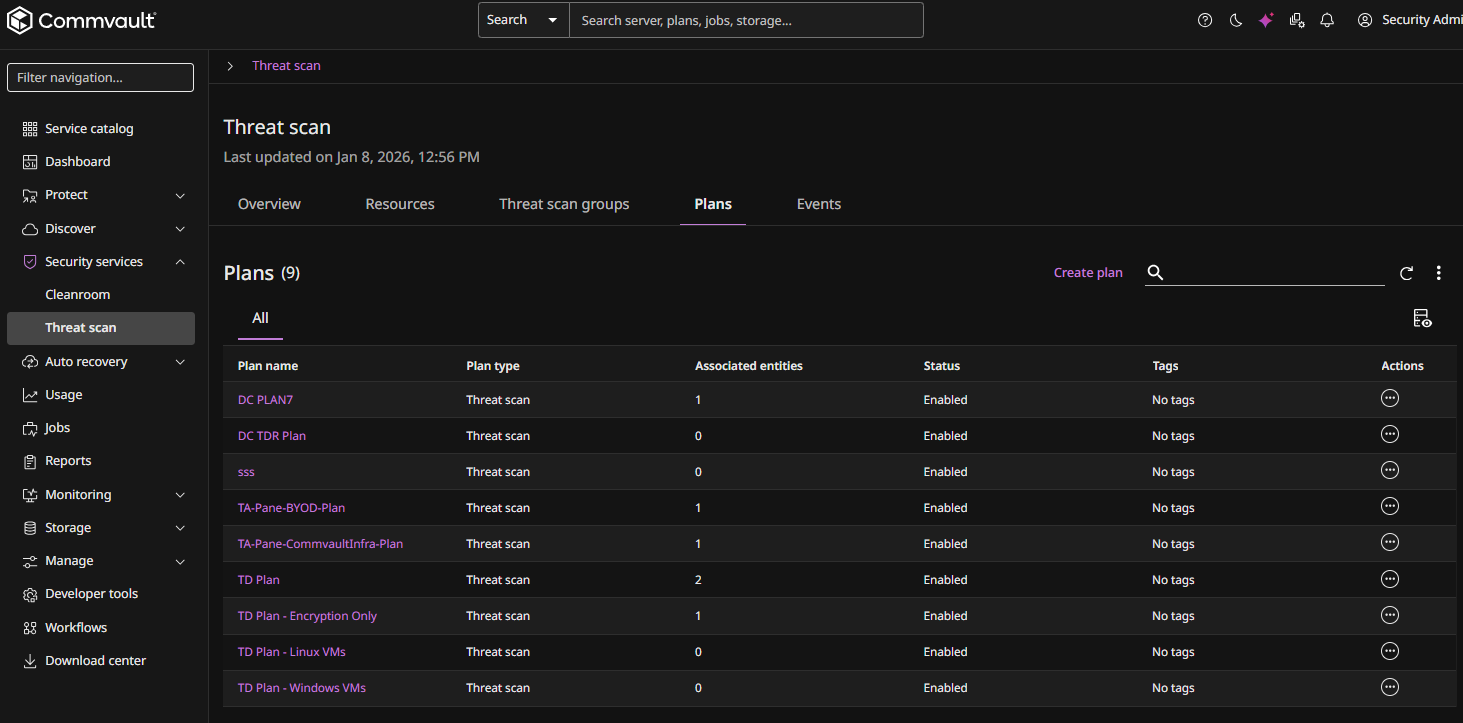
From the Command Center navigation pane, go to Secure > Threat scan.
The Threat Scan page appears.
The Plans tab shows all existing plans.
-
Click the name of the plan you want to edit.
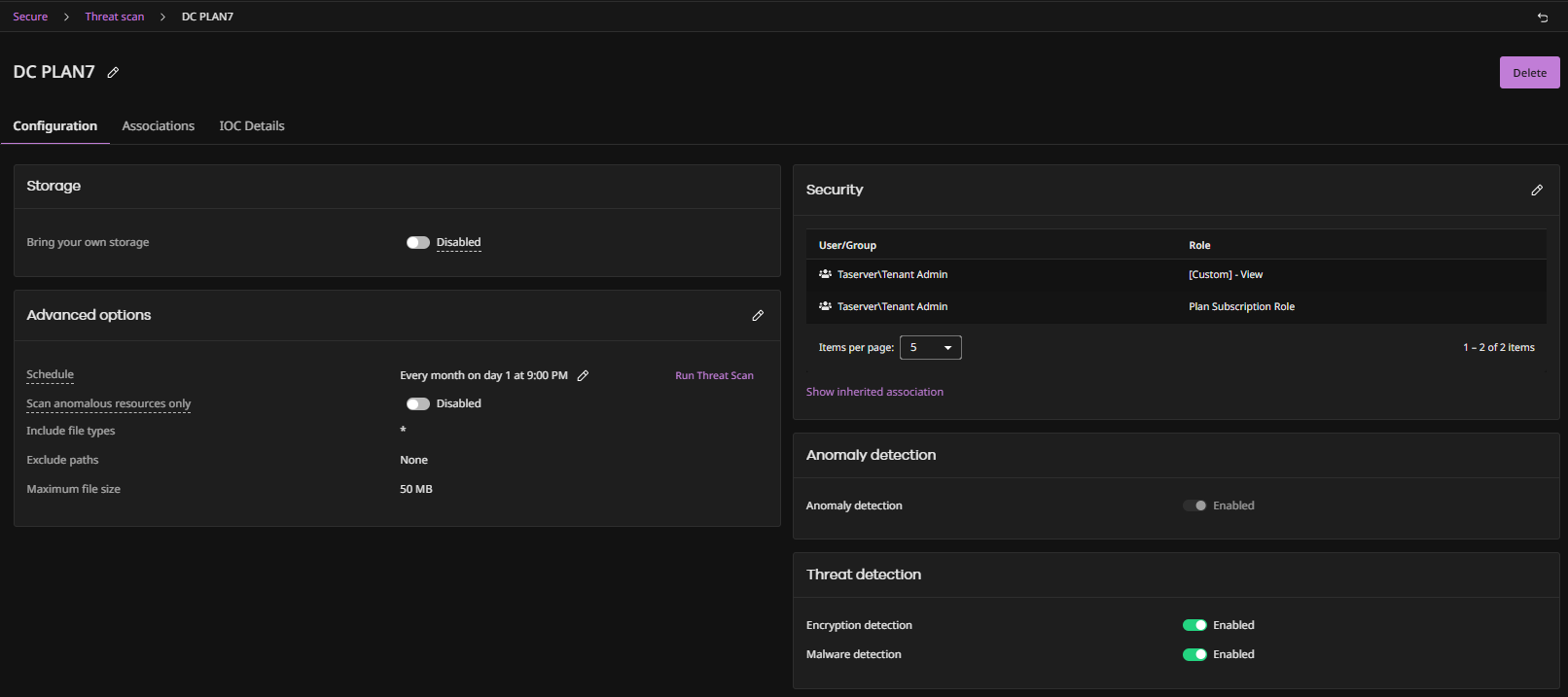
The Threat Scan plan page appears.
-
To set the maximum file size that Threat Scan can scan, do the following:
-
Under Advanced options, click the Edit button
 .
.The Advanced options dialog box appears.
-
For Maximum file size, enter a file size.
Note
You can specify a maximum file size of up to 500 MB. The default maximum file size for scanning is 50 MB.
-
-
To customize what is content indexed and analyzed for threats, do the following:
-
Under Advanced options, click the Edit button
.The Advanced options dialog box appears.
-
To include file types for content indexing and threat detection, in the Include file types field, enter the extension using the format *.[ext], and then click the checkbox that appears for that extension.
-
To exclude directories from content indexing and entity detection, in the Exclude paths field, enter the path using the format /[directory_name], and then click the checkbox that appears for that directory.
You can include wildcard expressions in the directory path. For example, to exclude all the files in a directory, enter */[directory_name].
-
-
For information on editing other configurations, see Creating a New Plan.