Settings for resources in cleanroom runbooks include resource group, storage account, region, recovery point, and post-recovery action scripts. You can also delete an resource or mark it as failed.
Go to the runbook that contains the resource
-
In the Command Center navigation pane, go to Security services > Cleanroom.
-
On the Recovery groups tab, click the recovery group that contains the runbook.
-
Click the runbook.
Reset overridden recovery options for all resources
When you modify a recovery option for a cleanroom site, you can apply that change to all resources in the associated runbook.
-
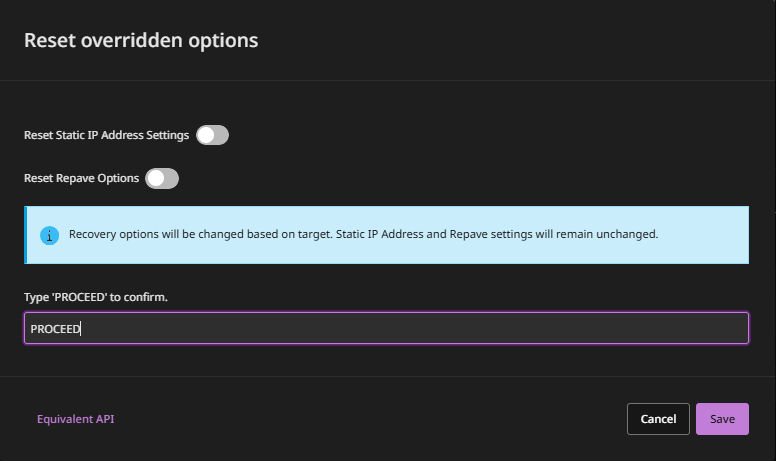
On the Steps tab, click Reset overridden options.
A confirmation message appears.
-
To reset the following, enable the toggle keys:
-
Reset static IP address settings: Resets static IP addresses on resources.
-
Reset repave options: Resets the Repave VM with new secure image setting on resources.
-
-
Confirm the change, and then click Save.
Override inherited recovery options
You can override recovery options that a resource inherits from its recovery group.
-
In the row for the resource, click the action button
 , and then select Override recovery options.
 -
Enter a descriptive name for the recovered resource.
-
For Availability zone, select the AZ for the recovered EC2 instances.
-
For Instance type, select the EC2 instance type for the recovered EC2 instances.
The Automatic option attempts to recover the instances as the same EC2 instance type as the source.
-
For IAM role for Amazon EC2, select the role for authentication that you created when you configured the Amazon EC2 hypervisor in Commvault Cloud.
-
For Network, to select a VPC network, subnet, and ENI, follow these steps:
-
Click the browse button.
The Select network settings dialog box appears.
-
Select an existing ENI or create a new ENI.
When you create a new ENI, you can specify an IP address.
-
Click Save.
-
-
For Security groups, do one of the following:
-
To have the software attempt to assign the same security group from the source EC2 instance to the recovered EC2 instances, select Auto-assign.
-
To select a security group from the AWS account that you're recovering the intances to, select Custom, and then select the security group.
-
-
For Volume type, the options are limited to only those that are supported for the volume size.
Volume types that are not supported for the volume size are visible, but not available to select.
To view the minimum and maximum volume sizes for a volume type that is not available, hover over that volume type.
-
For KMS key, select an encryption key or option:
-
Auto: This option is available for recovery to a different AWS Region.
If the identity that performs the recovery has the ec2:GetEbsDefaultKmsKeyId action, then the default KMS key for EBS encryption will have "Default EBS Key" tag. The ec2:GetEbsDefaultKmsKeyId action is included in amazon_restricted_role_permissions.json.
-
No encryption: This option is not recommended. The AWS Well-Architected Framework (SEC08-BP02) recommends enforcing encryption at rest for sensitive data.
Important
-
Commvault recommends that you enable default encryption of EBS volumes in each AWS account that creates EBS volumes. For information, see Enable encryption by default in the AWS documentation.
-
The following key types are supported:
- AWS managed keys
- AWS owned keys
- Customer managed keys, including multi-region keys
-
-
To rebuild the VMs with a secure image, follow these steps:
-
Enable the Repave VM with new secure image toggle key.
-
From the AMI selection list, select the OS image to create the new EC2 instances from.
-
From the Key pair list, select the Amazon EC2 key pair to access the recovered EC2 instances.
-
If you want to attach the OS disk and data disk to the new VM during recovery, clear the Skip attaching OS disk check box.
If you leave this setting selected, the OS disk will not be attached to the new VM, but only data disk will be attached.
-
-
Click Save.
-
In the row for the resource, click the action button
, and then select Override recovery options. -
In the VM display name box, enter a descriptive name for the recovered resource.
-
From the Resource group list, select the resource group for the recovered resource.
-
From the Region list, select a region for the recovered resource.
The region must align with the region containing Air Gap Protect storage. Otherwise, recovery fails.
-
From the Storage Account list, select a Standard general-purpose v2 or Premium general-purpose storage account.
Only storage accounts that are associated with the region you selected for the recovered resource are available to select.
-
From the VM size box, select a VM size for the recovered resource.
Only VM sizes that are available for the resource group you selected for the recovered resource are available to select.
-
From the Availability zone list, for Azure managed disks, select an AZ for the recovered resource.
Only AZs that are in the region you selected for the recovered resource are available to select.
If you select the Auto option and if the feature is supported for the specified region and VM size, the Commvault Cloud software attempts to recover the resource to the same availability zone as the source. Otherwise, the resource is recovered without a zone (No Zone).
-
From the Disk type list, for managed disks, select the disk type for the recovered resource: Original (same as the source), Standard HDD, Standard SSD, Premium SSD.
Consider the following:
-
When the Disk Type for the cleanroom site is set to Auto select, the disk type of the recovered resource is as follows:
-
For recovery of an Azure resource to an Azure cleanroom site, the disk type of the recovered resource is the same as the source.
-
For any other resource type (such as VMware) to an Azure cleanroom site, the disk type of the recovered resource is Standard HDD.
-
-
When the Disk Type for the cleanroom site is set to Premium SSD, but in the Override recovery options window, the Disk Type is set to Original, the disk type of the recovered resource is as follows:
- For recovery of an Azure resource to an Azure cleanroom site, the disk type of the recovered resource is the same as the source.
-
When the Disk Type for the cleanroom site is set to Auto select, and in the Override recovery options window, the Disk Type is set to Original, the disk type of the recovered resource is as follows:
-
For recovery of an Azure resource to an Azure cleanroom site, when in the Override recovery options window, the VM size selected does not support Premium SSD (for example, D2v3), the disk type of the recovered resource is Standard HDD.
-
For recovery of an Azure resource to an Azure cleanroom site, when in the Override recovery options window, the VM size selected supports Premium SSD (for example, B2ms), the disk type of the recovered resource is the same as the source.
-
-
-
Under Network settings, follow these steps:
-
In the available network interfaces row, click the action button
, and then select Edit. -
From the Virtual network/subnet list, select the network.
You can specify any subnet that's in the same region as the selected resource group.
If you don't select a VNet, then the first VNet in the list and the first (default) subnet that it expands to are attached to the recovered resource.
Static IP addresses from a source are not applied to the recovered resource.
-
To create a public IP, enable the Create/assign public IP toggle key, and then from the Public IP type, select Dynamic or Static.
If a public IP address is not required on the recovered resource, don't enable the Create/assign public IP toggle key. By default, a public IP address is assigned to recovered Azure VMs.
-
From the Preferred private IP type list, select a custom or dynamic IP.
-
Click Submit.
-
-
From the Security group list, select a network security group for the recovered resource.
-
To rebuild the recovered VM with a secure image, follow these steps:
-
Enable the Repave VM with new secure image toggle key.
-
From the Image option list, select the image to create the VM from.
-
Enter the credentials for the recovered VM.
-
If you don't want to attach the OS disk to the recovered VM, select Skip attaching OS disk.
If you leave this setting unselected, the OS disk is attached to the recovered VM, as a data disk.
-
-
Click Save.
Configure post-recovery actions
You can specify scripts to run on the resource after it's recovered.
Note
The following environments are supported:
- Windows: PowerShell
- Linux: Linux shell
-
In the row for the resource, click the action button
, and then select Configure post-recovery actions. -
To add a custom script, click Add.
-
Select one of the following:
-
Upload file
-
UNC
-
In the Path box, enter the UNC path to the script.
Examples:
- Windows: Enter the UNC path as WindowsPathwin.ps1.
- Unix: Enter the UNC path as \\Pathtofile\file.sh.
-
Select existing credentials or create new credentials to access the UNC path.
-
-
-
Enter a descriptive name for the script.
-
Click Save.
-
If you have multiple scripts, to change the order the scripts are executed in, click Reorder.
-
Drag and drop the scripts.
-
Click Save.
Modify the recovery point
You can modify the recovery point for the resource. By default, resources inherit the recovery point of the recovery group.
-
In the row for the resource, click the action button
, and then select Edit recovery point. -
Disable the Use group recovery point toggle key.
-
For Default recovery point, select a new recovery point.
-
If you select Point in time, click the calendar button, select a date and time, and then click Set.
-
Click Save.
Modify the priority
You can modify the recovery priority of the resource. Priority specifies the order that resources are recovered in, with 1 being the highest priority.
-
In the row for the resource, click the action button
, and then select Change priority. -
Specify the priority for the resource.
-
Click Save.
Delete the resource
- In the row for the resource, click the action button , and then select Delete.
Mark the resource as failed
If the resource is recovered in an unusable state, you can mark the resource as failed. For example, if a VM doesn't boot after recovery, you can mark the VM as failed, fix the problem that caused the failure, and then retry recovery.
- In the row for the resource, click the action button , and then select Mark as failed.
Select a different forest recovery runbook for Active Directory resources
You can select a different runbook for Active Directory forest recovery.
-
In the row for the resource, click the action button
, and then select Edit runbook template. -
Select a runbook, and then click Save.