To recover to a cleanroom, use a runbook for the recovery group that contains the resources you want to recover.
Step 1: Go to the runbook and verify readiness
-
In the Command Center navigation pane, go to Security services > Cleanroom.
-
On the Recovery groups tab, click the recovery group that contains the runbook.
-
On the Runbooks tab, click the runbook.
-
Expand all phases to verify they have a Recovery readiness status of Ready and to enable the Skip toggle key for any steps you want to skip.
Step 2: Start the recovery
-
In the upper-right area of the page, click Execute runbook.
The Recover resources dialog box appears.
-
Click Submit.
The runbook page appears, and the recovery process starts. As the recovery proceeds, you can expand the phases of the runbook to monitor the recovery.
Recovering to a cleanroom site includes verifying the required role, running a readiness report, recovering the Commvault Cloud control plane, and then recovering recovery groups and/or resources in recovery groups.
Step 1: Determine the IP addresses that need access to the recovered control plane
Before starting the cleanroom recovery process, determine which IP addresses or Classless Inter-Domain Routing (CIDR) ranges need access to the recovered control plane.
You will enter these addresses/ranges in a subsequent step.
Step 2: Verify the user account has the CS Recovery Manager role
Verify that the user account that will perform the cleanroom recovery operation has the CS Recovery Manager role.
-
Log on to cloud.commvault.com.
-
From the Command Center navigation pane, go to Manage > CommCells.
-
Click your CommCell environment.
-
At the top of the page, click the menu button
 , and then click View Users.
 -
If the user account doesn't have the CS Recovery Manager role, contact your Cloud CommCell administrator.
-
If your company doesn't have a Cloud CommCell administrator, request administrator privileges:
-
From the Command Center navigation pane, go to Workflows.
-
Click Cloud Administrator Promotion Request.
-
Click OK.
A confirmation message appears.
-
Click Continue.
When the request is approved, you receive an acknowledgment email.
-
-
Download the report from the Commvault Store to your production Commvault Cloud control plane server.
-
From the Command Center navigation pane, click Reports.
-
In the upper-right area of the page, click Actions, select Import report, and then import the report.
-
On the Reports page, click Cleanroom Recovery Readiness.
-
In the upper-left area of the report, click the Entities in recovery groups list to change the resources that are included in the report.
-
Verify that all the resources you want to recover have a status of Ready.
Entities that have any other status are not included in the recovery.
Step 3: Recover the control plane
The control plane is recovered to the latest available Commvault Cloud version, in a 'least privilege' state, which allows only recovery operations, with no physical access.
-
Log on to cloud.commvault.com.
The Readiness & Resilience page appears.
-
In the upper-right area of the page, select your CommCell environment.
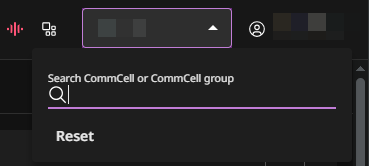
-
In the Control plane section, click Start Cleanroom Recovery.
The Start Cleanroom Recovery dialog box appears.
-
Select the backup to use for the recovery.
-
Enter the public IP addresses or Classless Inter-Domain Routing (CIDR) ranges that need access to the recovered control plane and specify whether to save the IP addresses for subsequent control plane recovery operations.
The IP addresses must be internet-facing from your location or organization. You can enter the IP addresses and/or ranges as a comma-separated list, using IPv4 and/or IPv6 format.
Examples
- Single IPv4 format: 203.0.113.5
- Single IPv6 format: 2001:db8::1
- IPv4 CIDR range: 203.0.113.0/24
- IPv6 CIDR range: 2001:db8::/32
Can I modify these IP addresses later?
Yes. After your control plane is recovered to your cleanroom site, if you want to add or remove IP addresses, just repeat these steps.
-
Click Submit.
A confirmation message appears.
-
Click Submit.
An email is sent with a confirmation stating that the recovery is completed.
-
If you're using the built-in key management server, enter the pass phrase after your control plane is recovered.
-
After you receive the email, in the left area of the page, click the Recovery Requests tab.
-
To access the newly-recovered instance, in the row for recovered backup set, click the action button
 , and then select Access Details.
 -
Record the URL and user credentials.
-
Open a new web browser, go to the URL, and enter the credentials to log on to the recovered environment.
Step 4: Go to the runbook and verify readiness
-
In the Command Center navigation pane, go to Security services > Cleanroom.
-
On the Recovery groups tab, click the recovery group that contains the runbook.
-
On the Runbooks tab, click the runbook.
-
Expand all phases to verify they have a Recovery readiness status of Ready and to enable the Skip toggle key for any steps you want to skip.
Step 5: Start the recovery
-
In the upper-right area of the page, click Execute runbook.
The Recover resources dialog box appears.
-
Click Submit.
The runbook page appears, and the recovery process starts. As the recovery proceeds, you can expand the phases of the runbook to monitor the recovery.
Step 6 (Optional): Restore the latest database backup to the recovered VM
If database backups occur more frequently than VM backups in your environment, then you can restore the latest database backup to the recovered VM/instance.
Create a network gateway on the recovered control plane
Create a network gateway (access node) in the Cleanroom infra to recovered control plane {Unix time of recovery} server group so that the recovered VMs can connect to the control plane. The Cleanroom infra to recovered control plane {Unix time of recovery} is a predefined server group that includes the network topology that's required for cleanroom recovery.
-
From the Command Center navigation pane, go to Manage > Server groups.
-
For the Cleanroom infra to recovered control plane {Unix time of recovery} server group, click the action button
, and then select Create access node. -
For Workload type, select Virtual machines.
-
Select the operating system and Provisioning hypervisor, and then click Submit.
Create an empty server group for recovered resources
Create an empty server group that the Commvault Cloud software can use to register recovered resources with the recovered control plane.
-
From the Command Center navigation pane, go to Manage > Server groups.
-
In the upper-right corner of the page, click Add server group.
-
In the Name box, enter a name for the server group.
-
Select Manual association.
Important
Don't select servers. The server group must be empty.
-
Click Save.
Create a one-way forwarding network topology on the recovered control plane
Create one-way forwarding network topology to initiate connections between the recovered VM and the recovered control plane through a network gateway.
Note
You must have Administrative Management permissions on the servers that are part of the groups that you select in the procedure.
-
From the Command Center navigation pane, go to Manage > Network.
-
Click Network topologies.
-
Click Add topology.
-
For Topology name, enter a descriptive name for the network gateway.
-
For Client type, select Servers.
-
For Topology type, select One-way forwarding.
-
Click Next.
-
For Servers, select the empty server group that you created in a previous step.
-
For Network gateways, select an infrastructure server group (Cleanroom infra to recovered control plane {Unix time of recovery}) that you want to designate as the network gateway group.
-
For Backup infrastructure, select the My CommServer Computer server group.
-
Click Next.
-
To encrypt network traffic (HTTPS), enable the Encrypt traffic toggle key.
-
For Tunnel protocol, select Authenticated, Encrypted, Raw, or Regular.
-
For Parallel data transfer streams for long distance networks, the default value is 1 and the maximum value is 8.
-
Click Submit.
Register the recovered VM to the recovered control plane
To register the VM to the recovered control plane, run the following commands on the installation_directory/Base folder.
-
Deregister the VM/instance from the production site:
./SIMCallWrapper -optype 106 -
Register the VM/instance to the recovered control plane:
./SIMCallWrapper -optype 1000 -url <cs_url> -user <user_name> -password <password> -clientname <client_name> -ConnectionInfo <Gateway_hostname:port> -ClientHostName <client_hostname> -ClientGroup <client_group> -output <outputPath> instance Instance001where:
-
url: The URL for the recovered control plane.
-
user: The name of the recovered control plane user account. By default, the
user_nameisrecoverymanager. -
password: The password for the user account provided.
-
clientname: The IP address or hostname of the recovered VM.
-
ConnectionInfo: The host name of the network gateway in the
Gateway_hostname:portformat. The default port is 8403. -
ClientHostName: The host name of the recovered VM.
-
ClientGroup: The name of the server group that includes the recovered VM.
-
output: The path to save the output XML file in. The SIMCallWrapper command saves success/error messages in XML format.
-
Configure the recovered VM as a database server
-
From the Command Center navigation pane, go to Protect > Databases.
-
From the Add Instance list, select Database Server.
-
Select the database type and click Next.
-
For Server name, select the recovered VM.
-
Enter the required details, and then click Add.
Restore the database out of place
-
From the Command Center navigation pane, go to Protect > Databases.
-
On the Instances tab, click the instance.
-
On the Overview tab, in the Recovery points section, select the latest backup, and then click RESTORE.
-
Select the data that you want to restore, and then click Restore.
-
Select Out of place.
-
For Restore type, select Cross instance restore.
-
From the Destination server list, select the recovered VM.
-
From the Destination instance list, select an instance.
-
Click Submit.
Step 7 (Optional): Perform a VirtualizeMe or 1-Touch recovery of physical servers
Before starting, verify that the destination server or the cleanroom site hypervisor can communicate with the recovered control plane.
For vME deployments in AWS or Azure, you must use an access node other than the CommServe.
For vME deployments in VMware or Hyper-V, the CommServe can be used as the access node.
You must also create new cleanroom sites and hypervisors that match the cleanroom site environment.
When selecting the restore source, choose the working copy for copy precedence in both vMe and 1-Touch recoveries.
Use VirtualizeMe or 1-Touch to restore a physical server from your control plane recovered to a cleanroom site.