You can replace a Commvault HyperScale X node when the node becomes completely unusable due to hardware issues. You can also replace the node if you accidentally reinitialized the node during a refresh operation. When you replace the node, all the drives are reformatted and the data drives are reconstructed using the other nodes in the storage pool. The replace operation also restores and rebuilds the drives that contain the Deduplication Database (DDB) and Index Cache.
Before You Begin
-
Enable root access, if root access is disabled in the storage pool. For more information, see Enabling or Disabling Root Access.
-
Verify that your environment meets the requirements that are mentioned in the Existing Node Requirements section in Prerequisites for Adding Nodes to an Existing HyperScale X Storage Pool.
-
Verify that multi-factor authentication (MFA) is enabled. Also, verify the following:
-
Verify that all nodes in the HyperScale cluster can access the following URLs:
- https://api.metallic.io, which is the endpoint used for all storage pool operations.
- https://<Saas-ring-name>.metallic.io/commandcenter, Commvault Cloud Console URL specific to your ring. For example, https://m01.metallic.io/commandcenter.
Both the URLs are on HTTPS and can be accessed through port 443.
-
Verify that users have a local CommCell account; if SAML authentication is used, create a new Local Tenant Admin account.
-
Procedure
-
Login to the Windows based computer.
-
Download the latest HyperScale Appliance ISO <Version_Number> (for example, 11.36 HyperScale ISO 3.2408) from Commvault Cloud Store.
-
Access the node using the KVM management console in your environment.
-
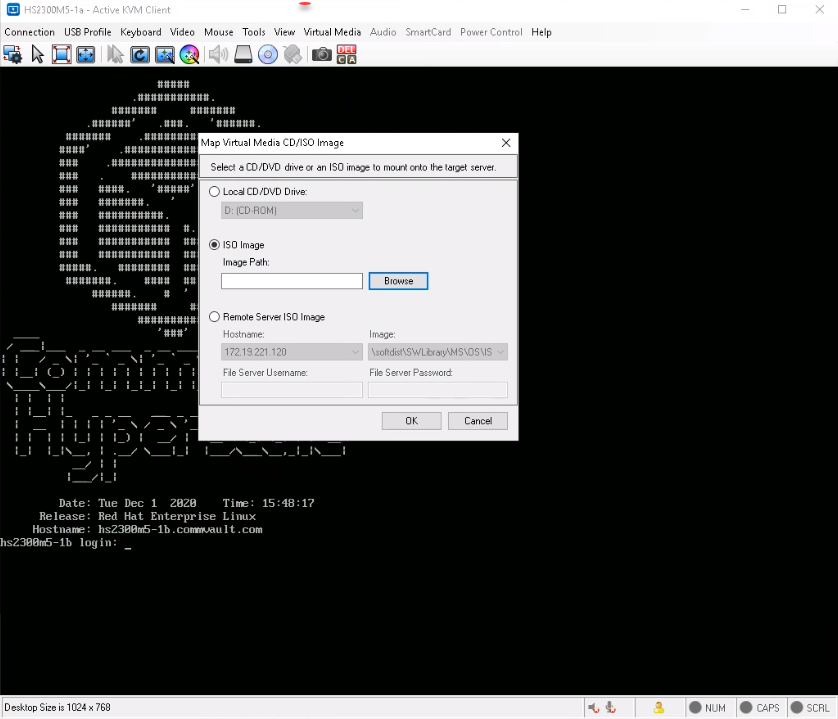
Map the downloaded ISO image as a virtual media from the KVM Management console.
Click here to view a sample image.
-
Reboot the node using the virtual media as follows.
-
Login to the node as root. (Press <Alt> + <Ctrl> + <F2> if the login prompt is not displayed.)
-
Type
reboot. -
During the boot sequence press <F12> when the following message is displayed. (This message will be displayed briefly for a few moments only during the boot sequence.)
Press F2 to enter Setup or <F12> to enter Boot Menu. -
Select the virtual media as the boot device and press <Enter>.
The Commvault HyperScale Install will be started.
-
-
If you are using a node that has an existing HyperScale configuration, the HyperScale Configuration Detected screen is displayed.
If you are using a new node, this screen will not appear.
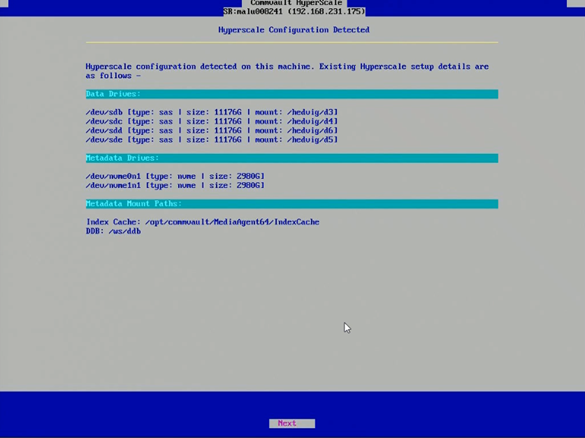
Choose Next.
-
The Preserve Data screen is displayed.
Select the Reinitialize Drives option and then click Next.
The installation process will be started. This process will take some time to complete.
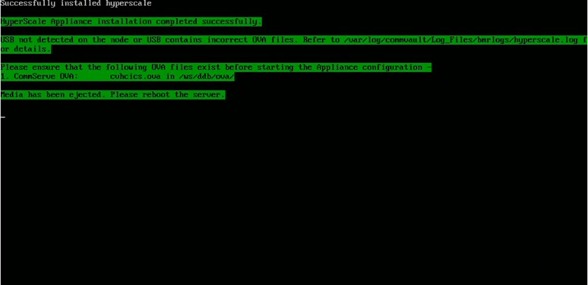
The following message is displayed when the installation is complete.
-
Reboot the node.
-
After the reboot, login using the following default credentials:
Login: root
Password: cvadmin
(Press <Alt> + <Ctrl> + <F2> if the login prompt is not displayed.)
-
Configure the Hyperscale network using the
hsxsetupcommand on the replaced node. Make sure to exit after the network configuration is complete. -
Run the following commands on one of the existing cluster nodes other than the reimaged node:
cd /opt/commvault/MediaAgent64/task_manager
./cvmanager.py -t Replace_Node
The following message appears:
: Initializing HyperScale Task Manager. : Commvault HyperScale Task Manager Initialized. : No incomplete task data found for: Replace_Node Root password of existing cluster: [Re-Enter to Confirm] - Root password of existing Cluster: -
Enter the root password which was added during the initial Hyperscale node configuration. (This root password would be the same root password used in the other nodes.)
The following message appears:
Are you registering with SaaS (y/n): -
Enter y.
The following messages appear:
Enter the SaaS backup gateway for registration:
Enter the SaaS backup gateway port for registration [443]:
Enter the fully qualified host name and port of the existing backup gateway that you are connecting to.
-
Enter y.
The following messages appear:
Authorization mode:
1) Username & Password (Non-MFA)
2) Existing Access Token
3) Username & Password + PIN (MFA)
Your Choice (1/2/3):
Enter values for all the prompts. Authentication mode 2 - Existing Access Token is currently not supported.
-
If your organization has MFA enabled and you selected 3 for the authentication mode, the following prompts are displayed.
Enter the values.CommCell user name with permission to register clients and edit storage pools: CommCell's user password with permissions to register new clients: [Re-Enter to Confirm] - CommCell's user password with permissions to register new clients: PIN:- The username must be the email address of the user. Do not enter username in the format of <CompanyName>/Username.
- Enter the PIN generated by the authenticator tool that you use for multi-factor authentication
-
If your organization does not have MFA enabled and you selected option 1 for the authentication mode, the following prompts are displayed.
Enter the values.CommCell user name with permission to register clients and edit storage pools: CommCell's user password with permissions to register new clients: [Re-Enter to Confirm] - CommCell's user password with permissions to register new clients: -
The following message appears:
Enter the hostname of the node that you want to replace. The replace process is initiated and the messages appear about the progress of the restore process.Hostname of the node to replace: -
Note: Commserve FQDN and credentials must be the same as the one that was originally used before replacing the node. Verify the minor version of the RPM using the following command:
# rpm -qa | grep hedvigThe resulting output will display the minor RPM version, as shown in the following sample output:
hedvig-cluster-1.0.0_3564_2484803ffb-1.x86_64
hedvig-common-1.0.0_3564_2484803ffb-1.x86_64
In the above example, 3564 is the minor RPM version.
-
Verify the status of the replaced node in the storage pool as follows:
-
From the navigation, click Storage > HyperScale X.
The HyperScale page appears.
-
Verify the Status column for the Backup Gateway that you have replaced.
The status appears as Media agent under Maintenance when the replace operation is in progress.
After the node is replaced the Status column for the Backup Gateway will appear as Online.
-
Verify that the node is replaced by clicking the node.
The <node> page is displayed. Check the following details:
-
Server Information area
-
Disk Status under the Disks area
-
-
-
Enable ransomware on the replaced node as described in Enabling Ransomware Protection for a HyperScale Backup Gateway.
What to Do Next
-
Install the operating system updates on the replaced node to synchronize the operating system with the other nodes in the cluster.
After you install the OS updates, verify that you have the latest maintenance release, OS and CVFS updates on the node.
-
Disable root access, if root access was originally disabled in the storage pool. For more information, see Enabling or Disabling Root Access.