If the target computer does not have any drivers, which are required by the client, you must provide the location those drivers during 1-Touch recovery. You can also add the drivers using USB disks.
Note
For VMware and Hyper-V client computers, the drivers are already present in the ISO file.
Follow the steps given below to provide the required drivers during an interactive restore or a non-interactive restore:
-
Copy all the required Mass Storage Drivers and NIC Drivers to a network location. For example: If the target system requires Adaptec Ultra160 mass storage driver, then copy the driver.inf for Adaptec Ultra160 to a network location.
-
On Windows Server 2003 computers, make a note of the license key for the operating system installed on the client.
-
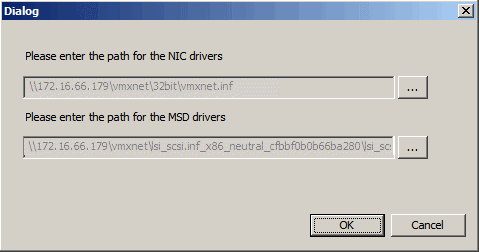
During the full system restore, specify the UNC path where you have copied the drivers.
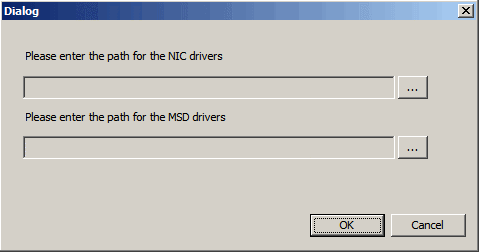
-
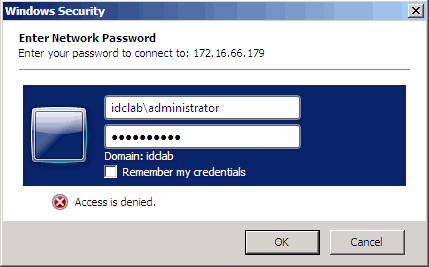
Enter the password required to access the network location.
-
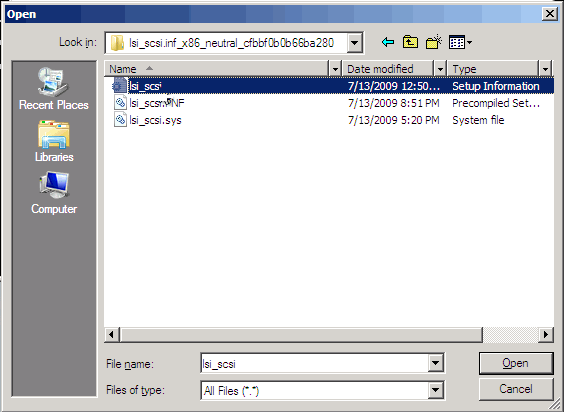
Select file(s) required to install the drivers.
Click Open.
-
Click OK.
-
Click OK.
The full system restore starts.
It is recommended that you install the latest hardware drivers after the restore completes.
If you are restoring a Windows 2003 client, the Windows Mini-Setup runs automatically after the full system restore. At the end of the Windows Mini-Setup, enter the valid license key for the restored Windows Operating System.
Note
Windows PE automatically stops running and restarts after 72 hours of continuous use. 1-Touch recovery operations performed during this period will go to a pending state. Start the 1-Touch recovery operation after the computer restarts.